How to Connect adsfox with GoHighLevel?
The GoHighLevel integration with adsfox allows you to automatically register all leads acquired through forms on your site and send them to ad systems via Conversion API / server-side tracking.
The GoHighLevel integration with adsfox also enables proper conversion tracking in GA4 and Google Ads, including sending sales data as offline conversions.
After adding the dedicated adsfox script to the Head Tracking Code section (as per the process shown on pages 2 and 3 of the PDF), the system will start independently receiving every form and forwarding data to the adsfox panel, CRM, and Meta, Google Ads, TikTok, LinkedIn, and GA4.
This solution eliminates the need for additional tools like Zapier, Make, or Stape, ensuring more accurate data, full GDPR compliance, and the ability to optimize campaigns based on valuable, qualified leads – not just submitted forms.
The entire configuration takes just a few minutes and is a basic step toward professional lead generation campaign optimization.
How to Connect adsfox with GoHighLevel?
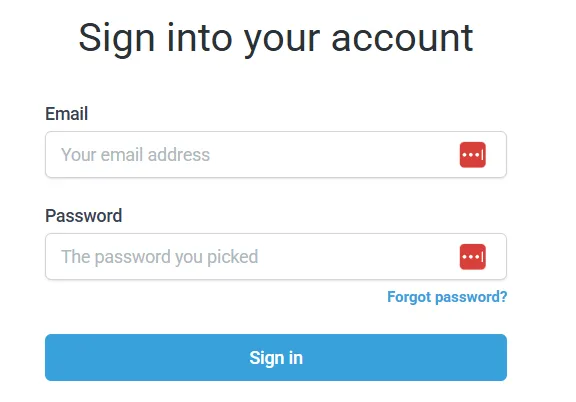
1. Log in to your GoHighLevel account from which you manage your site.

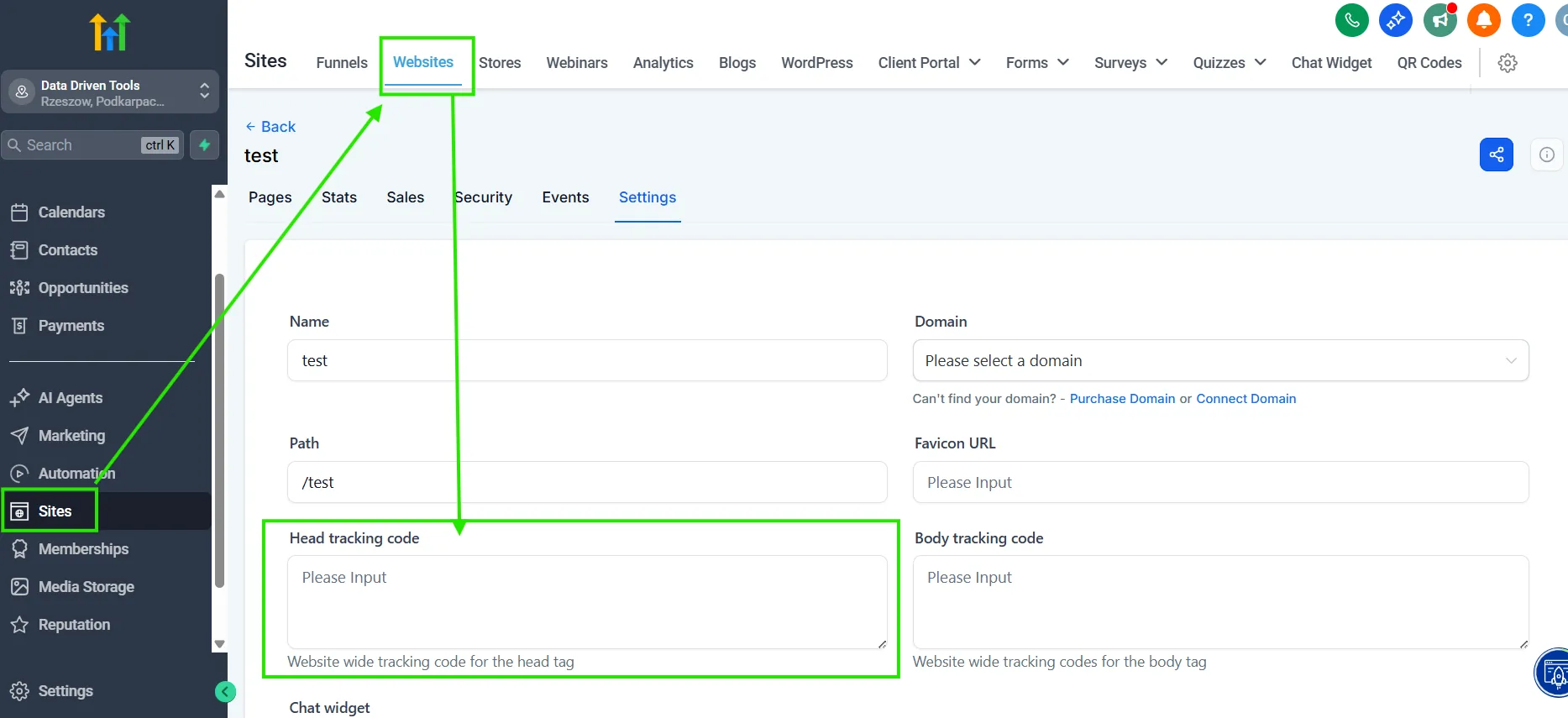
2. Go to Sites, then Websites. After selecting your site, paste the code in the Head tracking code tab.
3. Save changes.

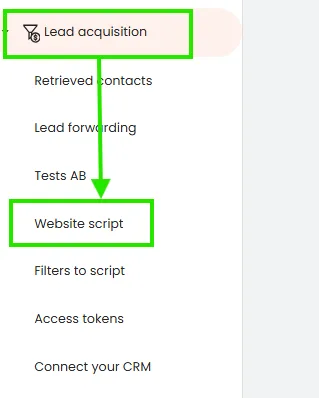
You can find the dedicated adsfox script in your adsfox panel under the Lead Acquisition tab, then website script:
Next, from the list, select the platform you use to manage your website. For GoHighLevel, this will be “others”. If your site uses reCAPTCHA or GA4, check that option before downloading the script.
If you’re using multiple domains or your form is on a subdomain, also check the 3rd option, i.e., Cross-domain:
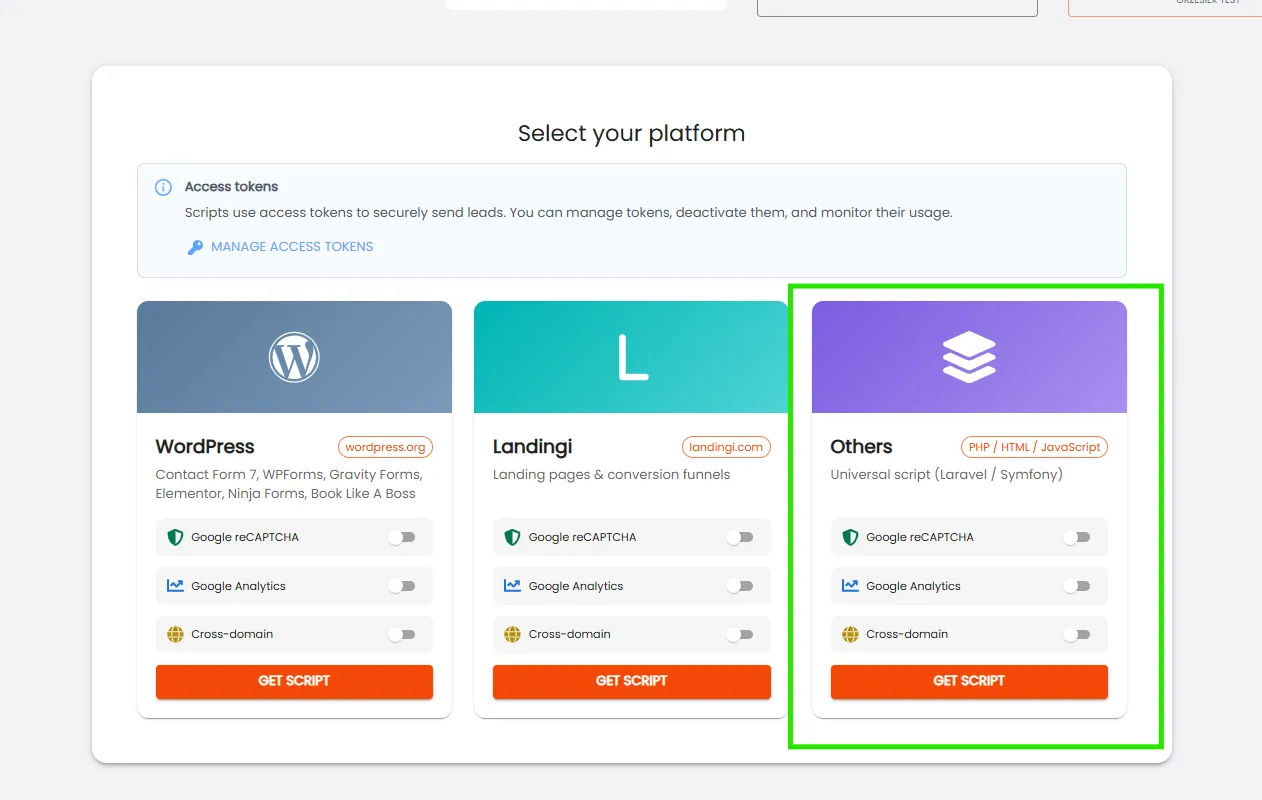
After clicking “download script”, the following view will appear:
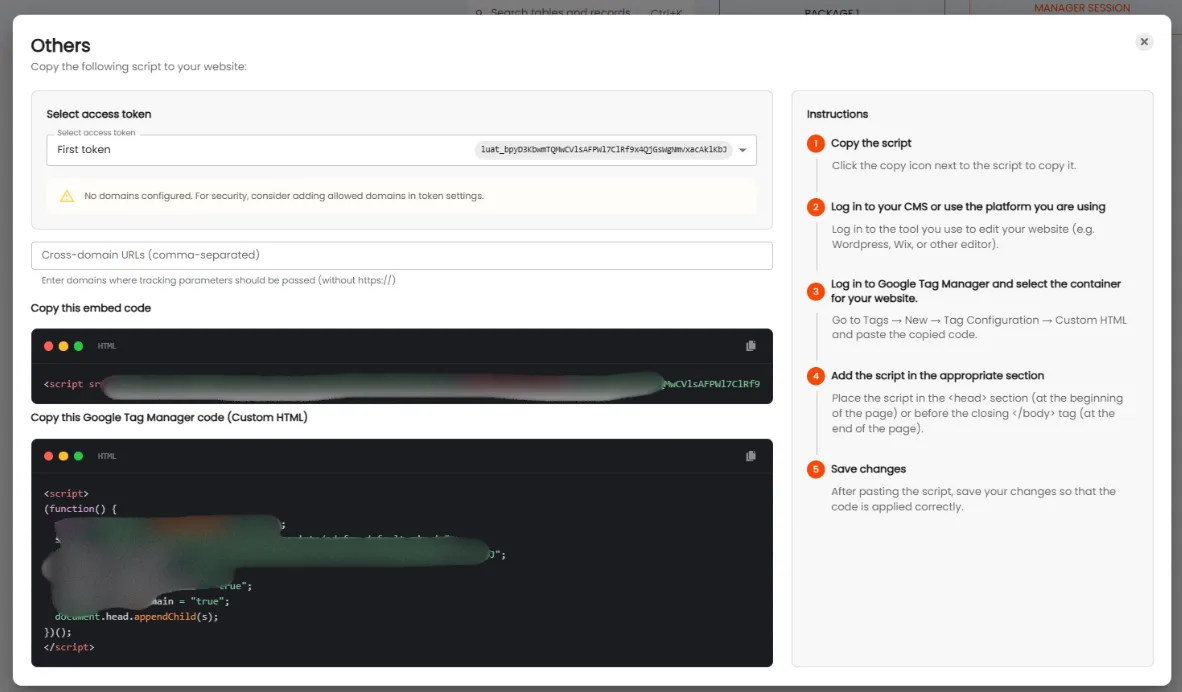
In the case of using multiple domains or a subdomain, enter them according to the panel view (separated by commas).
Then download the appropriate script. You have two options:
- Copy the embed and add it directly in your system (in this case, GoHighLevel—as described in the previous steps).
- You can implement Custom HTML via Google Tag Manager added to your page.
Regardless of which option you choose, remember to save the changes.
After pasting the script into the Head Tracking Code field and saving changes, your GoHighLevel site is fully connected to adsfox.
From that moment, the system automatically:
- Receives all leads from your site,
- Sends them to the adsfox panel,
- Synchronizes with CRM,
- Tags and classifies (new lead / qualified / non-qualified / sales),
- Sends server-side events to Meta, Google Ads, TikTok, LinkedIn, and GA4.
This gives you full visibility of the conversion path—from ad click, through form, to qualification and final sale. adsfox teaches ad algorithms which leads are valuable, allowing you to truly reduce customer acquisition costs and increase campaign ROI.
To ensure the integration is working correctly, submit a test form and check if the contact appears in the Retrieved contacts tab in adsfox.
Connecting GoHighLevel with adsfox ensures consistent tracking of sales funnels and the ability to send lead quality and sales information to ad systems, resulting in more effective campaign optimization.
What next?
After connecting your page with your CRM, it’s worth learning how to Connect adsfox with Meta. This way, all leads from ad campaigns will automatically go to your tables in adsfox.
In the next post, you’ll learn how to configure this integration step by step.