How to Connect adsfox with Webflow?
The Webflow integration with adsfox enables automatic capture of leads from forms on your site and sending them to the system in server-side tracking / Conversion API mode. After adding the dedicated script in the Custom Code → global JS scripts section, adsfox registers every submitted form and then forwards leads to CRM and ad platforms: Meta, Google Ads, TikTok, LinkedIn, and GA4.
This allows you to assess the quality of acquired contacts, tag them as qualified / non-qualified / sales, and optimize ad campaigns based on the real value of leads, not just the form acquisition cost (CPL). The integration is quick, requires no programming, and enables full utilization of server-side tracking potential in lead generation campaigns.
How to Connect adsfox with Webflow?
Remember that the ability to add custom code to a page managed by Webflow is possible from the premium subscription.
- Log in to your Webflow account.
- Go to settings (menu on the left side).
- Go to the SEO and analytics tab.
- Select “Custom code in HEAD”.
- Paste the script in “global JS scripts”.
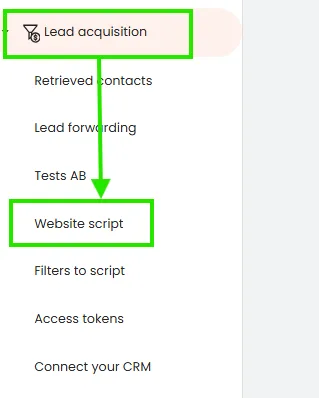
You can find the dedicated adsfox script in your adsfox panel under the Lead Acquisition tab, then website script:
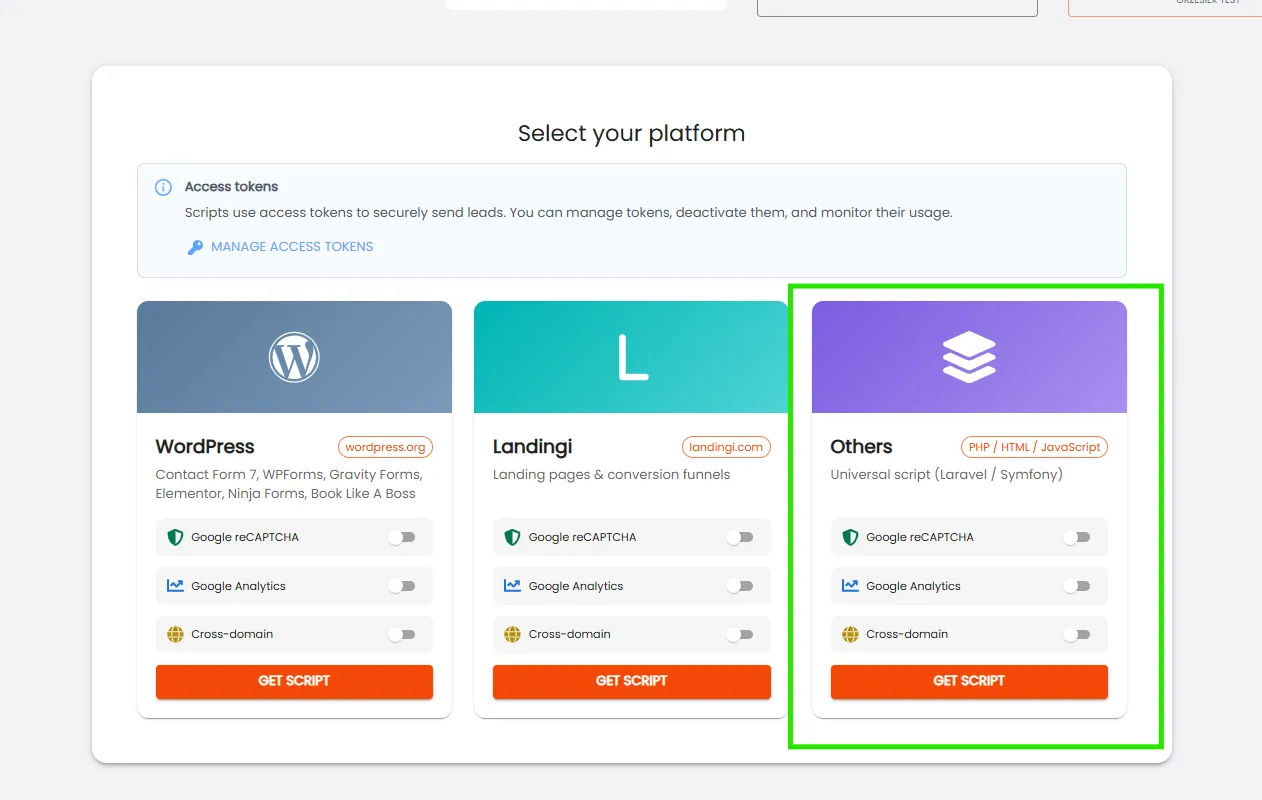
Next, from the list, select the platform you use to manage your website. For Webflow, this will be “others”. If your site uses reCAPTCHA or GA4, check those options before downloading the script.
If you’re using multiple domains or your form is on a subdomain, also check the 3rd option, i.e., Cross-domain:
After clicking “download script”, the following view will appear:
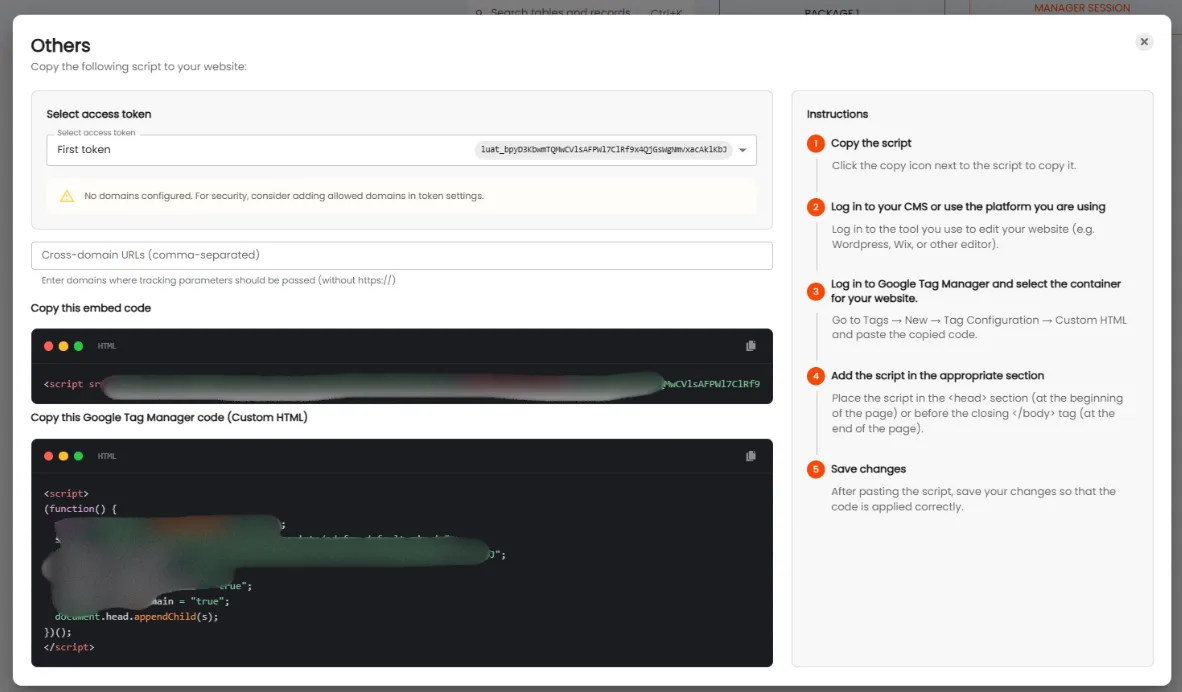
In the case of using multiple domains or a subdomain, enter them according to the panel view (separated by commas).
Then download the appropriate script. You have two options:
- Copy the embed and add it directly in your system (in this case, Webflow-as described in the previous steps).
- You can implement Custom HTML via Google Tag Manager added to your page.
Regardless of which option you choose, remember to save the changes. After saving the changes, the Webflow integration with adsfox is active.
From that moment, all leads submitted from forms will be automatically:
- Visible in adsfox under the Retrieved contacts tab,
- Synchronized with your CRM,
- Marked with statuses new lead / qualified / non-qualified / sales,
- Sent via Conversion API to Meta, Google Ads, TikTok, LinkedIn, and GA4.
This provides the ability for precise traffic quality analysis, building valuable audience groups, eliminating low-quality leads, and optimizing campaigns based on actual impact on sales. To ensure the integration is working correctly, submit a test form in Webflow and check if the lead appeared in adsfox under the Retrieved contacts tab.
The Webflow integration with adsfox ensures full ad conversion tracking without the need for multiple scripts and tags, enabling campaign optimization based on real conversion value.
What next?
After connecting your page with your CRM, it’s worth learning how to Connect adsfox with Meta. This way, all leads from ad campaigns will automatically go to your tables in adsfox.
In the next post, you’ll learn how to configure this integration step by step.