
Automate Lead Redirections in adsfox CRM

Where to Find Lead Redirections?
The redirection configuration is available in the Lead acquisition → Lead forwarding section.
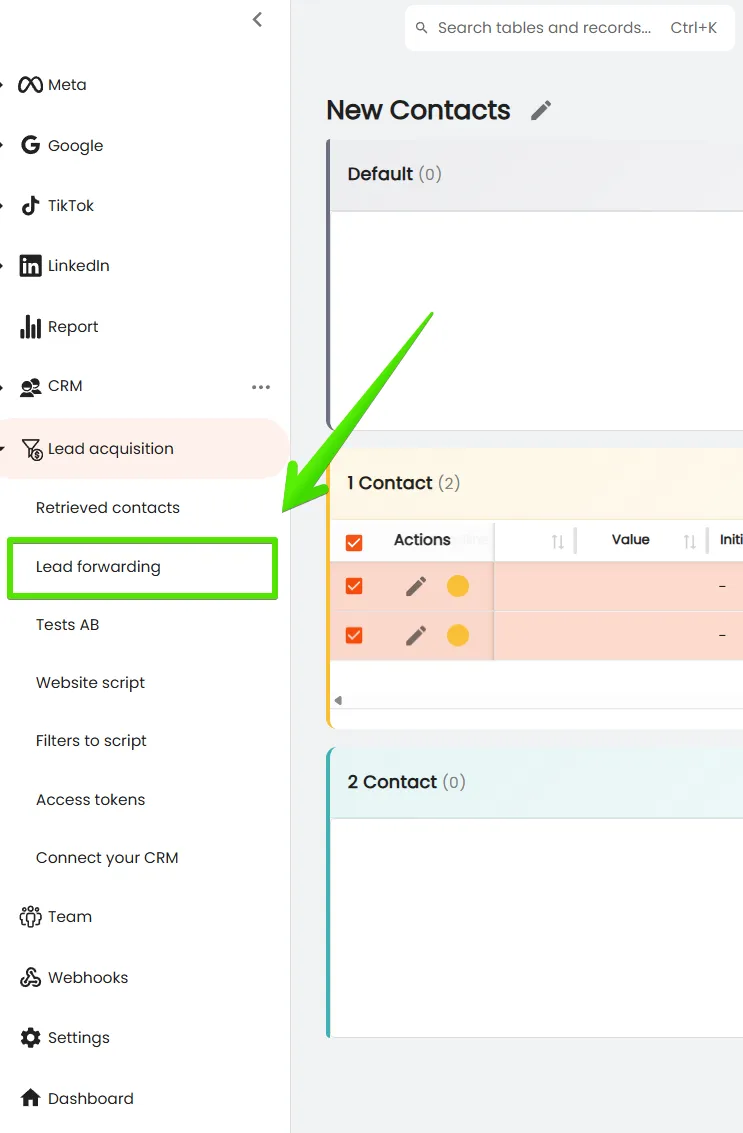
In this place, all rules are defined that determine which tables or workspaces new leads should go to.
Redirections from Website Forms and Facebook
The system provides full control over data flow. You can set leads coming from forms placed on the website and from Lead Ads forms on Facebook to be automatically saved in the selected table in CRM.
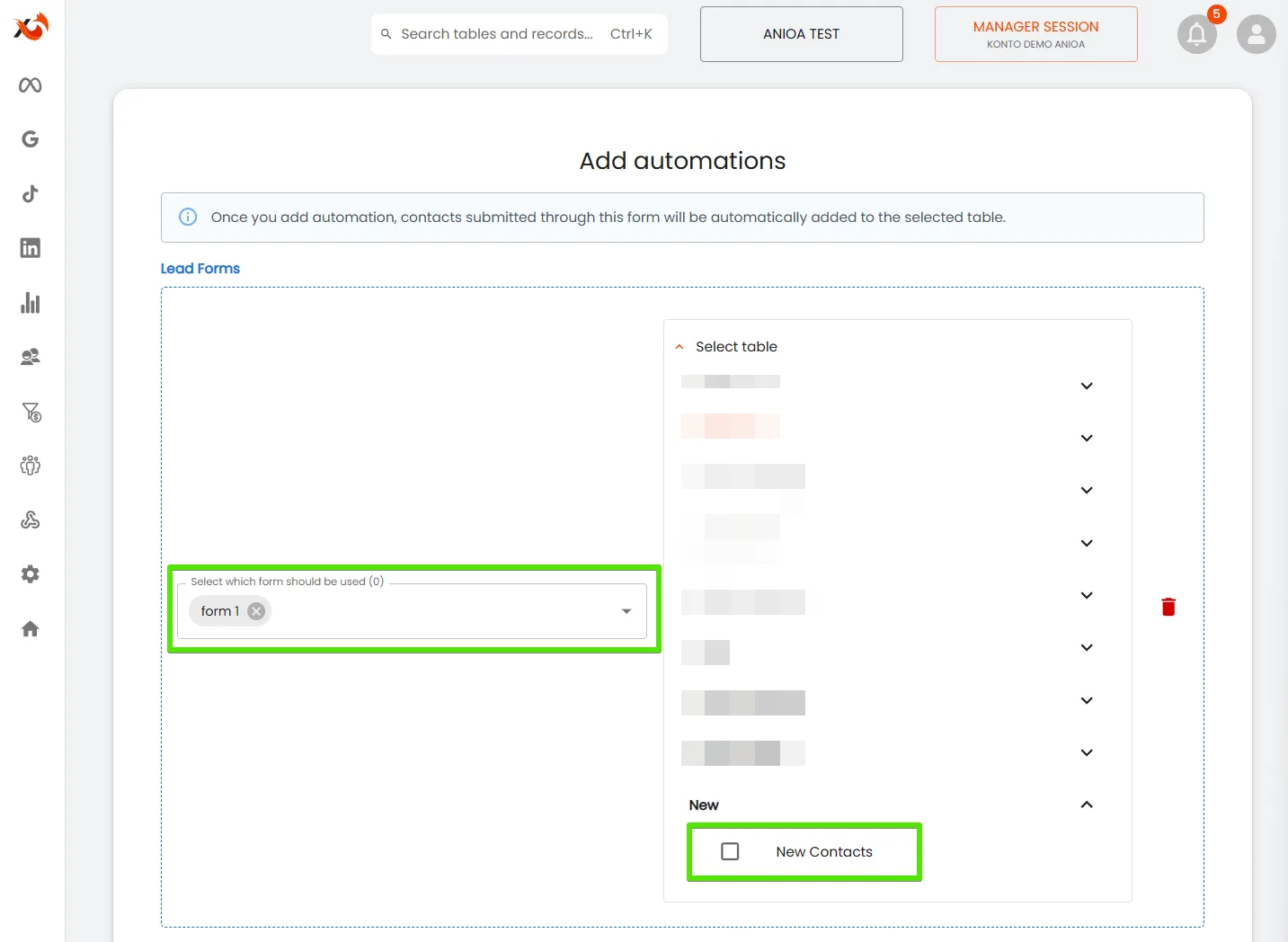
Additionally, there is the possibility to indicate the URL of the form page (full address or its fragment), which allows precise direction of leads from specific subpages to selected tables in CRM.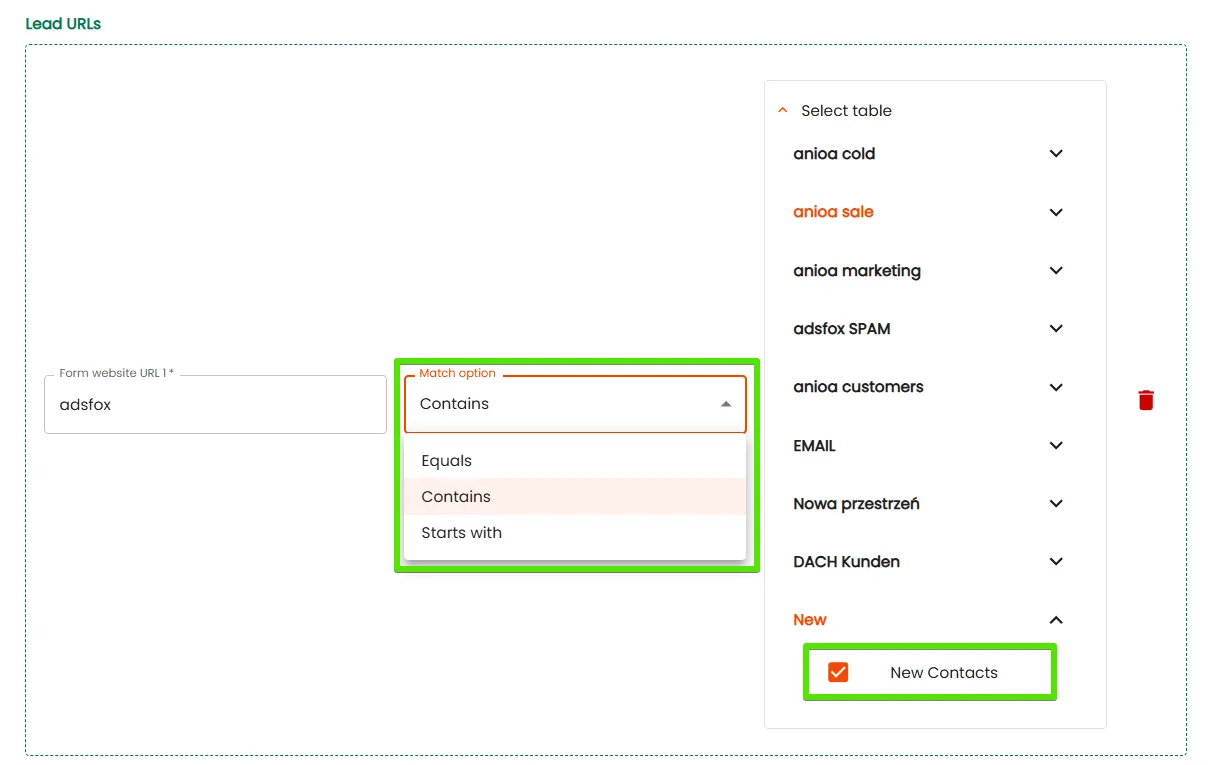
Handling Multiple Tables
If several tables are created in CRM, you can configure separate redirection rules for each of them. Thanks to this, leads from different sources go to dedicated tables, which facilitates segmentation and data analysis.
Note: deleting a redirection will cause new contacts to no longer be saved in the selected table. However, all previously added records will remain in the system.
Field Mapping of Forms
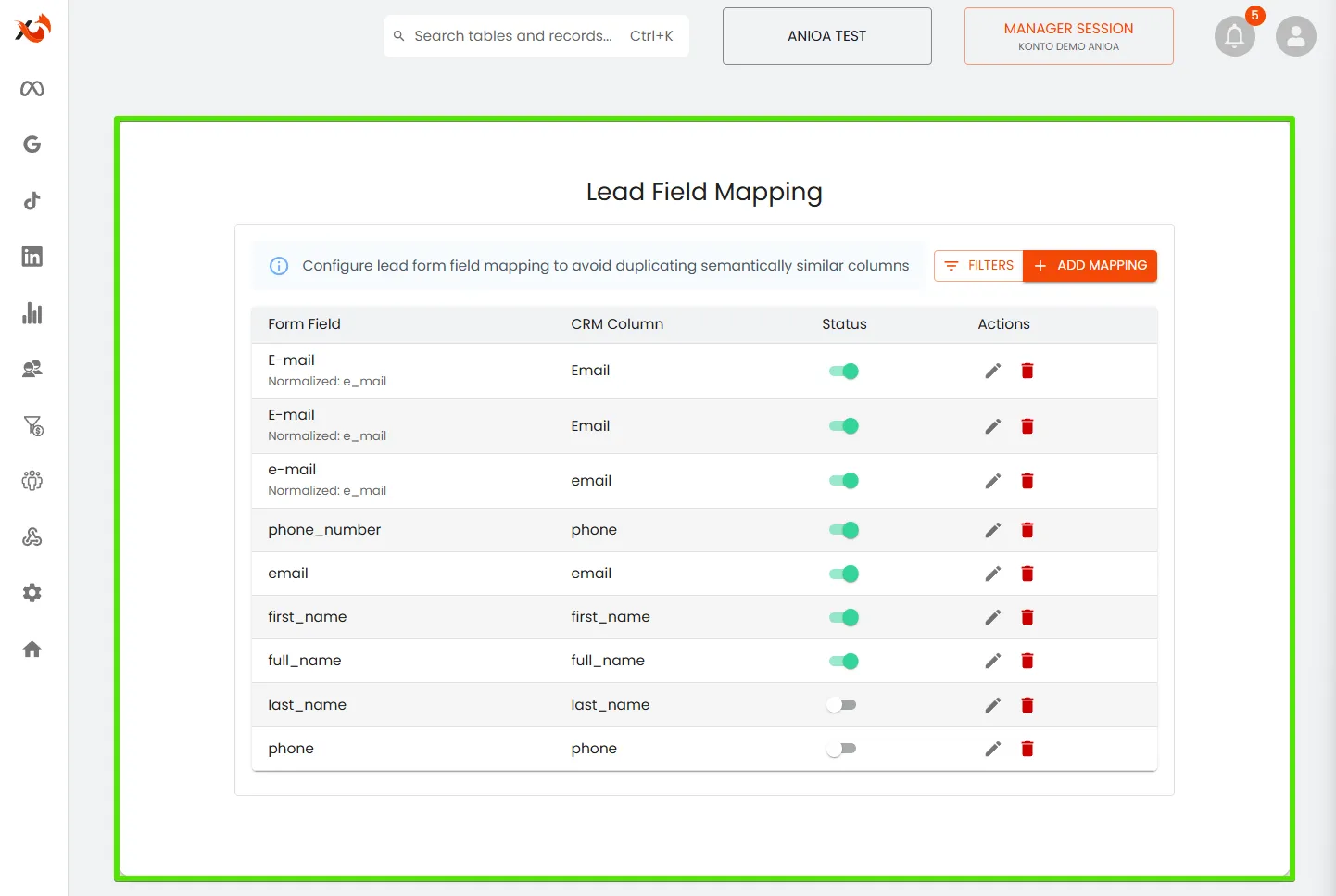
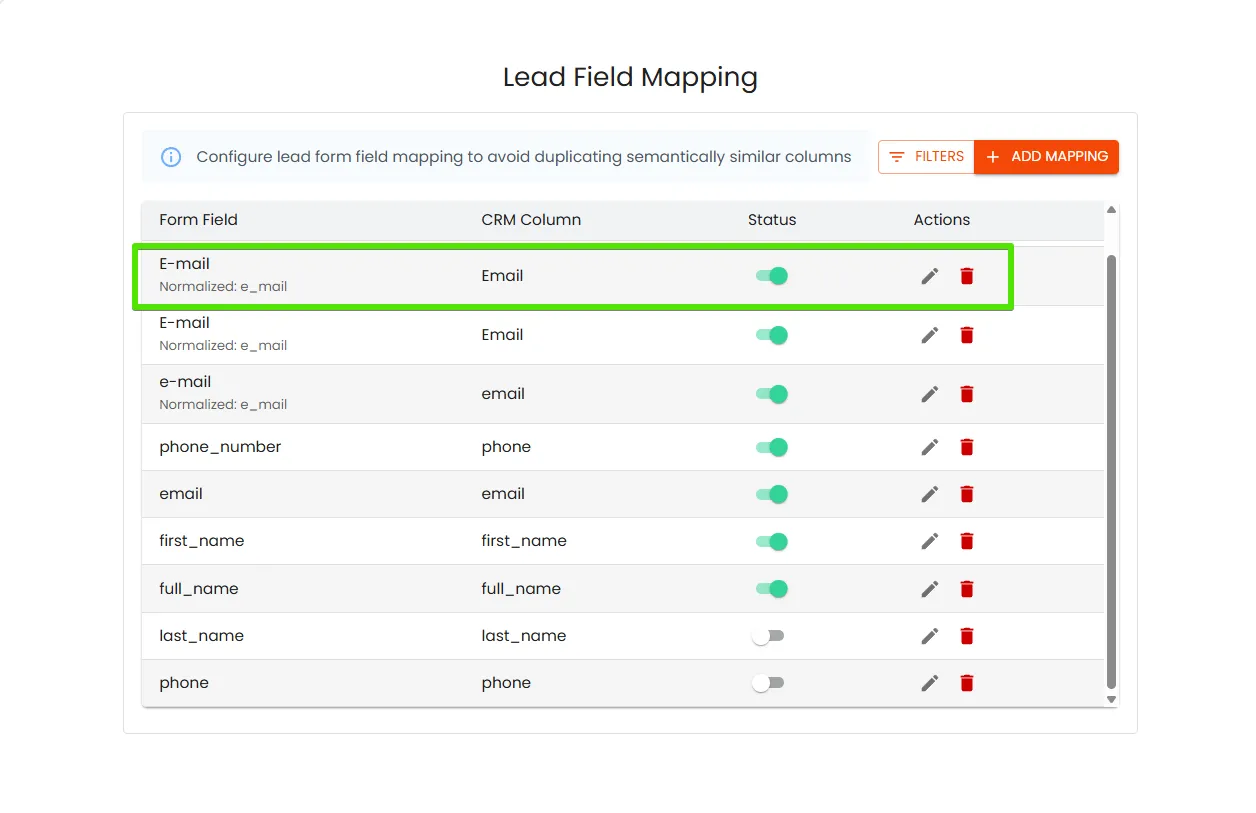
One of the key functions facilitating work in adsfox CRM is field mapping. It enables combining different field names from forms into one consistent column in CRM. Thanks to this, mess and data duplication are avoided.
Example:
● Forms may contain fields named “Email”, “E-mail” or “Email Address”.
● Previously, each of them would create a separate column.
● Thanks to mapping, all will be saved in one “Email” column.
This function ensures clarity and consistency of data throughout the system.
How to Configure Mapping?
- Go to Lead acquisition → Lead forwarding.
- Click Add Mapping.
- Enter the field name from the form (e.g., “E-mail”).
- Select the column in CRM to which the data should be assigned (e.g., “Email”).
- Save the rule.
- Repeat this action for all fields you want to connect.
Additional Options
The field mapping function also offers additional possibilities:
● Excluding unnecessary fields – e.g., such as “I accept the regulations”, so they do not introduce unnecessary data to the table.
● Setting rule priority – allows determining which rule has priority in case of duplicating field names.
● Creating new columns – enables adding your own, non-standard fields when there is a need to expand the table structure.
Final Effect
Thanks to redirections and field mapping, all leads, regardless of source, go consistently to the appropriate tables. Instead of many duplicating columns, a clear and organized structure is created, and the data is immediately ready for further work and analysis.
What Next?
After configuring automatic saving of leads in the appropriate tables, the next step is external integration using webhooks.
Thanks to it, CRM can cooperate with other tools and become part of the company’s broader ecosystem.
In the next post, it is described how to integrate adsfox CRM with webhooks.