
How to set up Typeform in adsfox

adsfox is a lead generation optimization platform that supports CRM integration and ad platform integration (Meta, Google, LinkedIn, TikTok), so you can improve lead quality and sales outcomes without increasing ad spend.
Before you start
- Prepare access to the adsfox panel and your Typeform account.
- If Typeform is embedded on your website (for example WordPress), make sure you can edit the page where the embed code is pasted.
Stage 1: Connect your Typeform account to adsfox and add a webhook to the form
Step 1: Open the Typeform integration in adsfox
1. In adsfox, go to the Integrations tab.
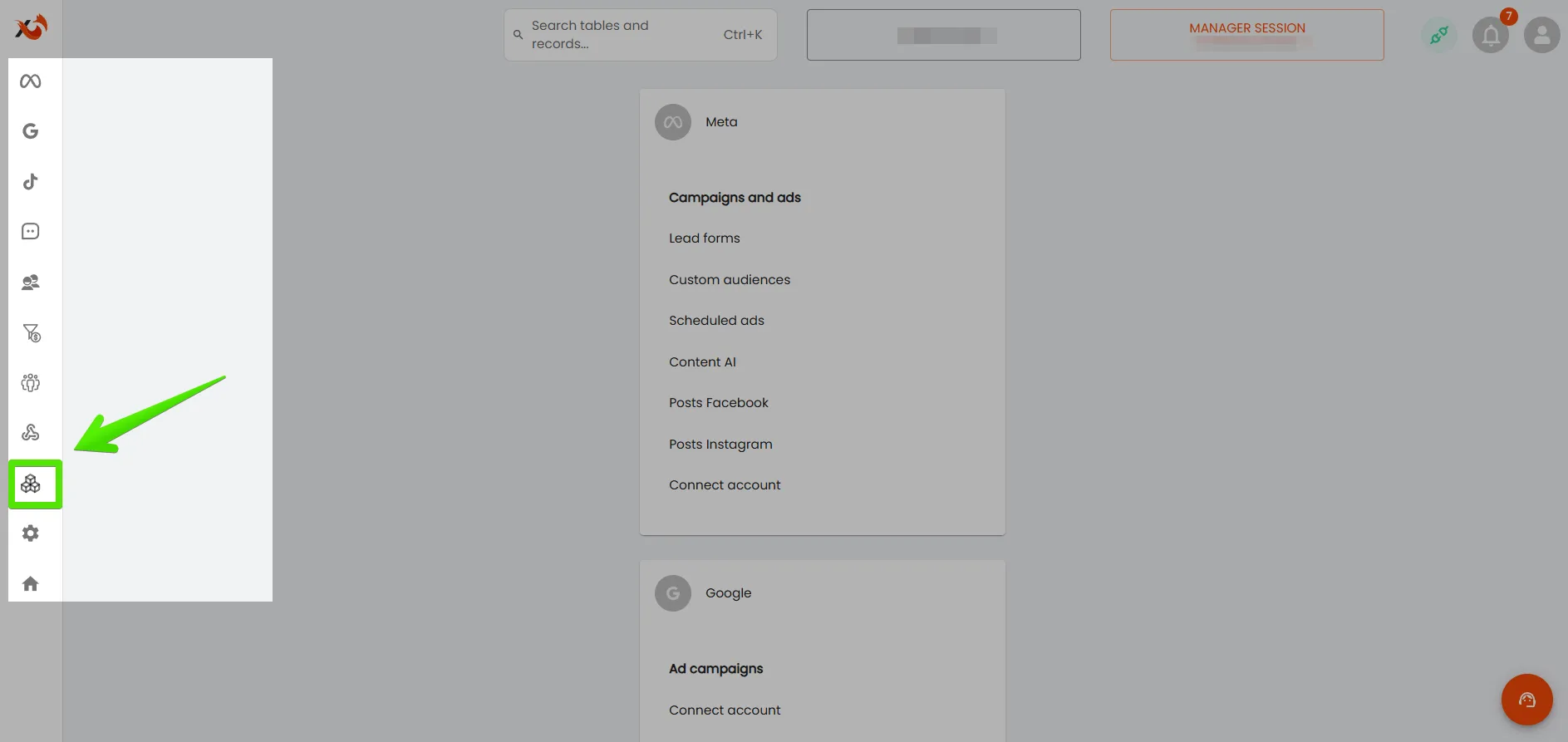
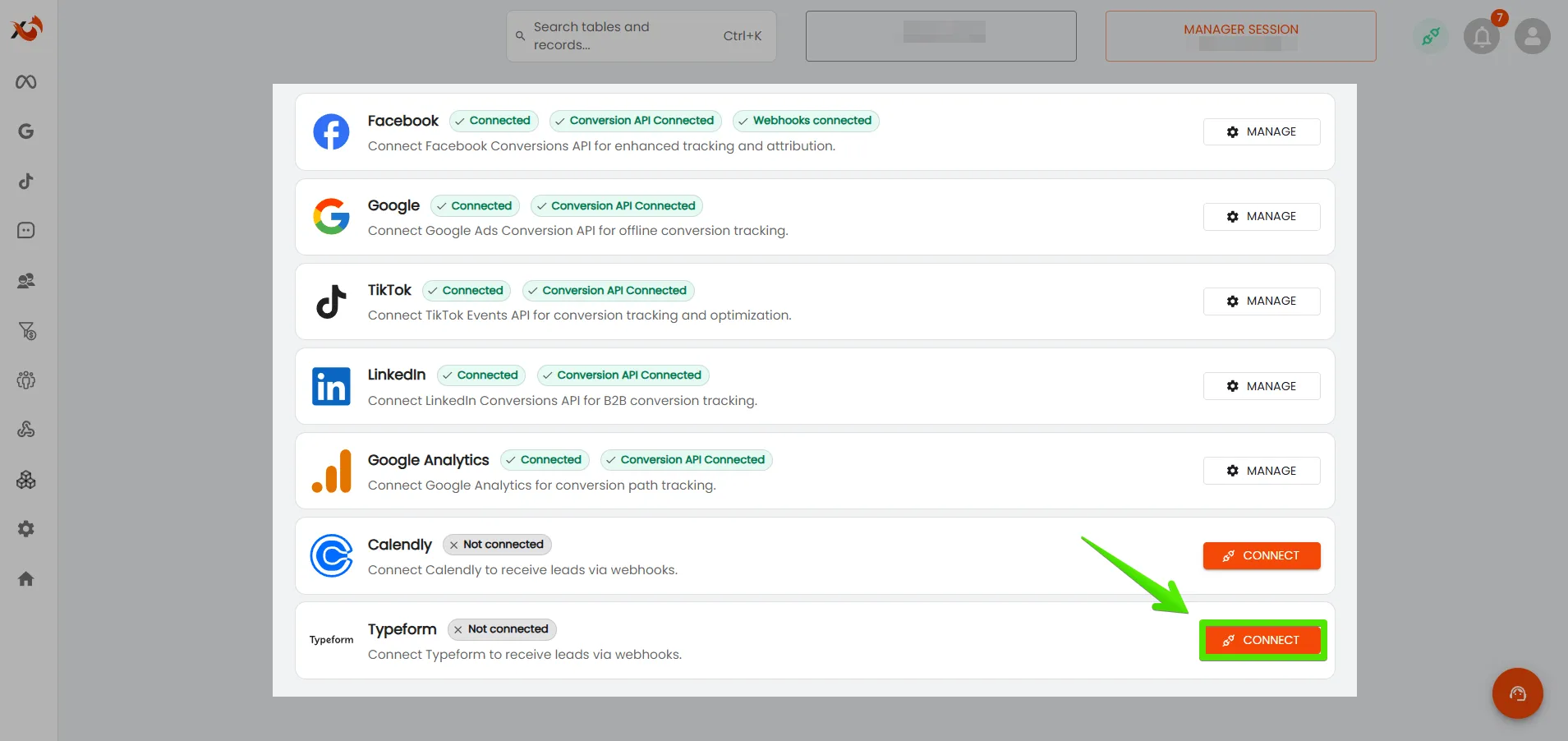
2. Find Typeform and click Connect (or open the Typeform integration).
Step 2: Log in with Typeform and select your account region
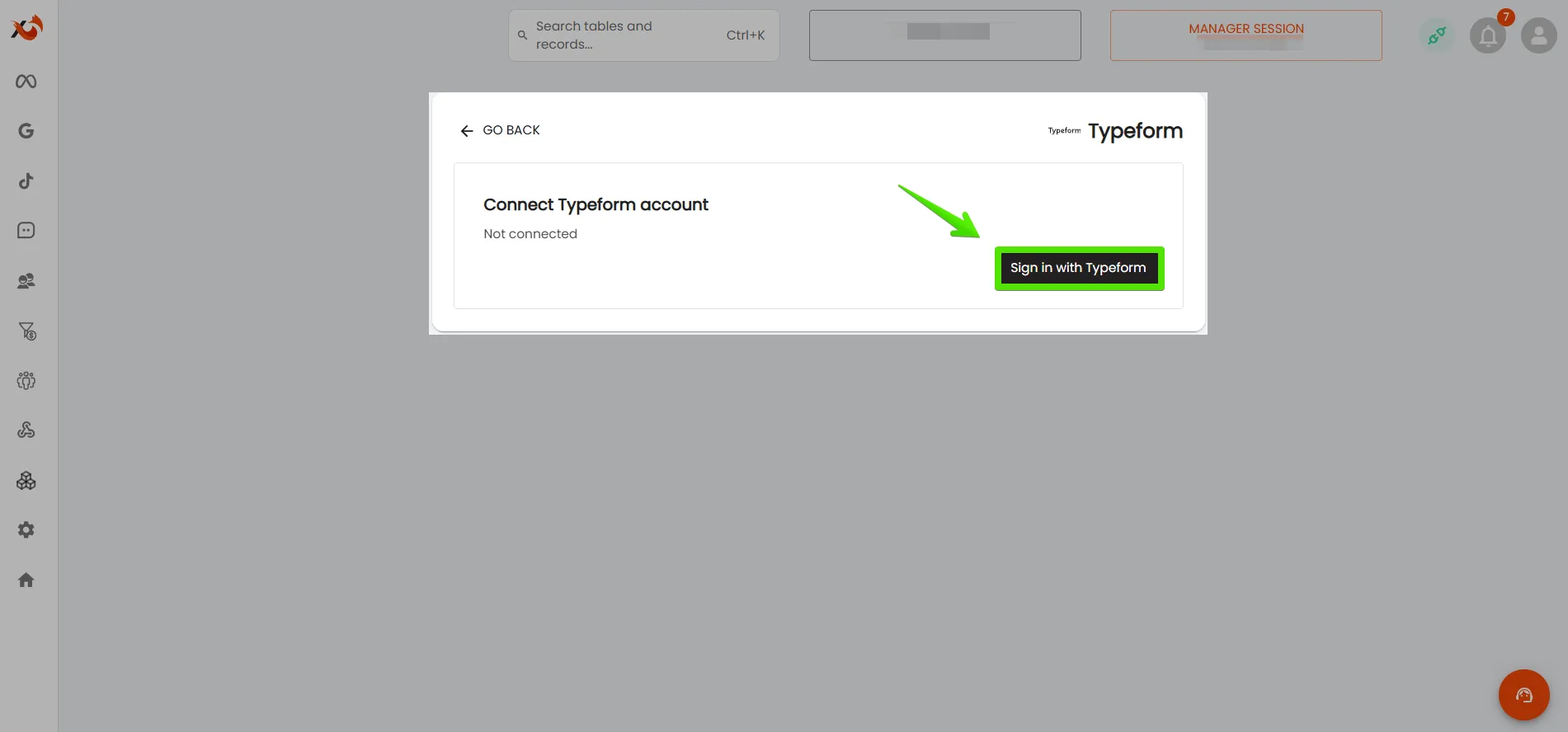
1. Click Sign in with Typeform.
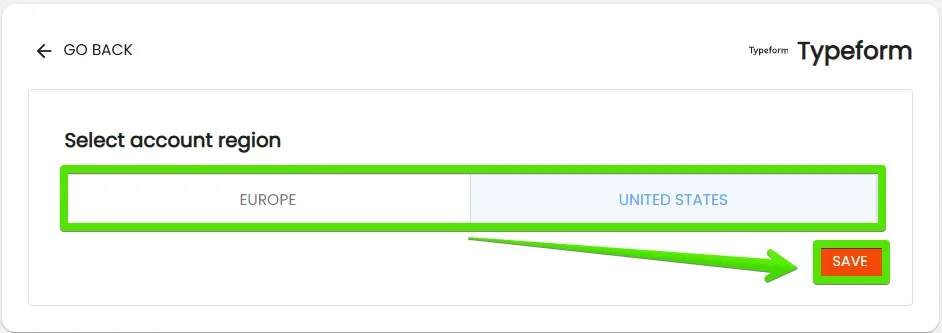
2. If a region selector appears, choose the correct region (for example Europe or United States) and click Save.
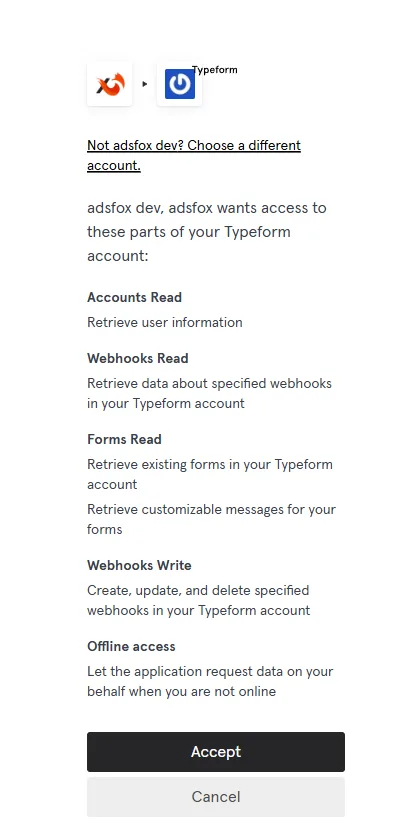
Step 3: Approve access in Typeform
1. Log in to your Typeform account.
2. Approve the requested permissions (a button like Accept).
Step 4: Add a webhook for the selected form
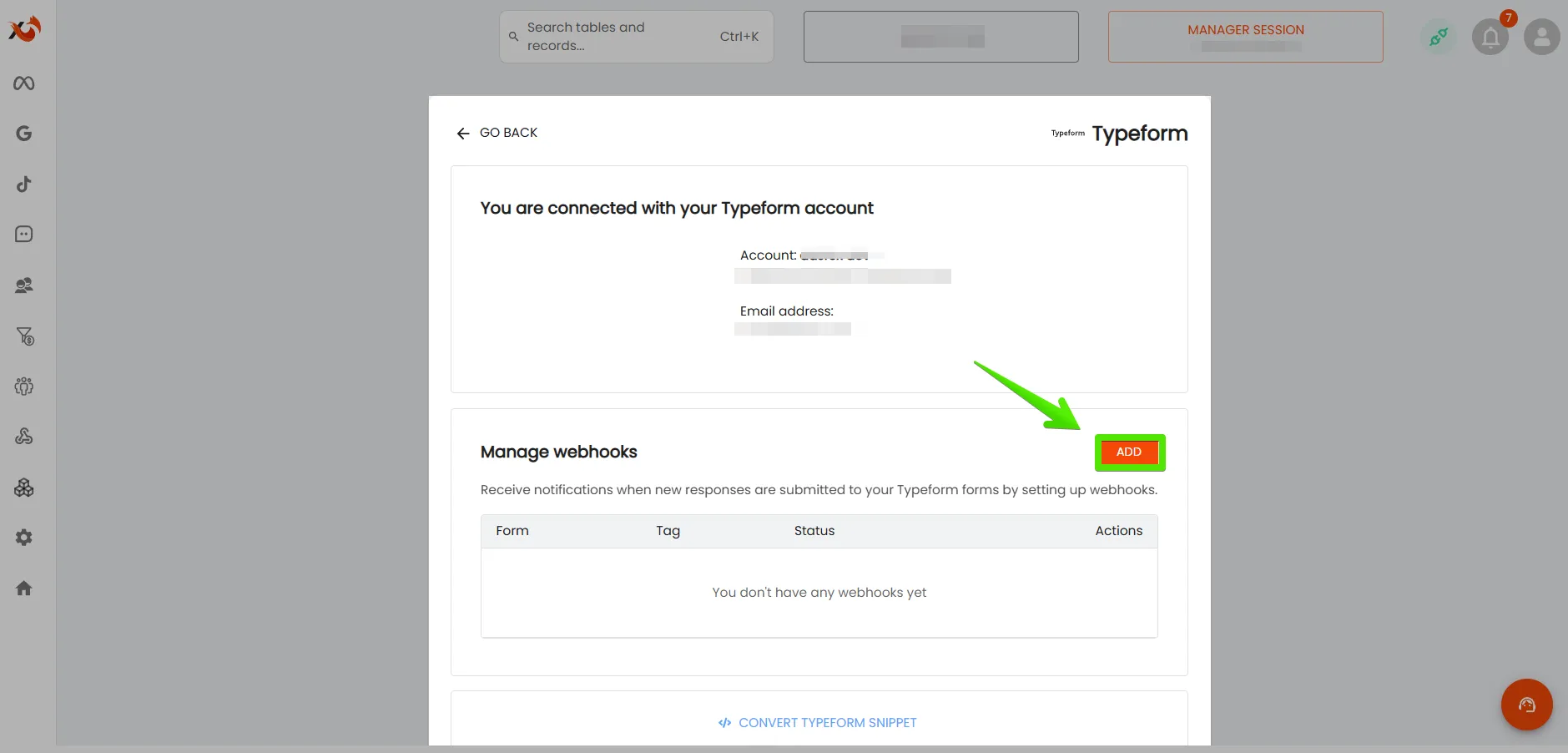
1. In the Typeform integration in adsfox, go to Manage webhooks.
2. Click Add.
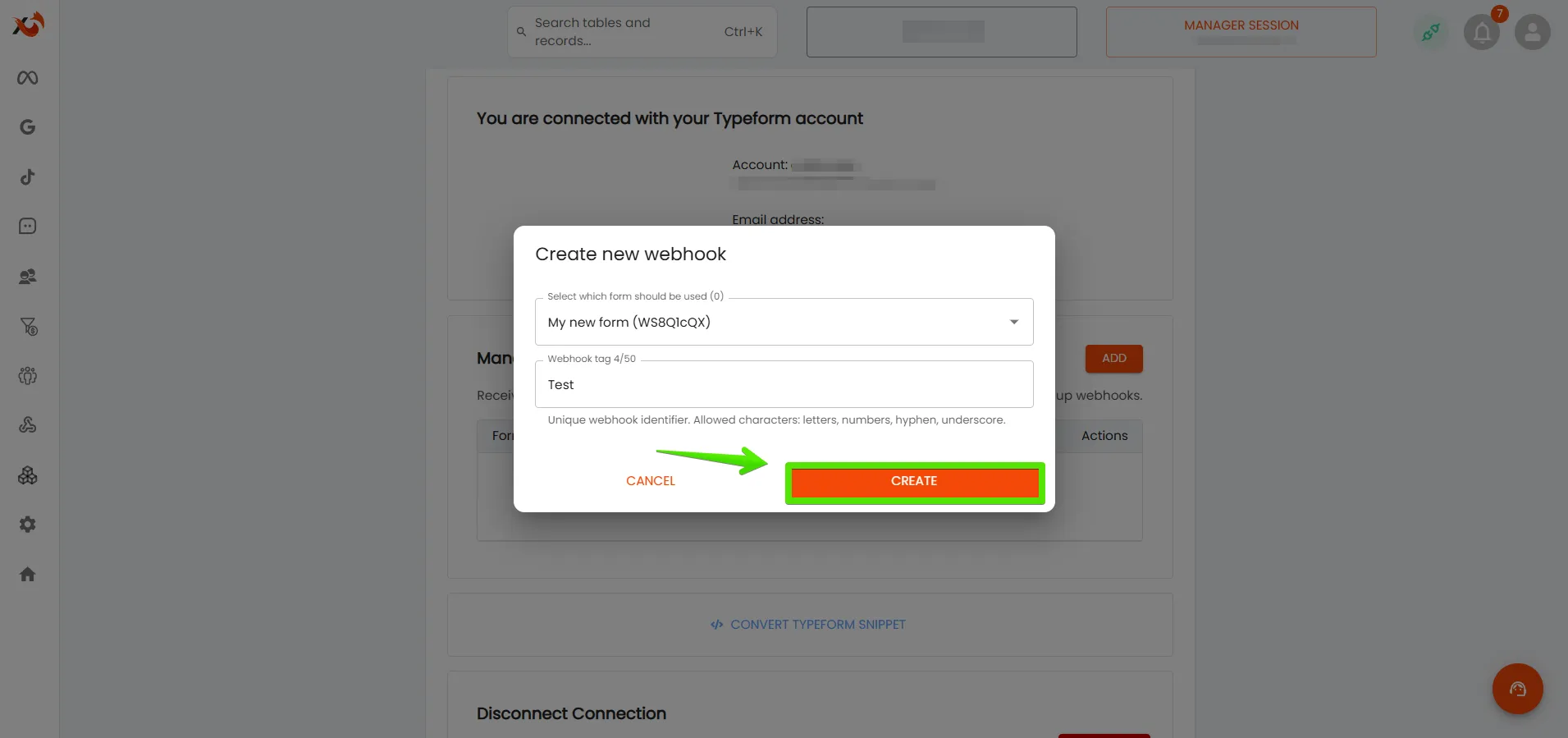
3. In the Create new webhook window, select the form you want to listen to.
4. Optional: Fill in Webhook tag if you want to label leads with an extra tag.
5. Click Create.
Add a webhook for every Typeform form that should send leads into adsfox.
Stage 2: Add the typeformpayload parameter in Typeform
In this stage, you add a parameter that allows tracking data to be passed through the URL.
1. Open your form in Typeform.
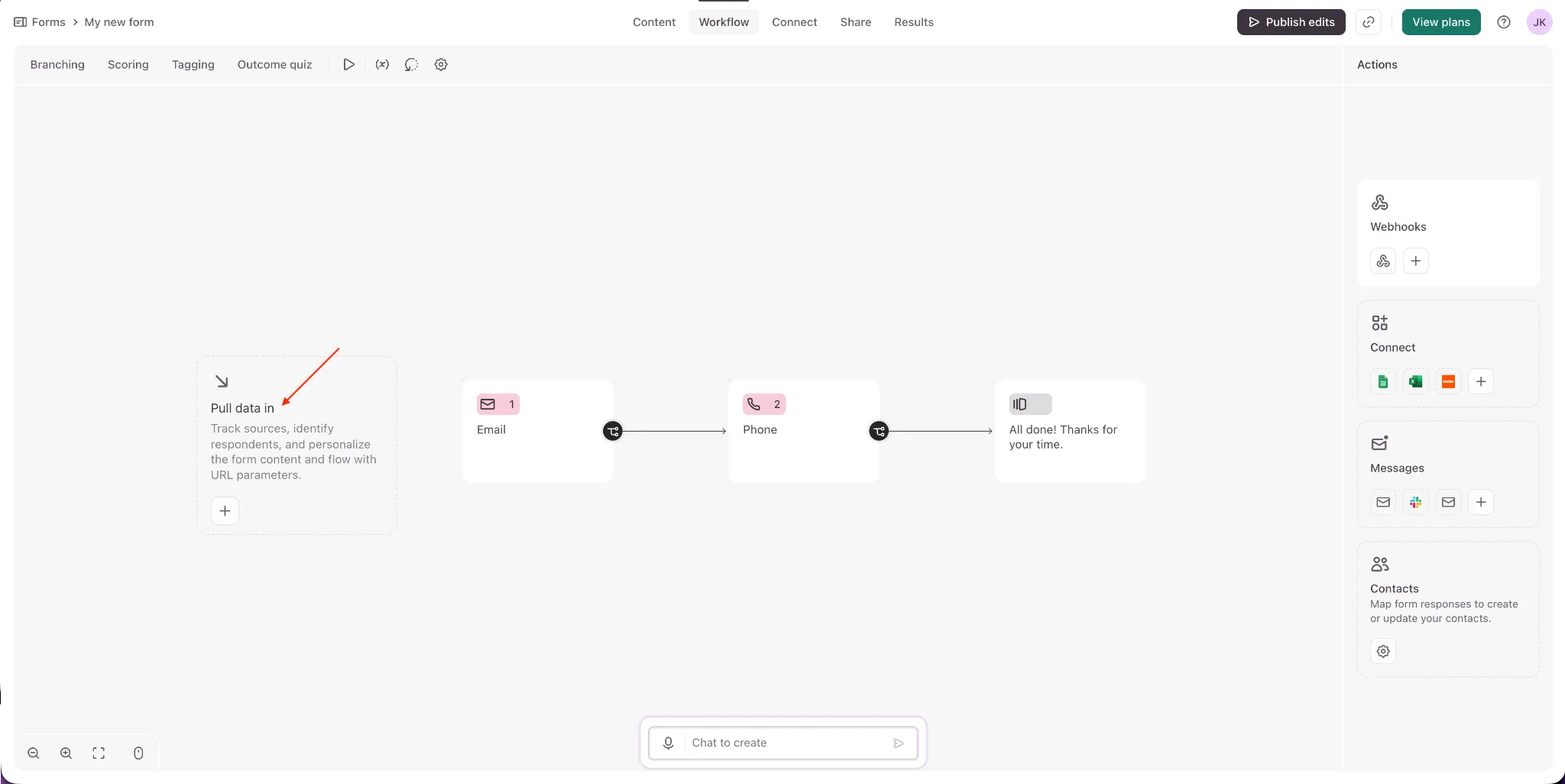
2. Go to the Workflow tab.
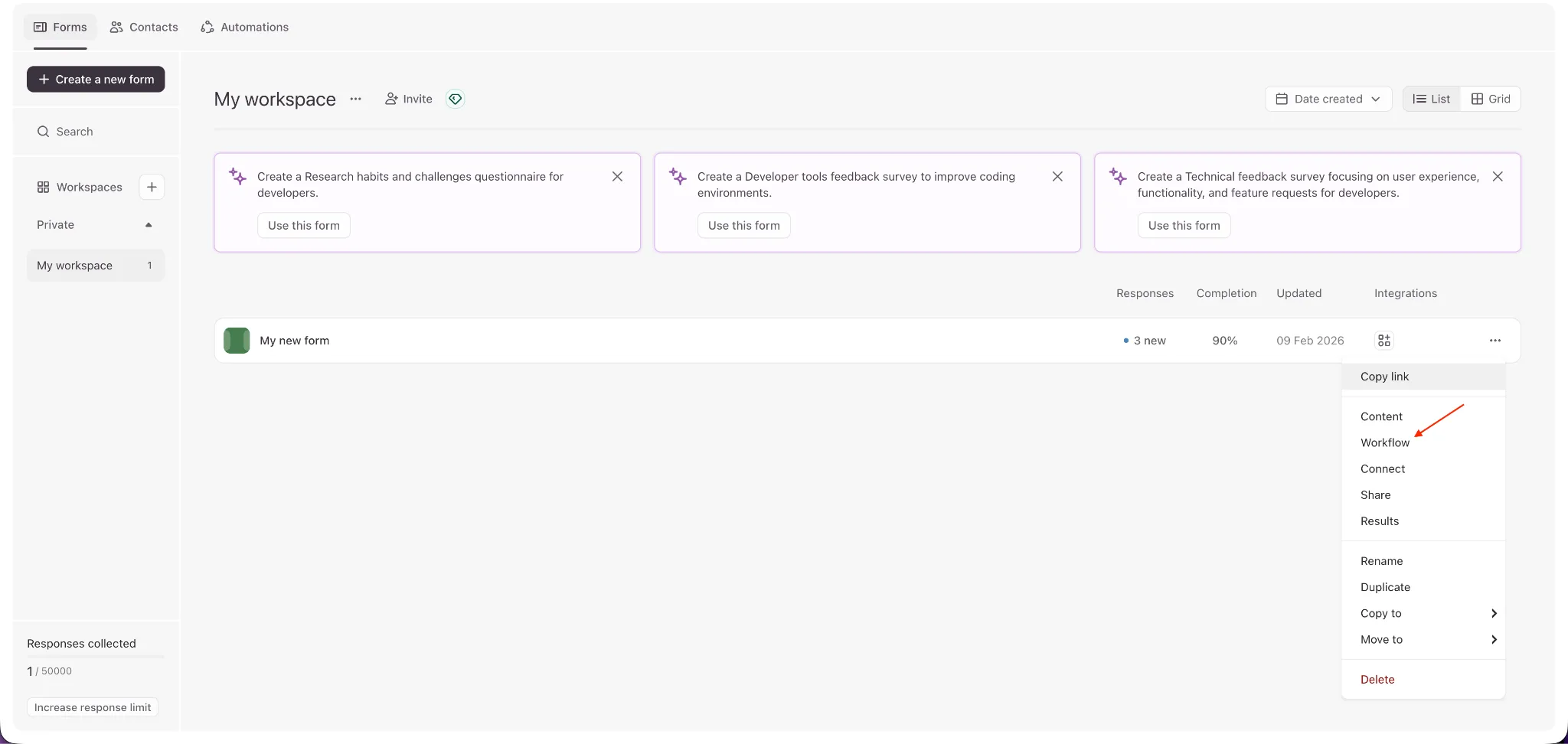
3. Add or click Pull data in (pulling data from URL parameters).
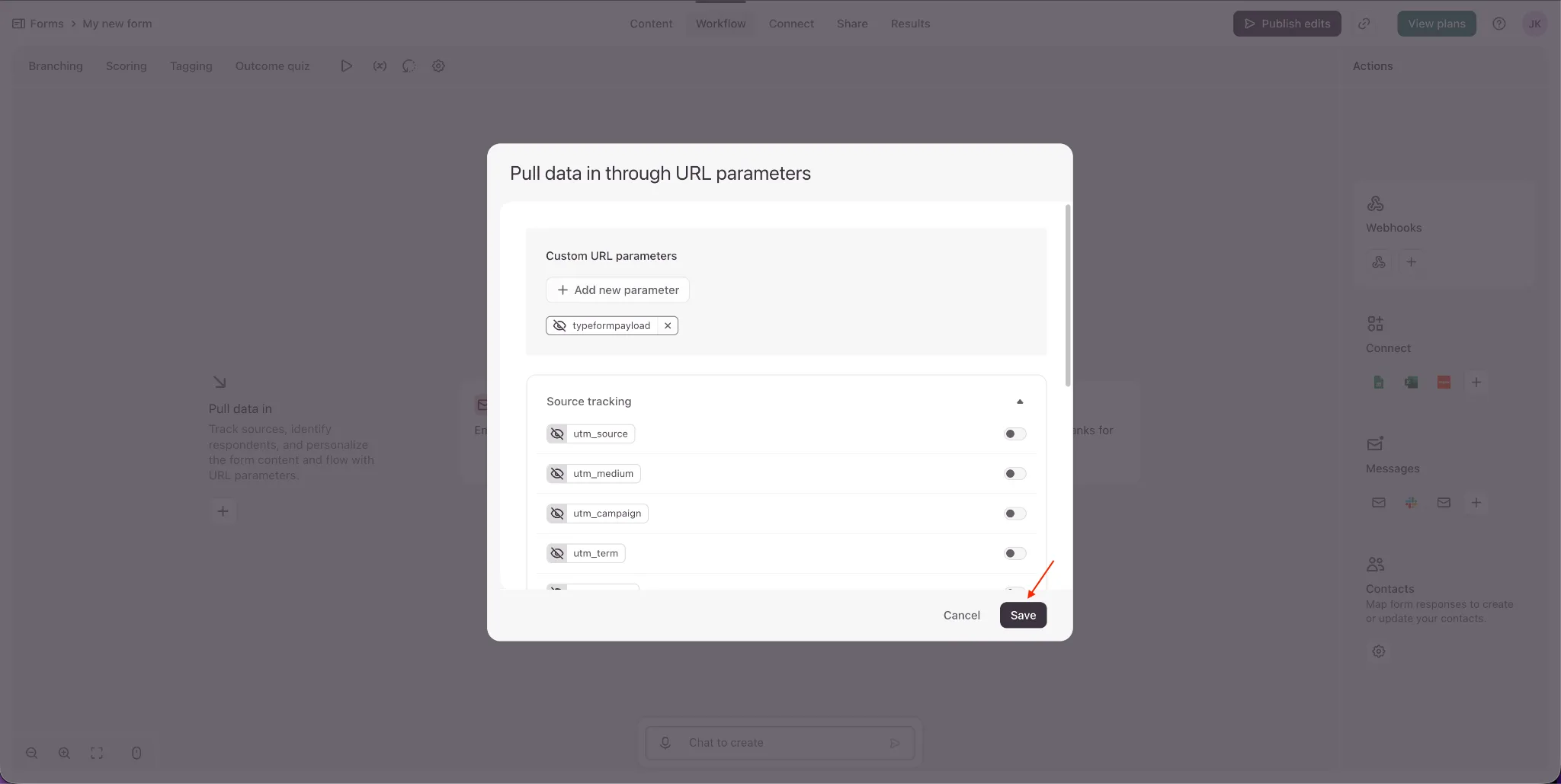
4. In Pull data in through URL parameters, add a custom URL parameter named: typeformpayload.
5. Click Save.
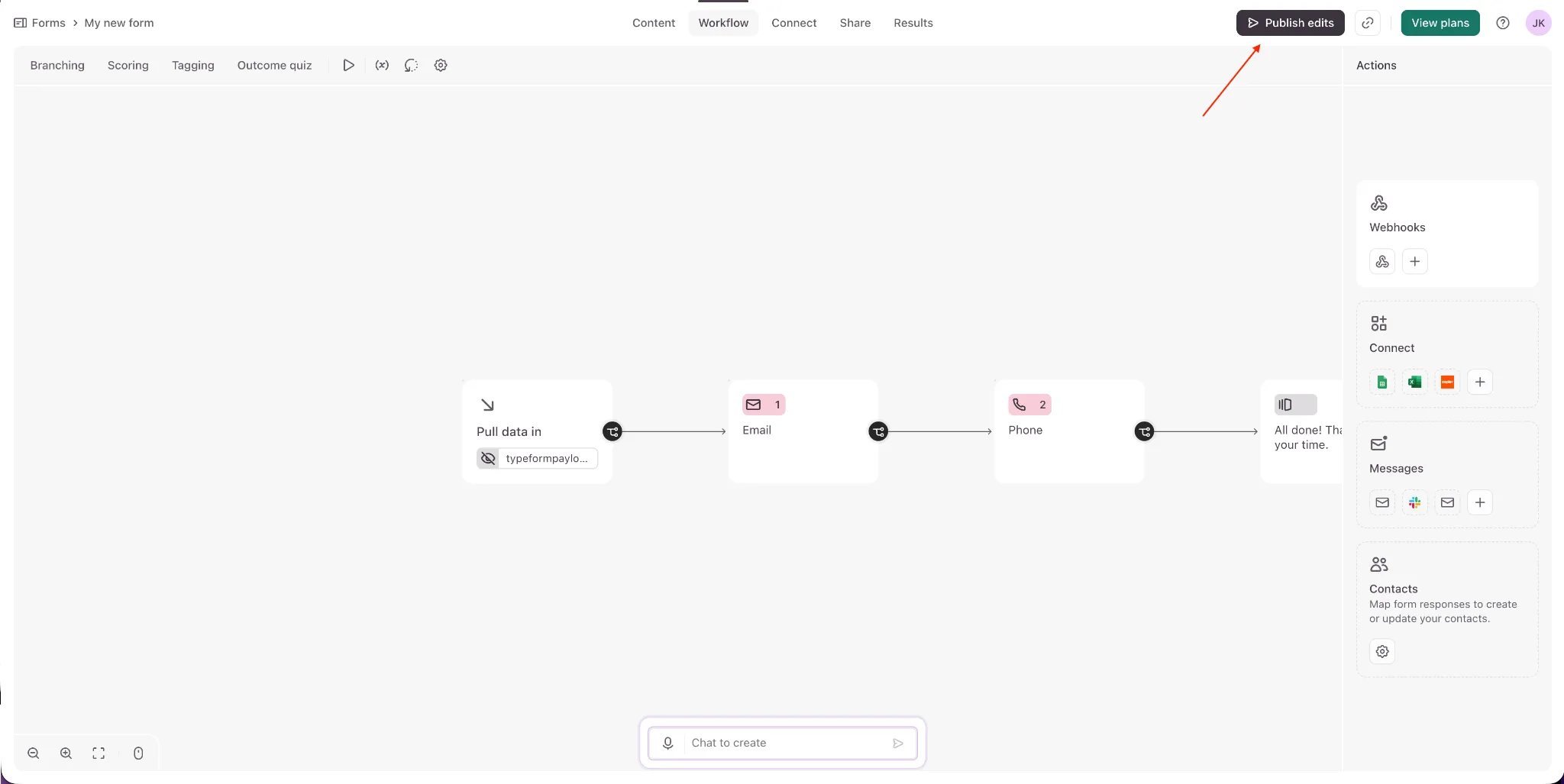
6. Click Publish edits to publish your form updates.
Stage 3: Convert the Typeform embed code in adsfox and paste it on your website
Important: For the Typeform connection to work correctly and pass tracking data (ad platform, campaign, and more), your website must have the adsfox tracking snippet implemented. You can implement it as a single code snippet or optionally via Google Tag Manager, depending on your setup.
Step 1: Copy the Typeform embed code
1. Open the form in Typeform.
2. Go to the Share tab.
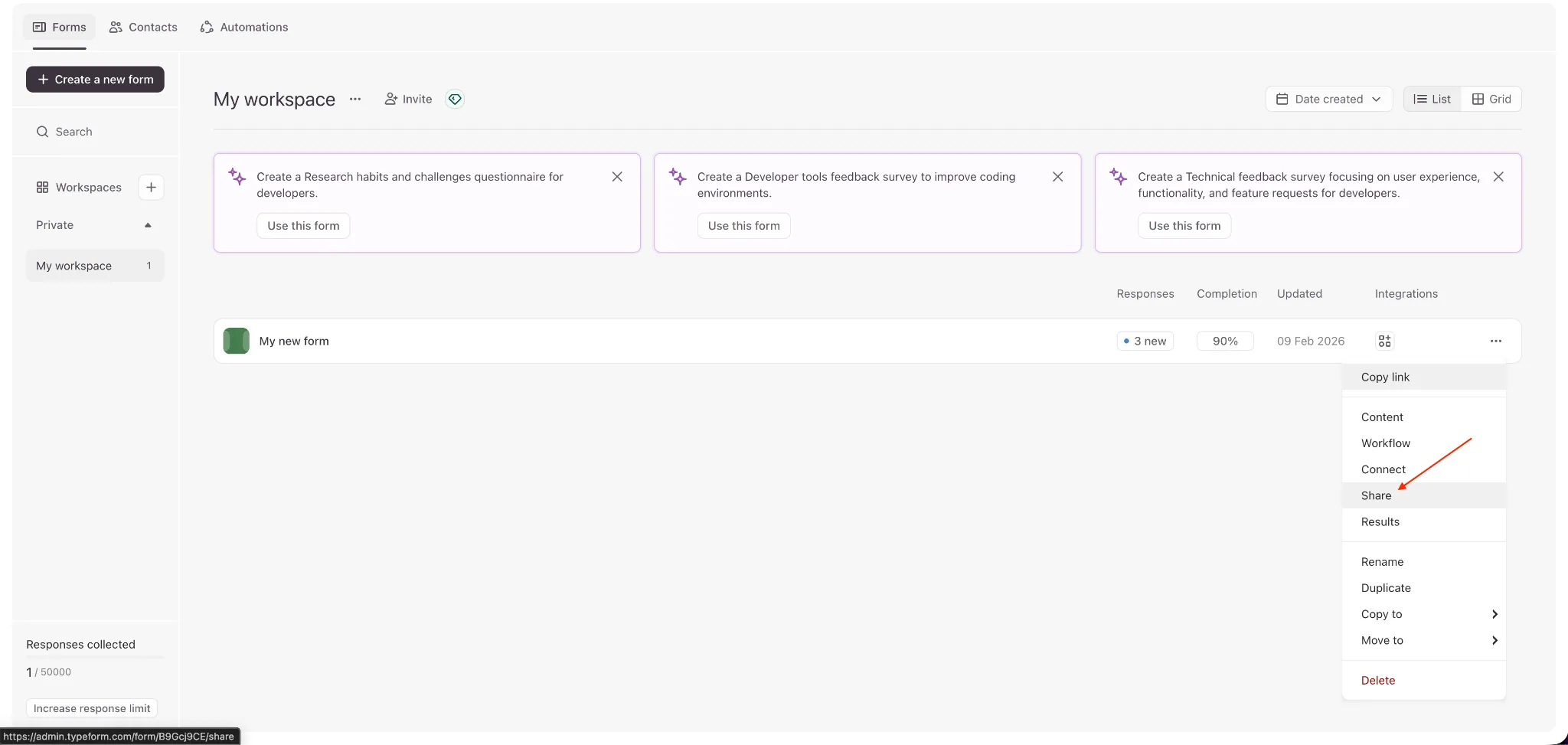
3. In the left menu, click Embed in web page.
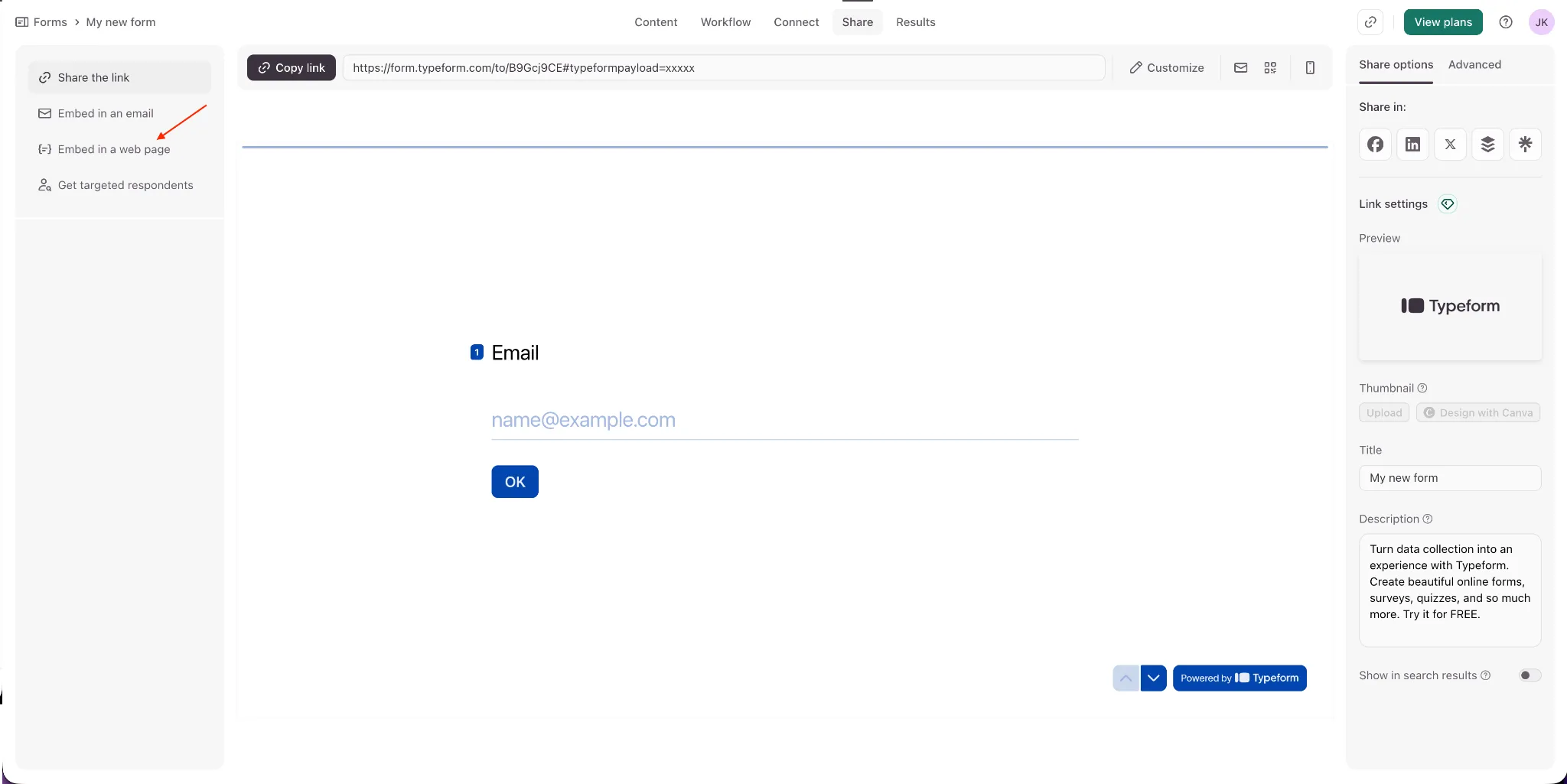
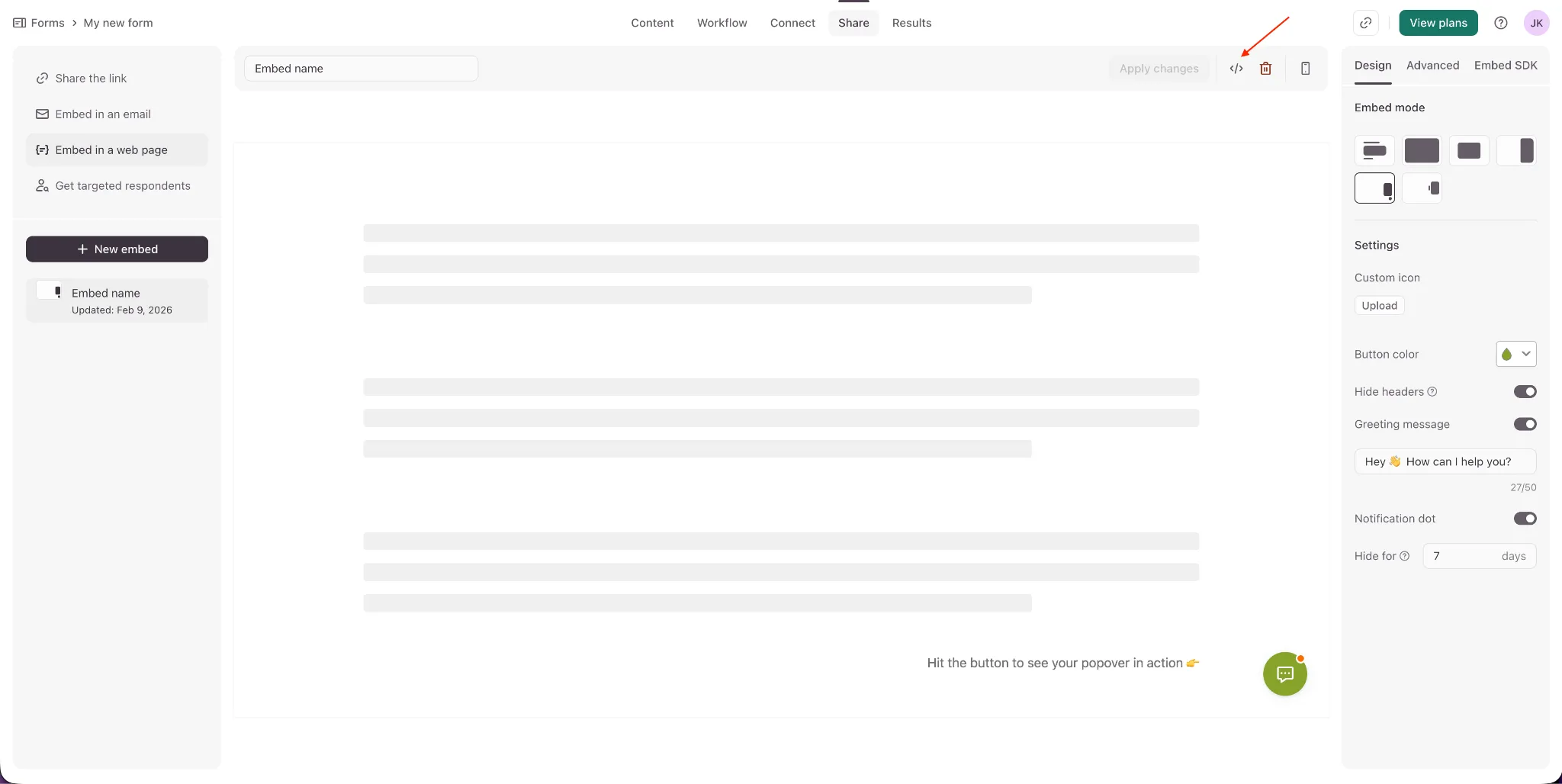
4. Choose an embed option (for example WordPress).
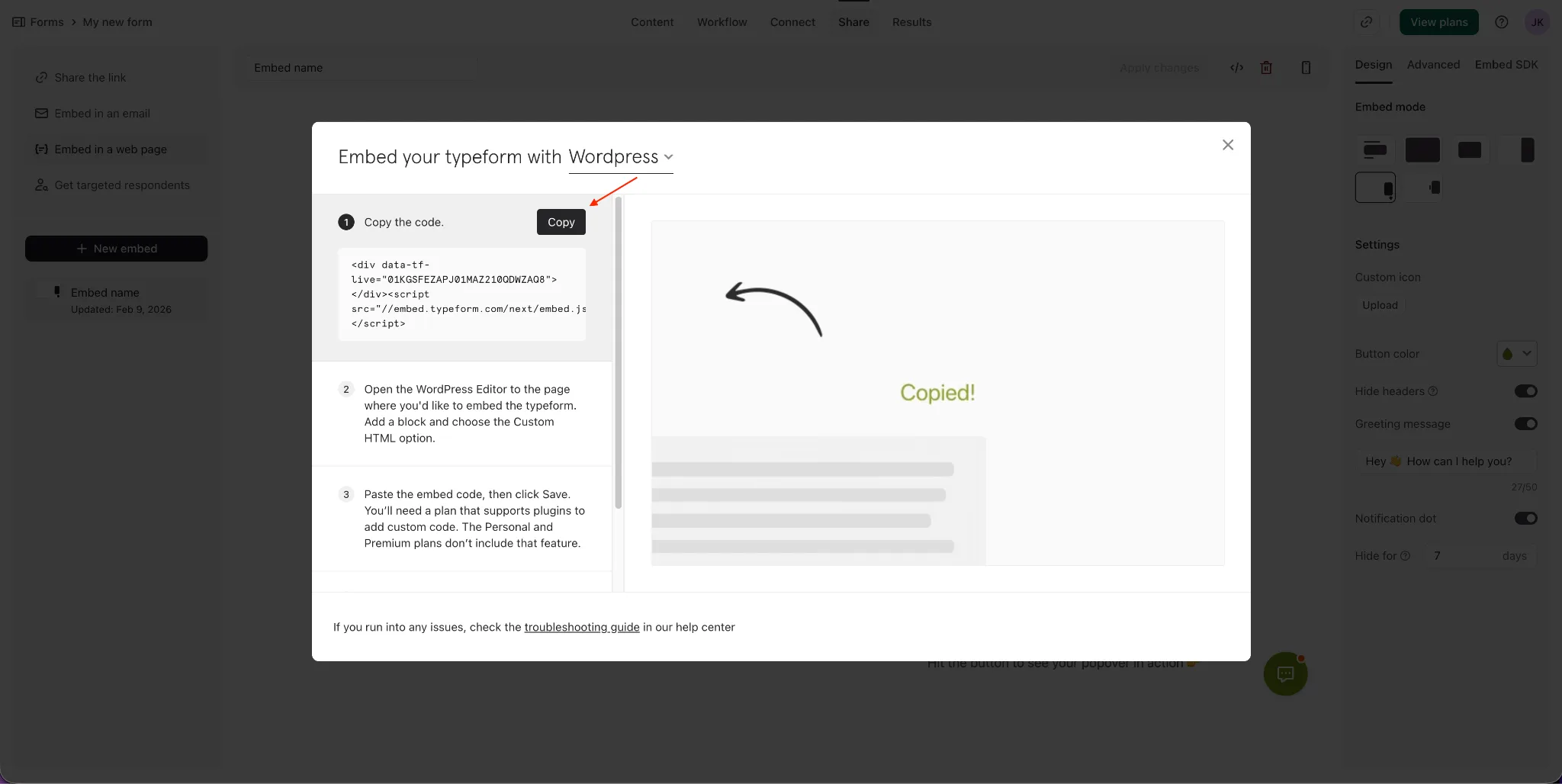
5. Click Copy the code (or a similar button).
Step 2: Paste the code into adsfox and generate the implementation version
1. Go back to adsfox and open the Typeform integration.
2. Click Convert Typeform code.
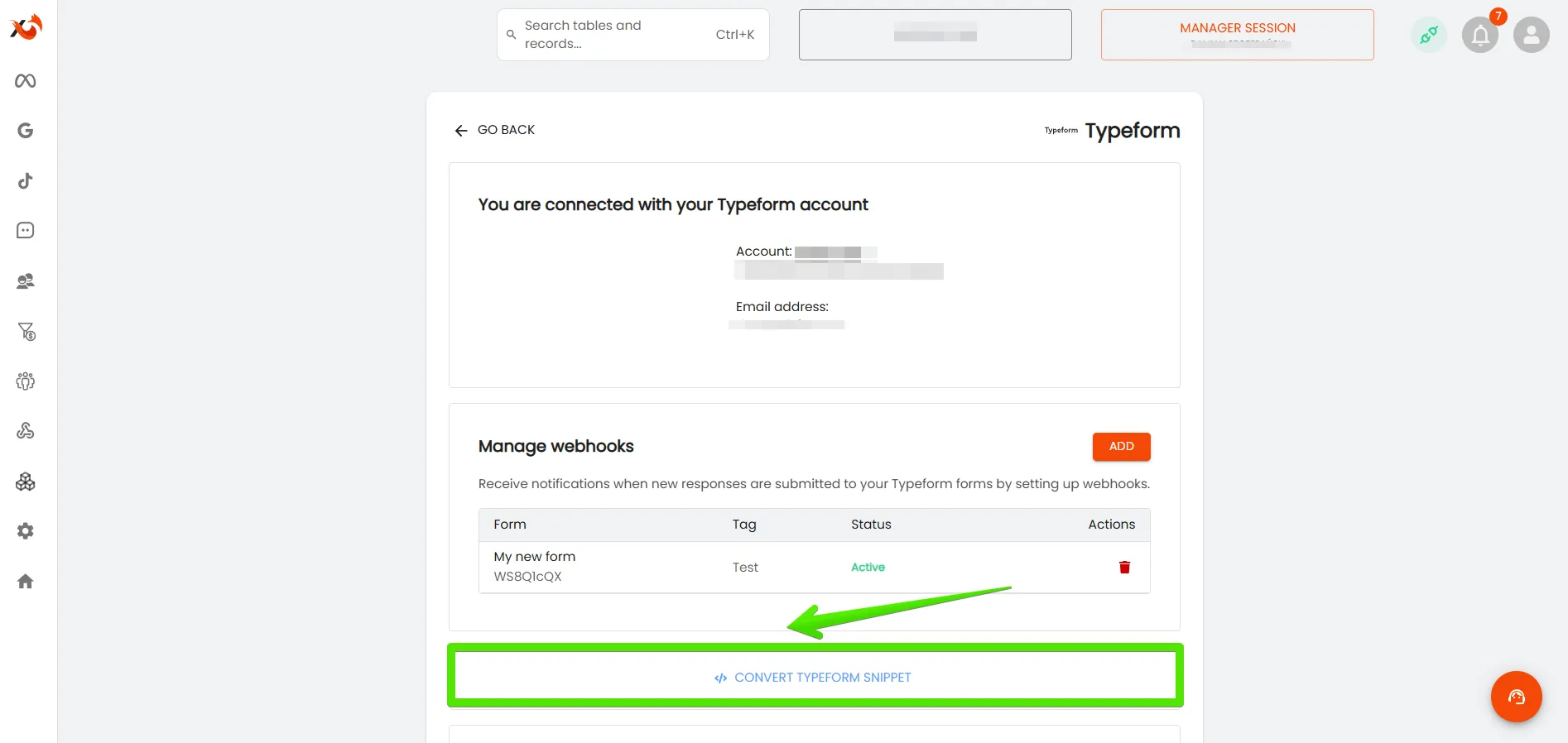
3. Paste the Typeform code on the left side (Typeform code section).
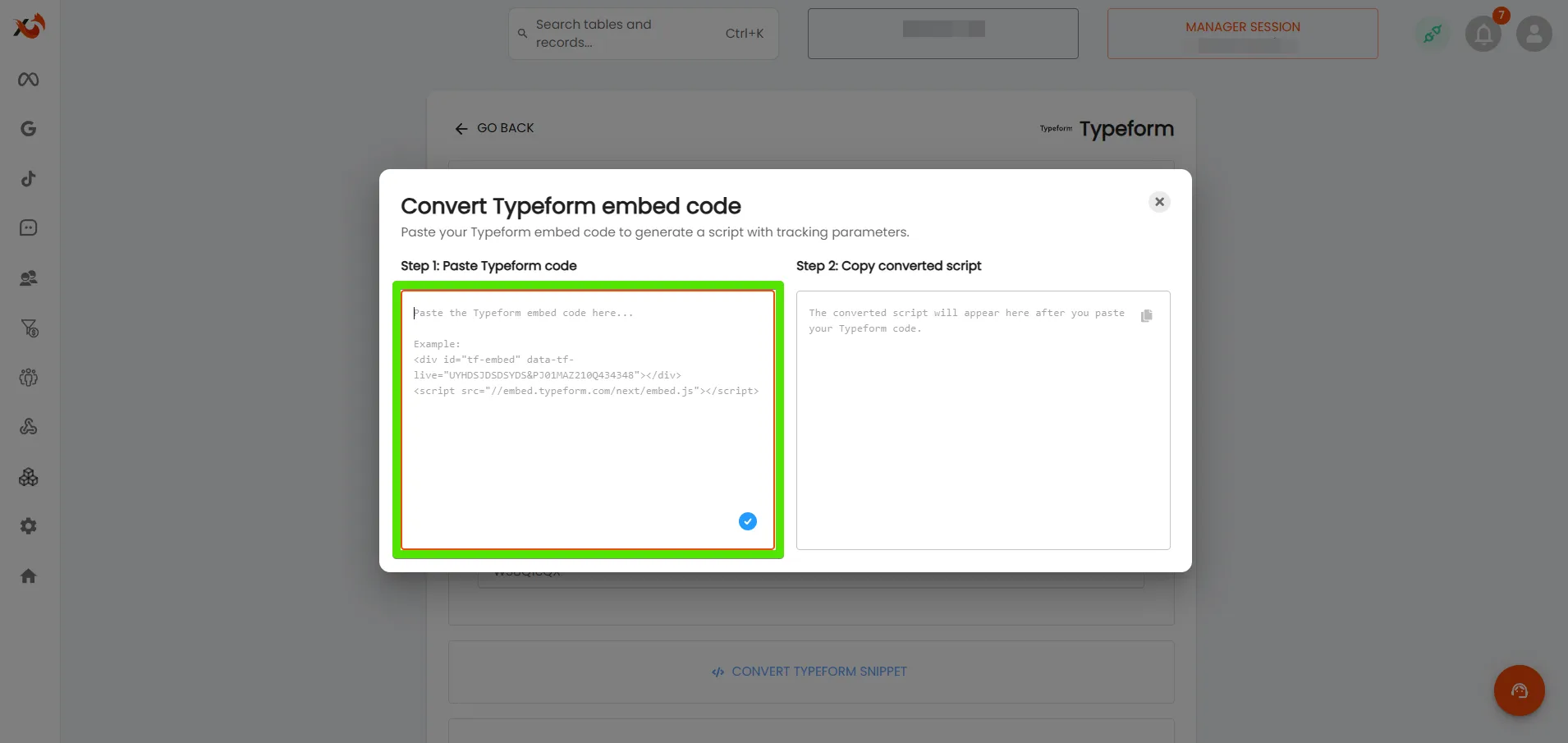
4. Copy the generated code from the right side (website implementation code section).
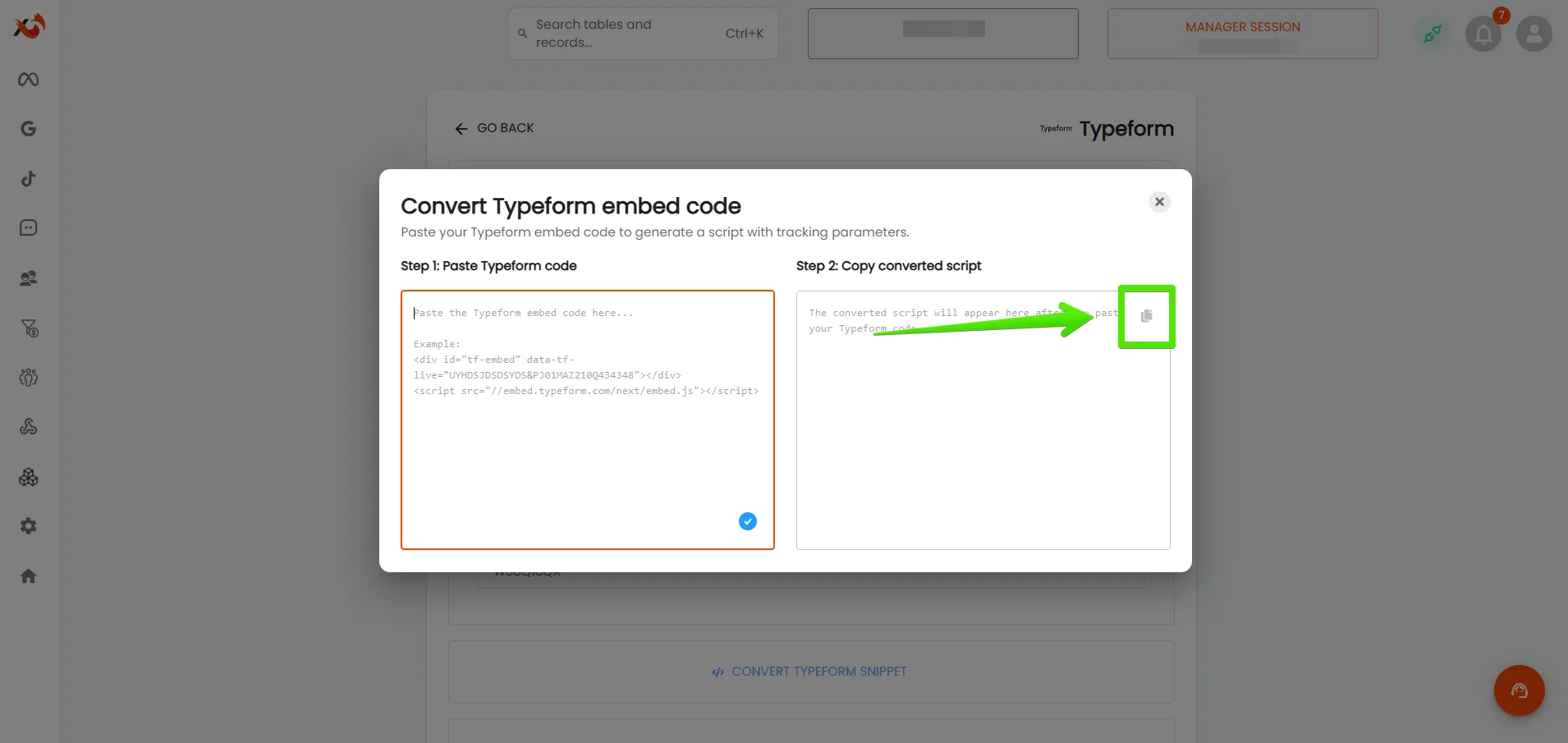
Step 3: Paste the generated code on your website
1. On your website (for example WordPress), replace your existing Typeform embed code with the code generated in adsfox.
2. Save changes and publish the page.
Verify everything works
1. Open the page with your form and submit a test entry.
2. In adsfox, confirm the lead appears in the system.
If the lead does not appear:
• Make sure the webhook was added for the correct form.
• Confirm the typeformpayload parameter was added in Typeform and you clicked Publish edits.
• Confirm your website uses the converted embed code.
• If you care about ad tracking, confirm the adsfox tracking snippet is implemented on your site.
What’s next?
If your Typeform is connected to adsfox and leads are flowing into the panel correctly, the next step is tagging those leads. This helps you organize submissions, spot the most valuable leads faster, and prepare clean CRM signals for campaign optimization and reporting.