
How to Add and Edit Columns in Tables?

Important Note
If you’re using CRM integrations, e.g., with forms on the site or Meta Ads, you must first send the first record. It is this that creates the appropriate columns based on the data collected by the form. Only after this step can you freely expand the table by adding your own columns and fields.
Editing Table Columns in adsfox CRM
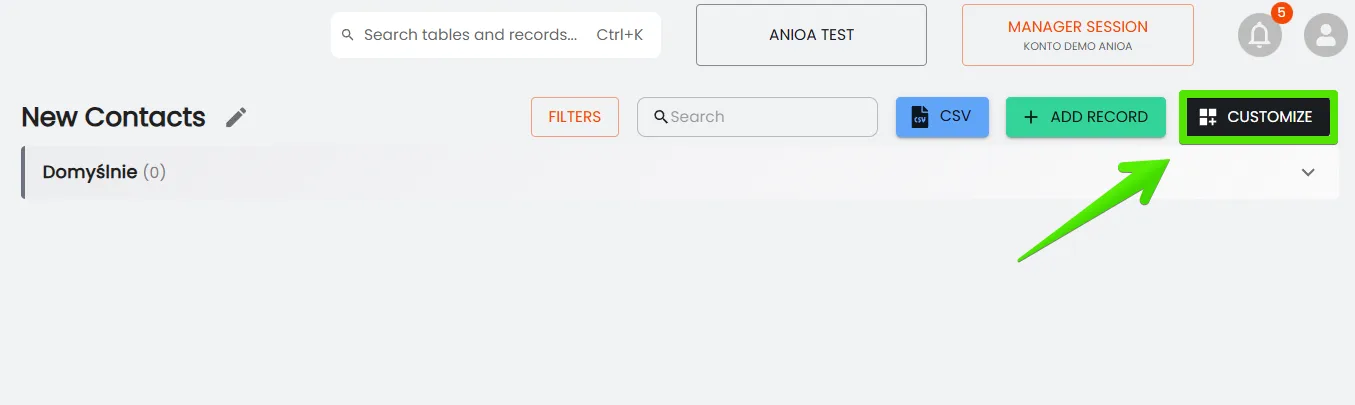
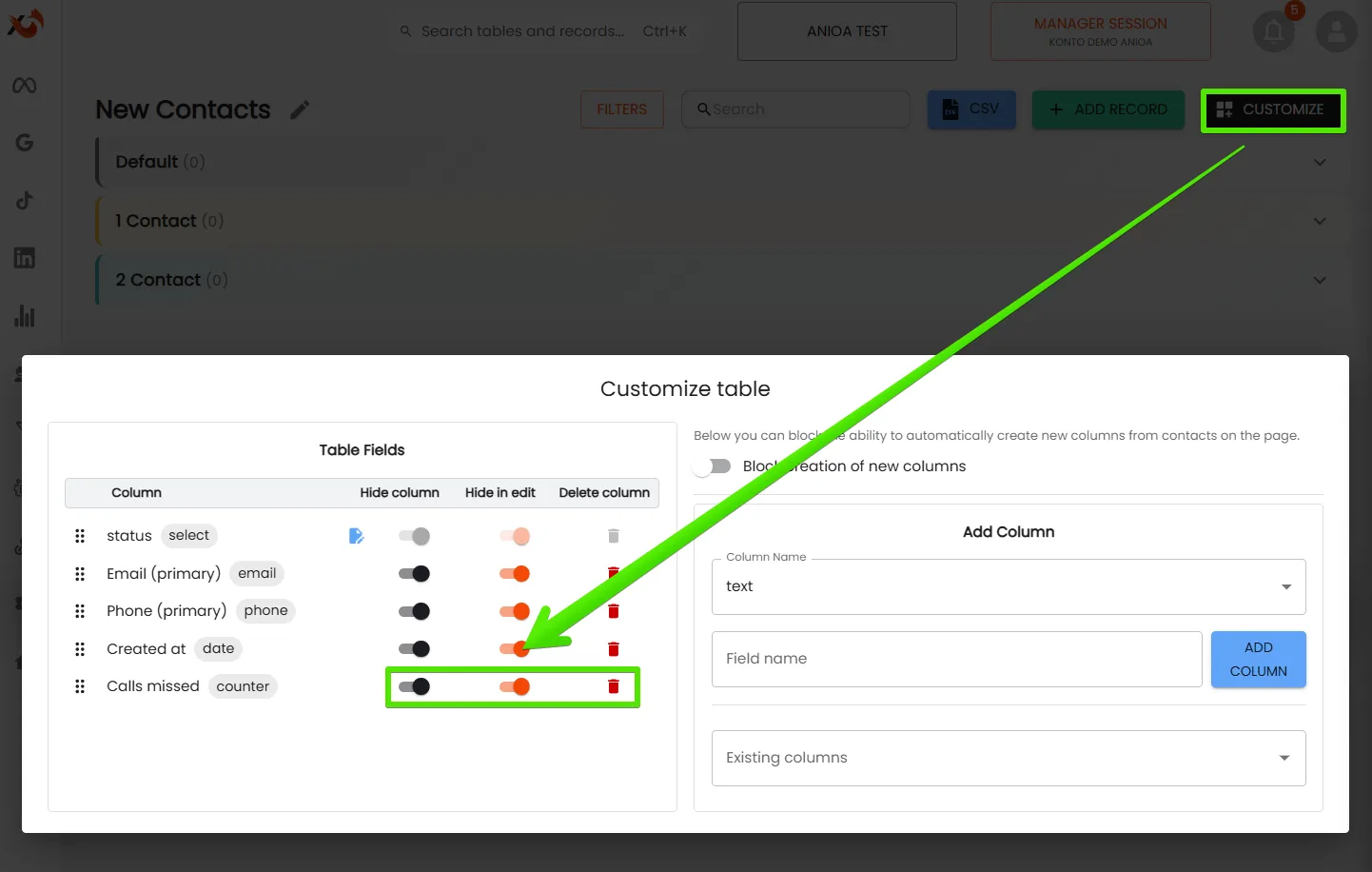
To configure the table, click the black “Customize” button. This is where all personalization possibilities open up.
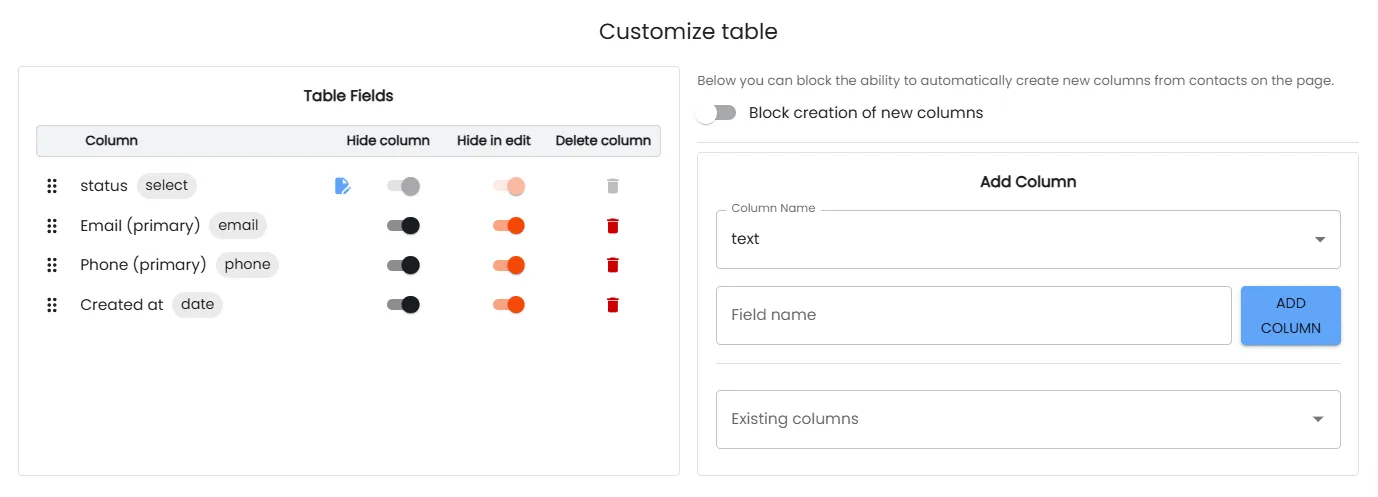
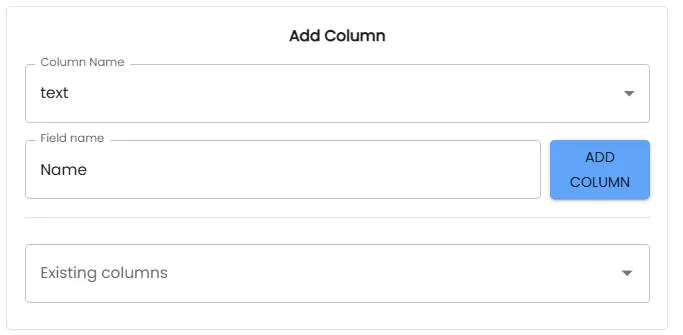
Adding Columns
Several types of fields are available that enable data organization: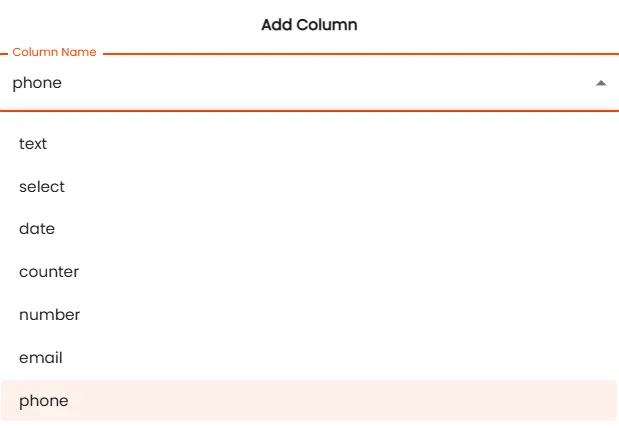
- Text Field – used for manual entry of information. It works well for entering data such as name, surname, phone number, or sales value.
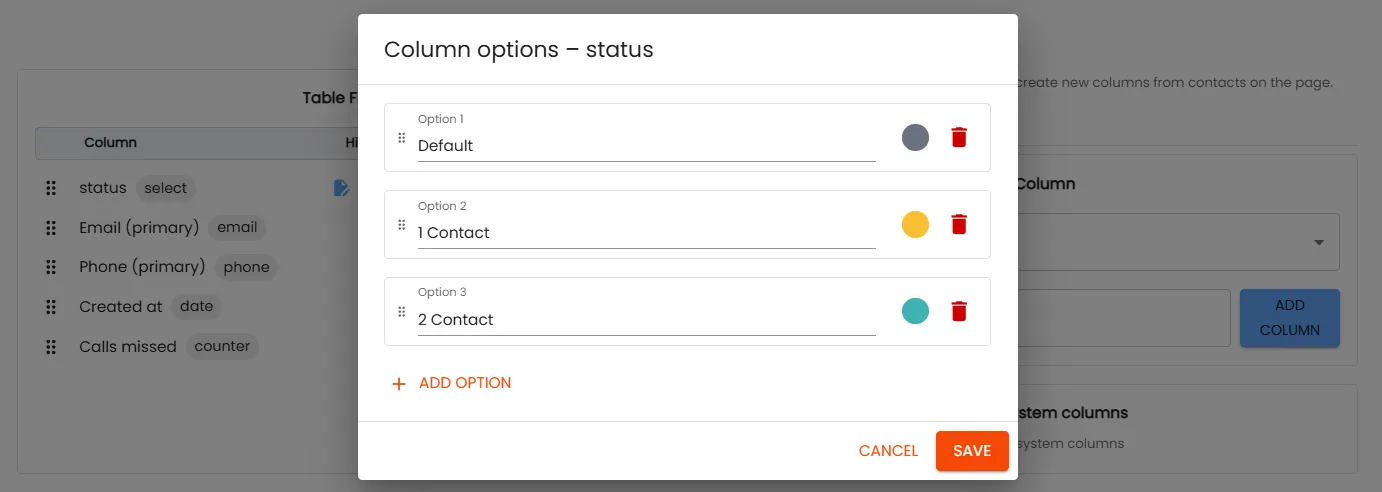
- Select Fields (Dropdown Lists) – allow for creating ready options to choose from, e.g., contact statuses: “after phone conversation,” “no answer,” “sale completed.” Additionally, it’s possible to assign colors to individual options, which facilitates orientation and increases data readability.
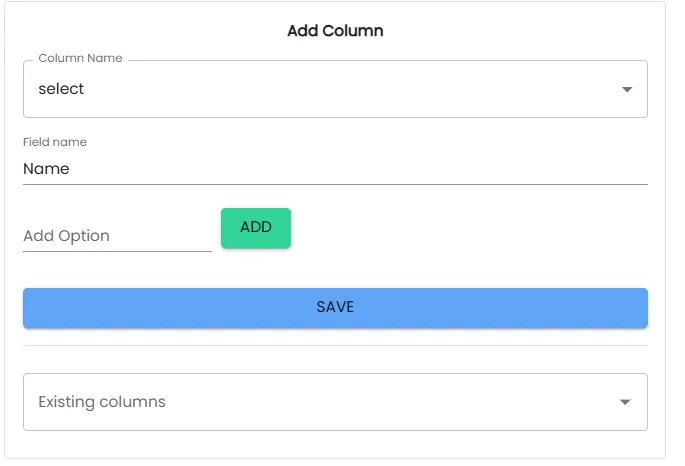
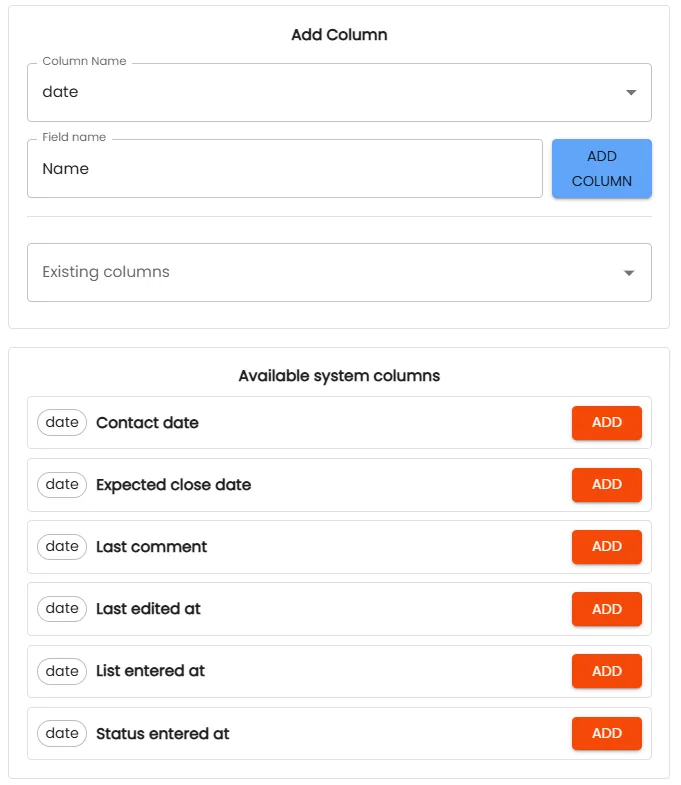
- Date Fields – enable selection of a specific date, e.g., “sale date” or “visit date.” In the table, these data can be filtered by range, which facilitates analysis of information in a time perspective.
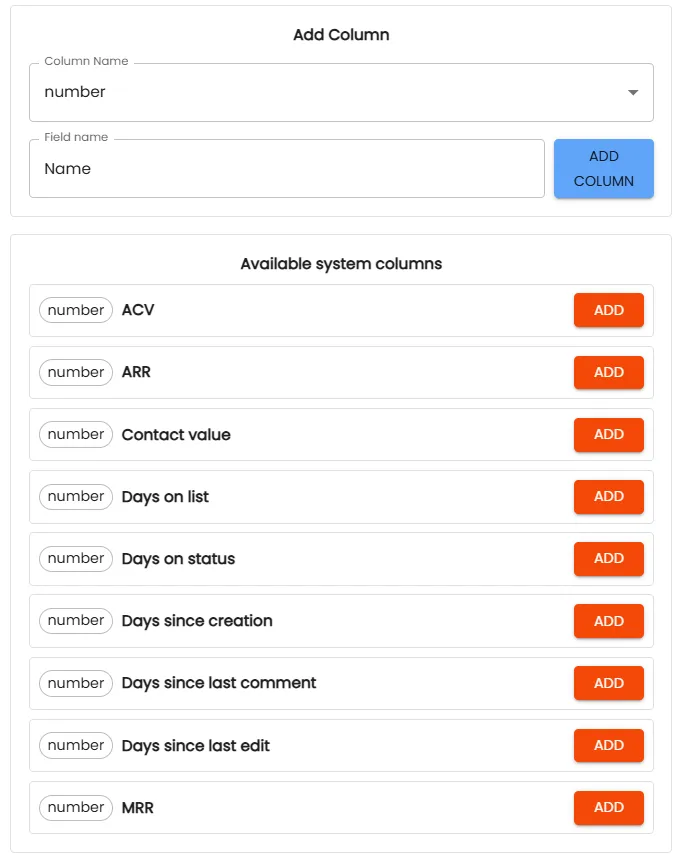
- Number Fields – enable entry of predefined numeric data, such as ACV, ARR, or Contact Value. Filling these fields supports business statistics analysis and facilitates monitoring results.
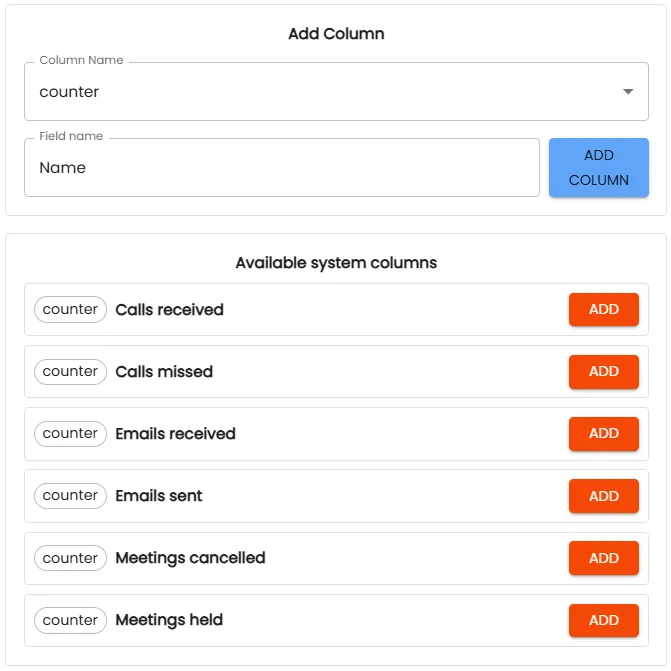
- Counter Fields – enable simple measurement of data, such as: number of received calls, number of received emails, number of sent emails, number of meetings held, or number of canceled meetings. Currently, values in these fields must be entered manually. Ultimately, automations are planned that will allow automatic assignment of these data.
- Email Fields – predefined contact field, intended for entering email addresses. It is recommended to use it especially when planning to send messages directly from the system level.
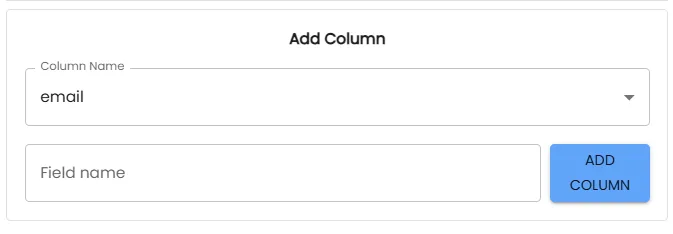
- Phone Fields – predefined contact field, intended for entering phone numbers. It is recommended to use it particularly when integrating the system with external tools.
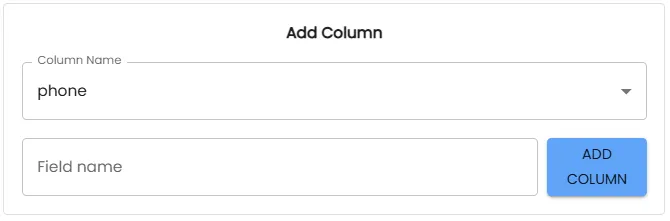
Table Status Configuration
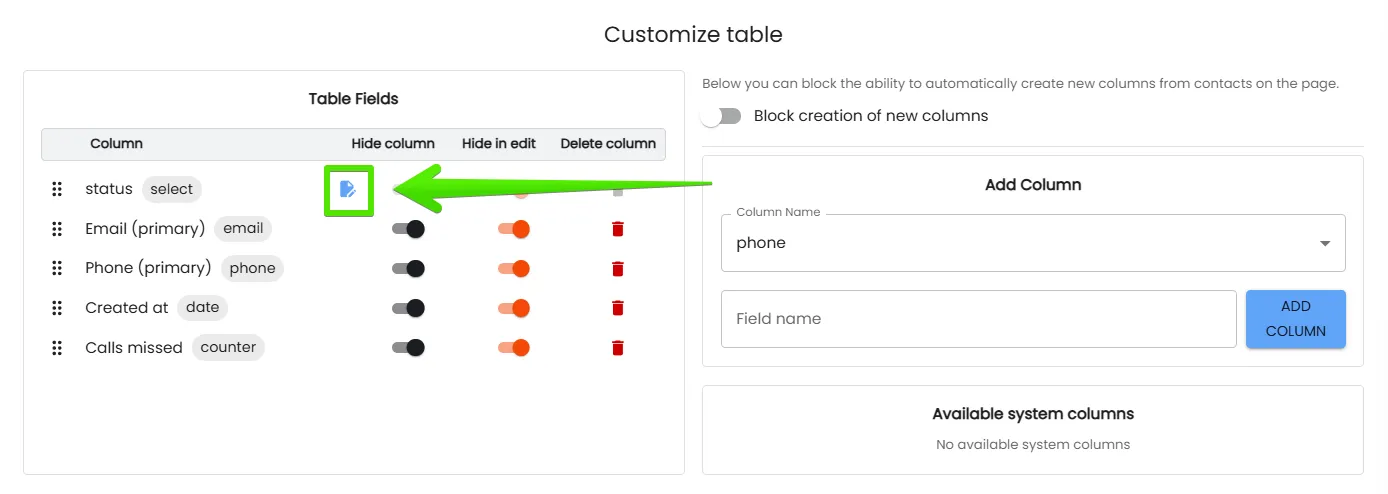
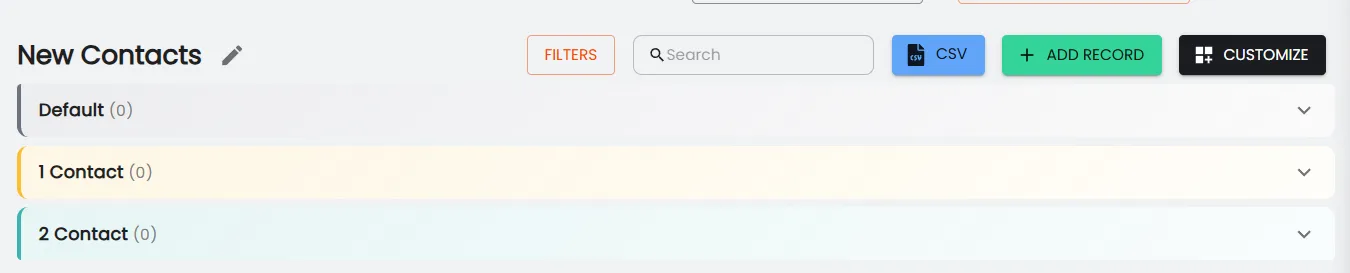
In the table, you can set custom statuses that facilitate lead flow management in the CRM system. The default “default” status can be changed, e.g., to “new contact,” and you can also add your own statuses with assigned colors. There is also the possibility to freely change the order of statuses in the table, which allows adjusting them to your individual work process.
Column Management
Not every column needs to be visible in the table all the time. In adsfox CRM, two column management options are available:
- Hiding Columns – data remains saved in the system, but the column is not displayed. It can be restored at any time.
- Deleting Columns – enables complete removal of the column if it is no longer needed.
Ability to Permanently Set Column Widths
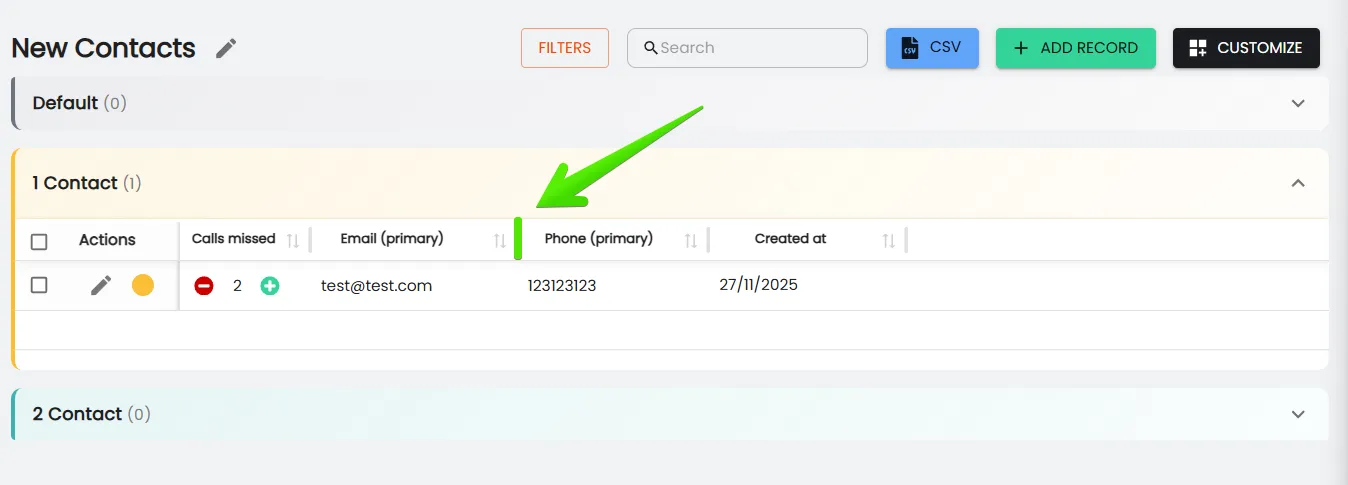
The new feature enables manual adjustment of column widths in the CRM table. The set width is remembered and automatically applied on subsequent visits to the table view, increasing readability and work convenience. To change the width, simply drag the edge of the selected column.
What Next?
After familiarizing yourself with the principles of adding and editing columns in the adsfox CRM table, it’s worth checking the guide “How to Add a Table from Excel in adsfox CRM.”
In the next post, we’ll show how to simply use this functionality.
How to Add a Table from Excel in adsfox CRM?