How to Connect adsfox to LinkedIn

Once set up, you’ll shift from chasing clicks to optimizing for high-quality leads that actually convert, all without hiking your ad spend. adsfox stands out by handling leads from any source, not just LinkedIn ads but website forms, SEO, or direct traffic—and broadcasting signals across platforms like Meta, Google, TikTok, and LinkedIn. Get a full-funnel view in GA4, from initial click to signed deal, making it a must-have for performance marketers tackling lead quality and campaign reporting challenges.
Step 1. Head to the LinkedIn Tab in adsfox
Kick things off by navigating to the spot where you’ll configure your LinkedIn connection.
- In your adsfox dashboard, click on the LinkedIn tab.
- Hit the “Connect with LinkedIn” button (or the equivalent for starting the integration).
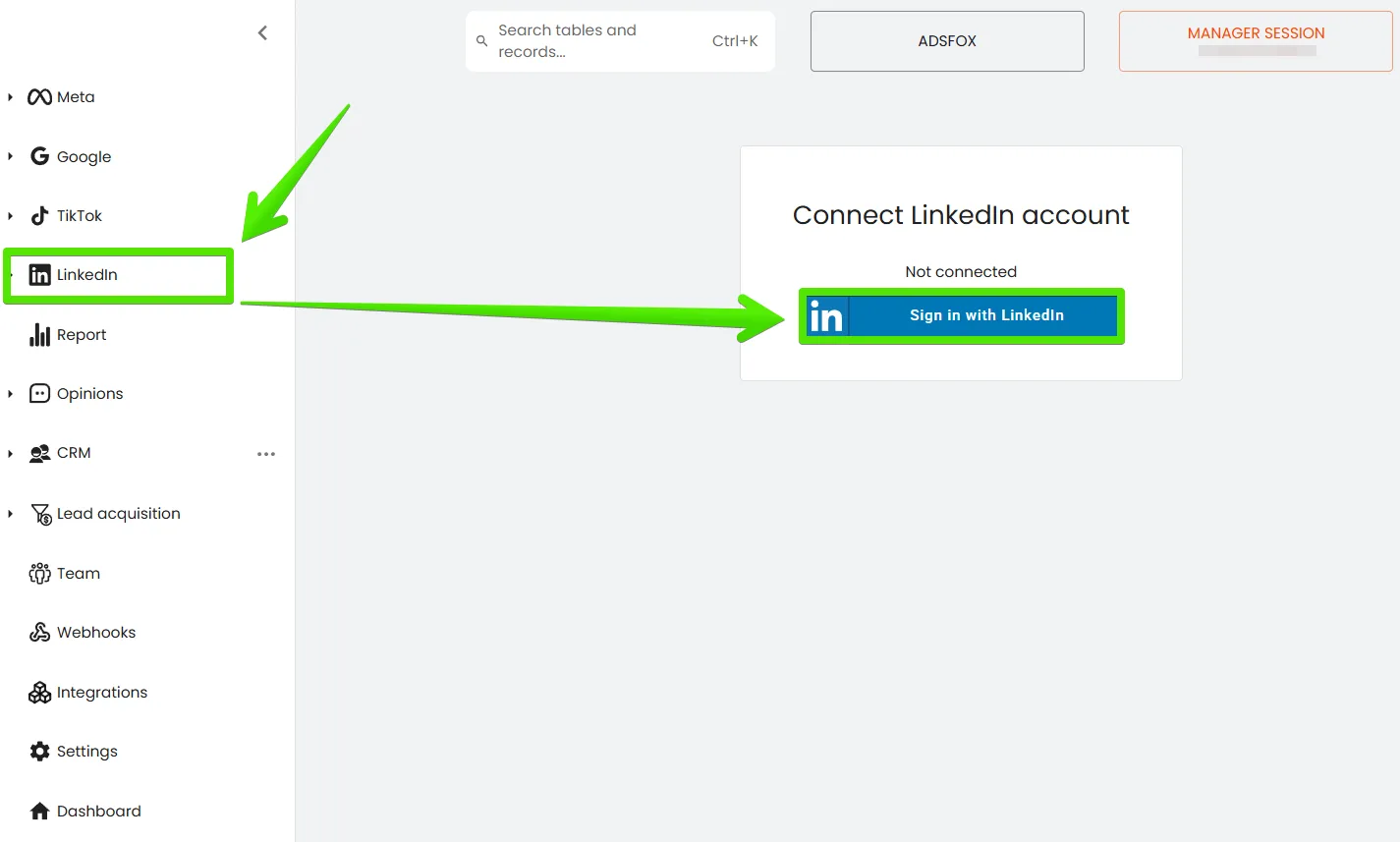
This will redirect you to LinkedIn’s login or account selection screen if you’re already signed in.
Step 2. Log In to the Right LinkedIn Account
For the integration to work flawlessly, link adsfox to the LinkedIn account that has access to your ad account.
- If you’re not logged in, enter your LinkedIn username and password, the one you use for managing ad campaigns.
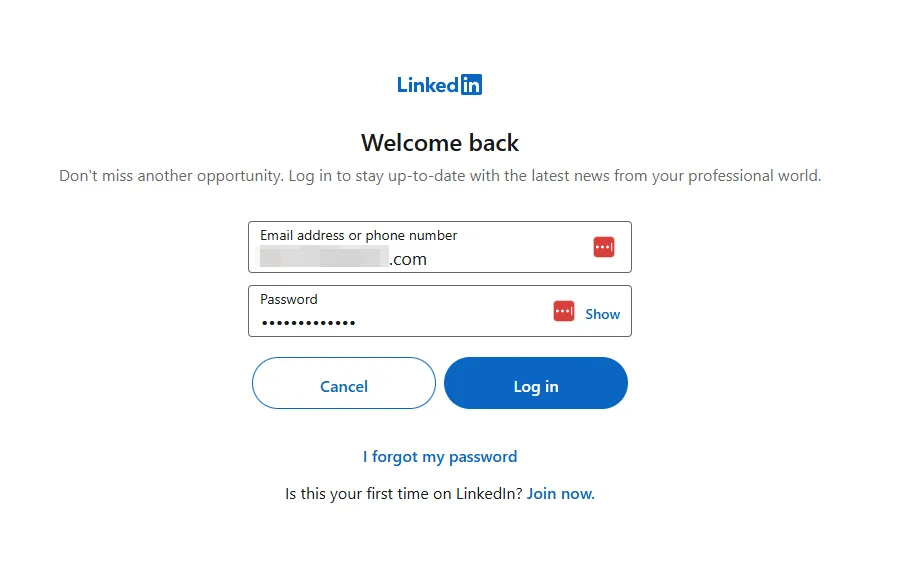
2. Ensure it’s the account tied to your LinkedIn Ads Account or Business Manager.
Step 3. Grant Permissions for adsfox in LinkedIn
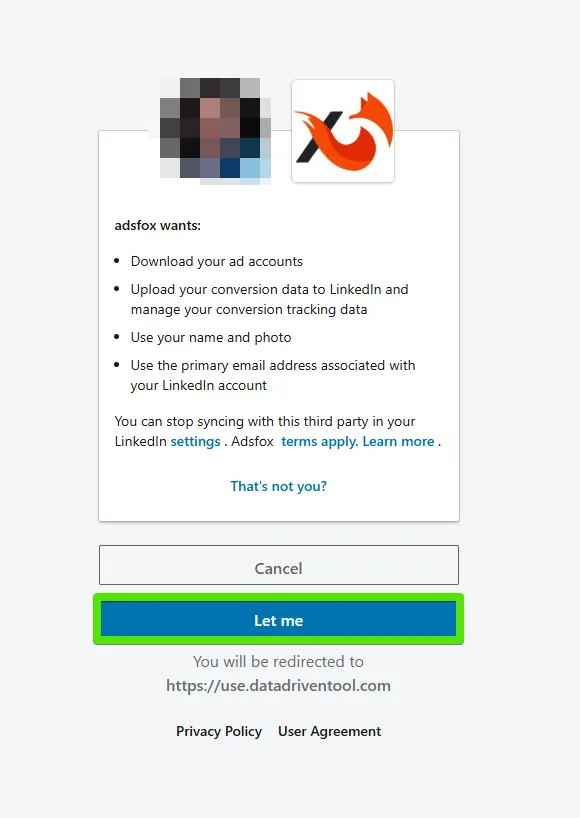
To let adsfox pull campaign data and manage the connection, you’ll need to approve the required permissions.
- On the authorization screen, review the list of permissions the app is requesting.
- Confirm access by clicking “Allow” (or the similar button).
Step 4. Select Your LinkedIn Ad Account in the adsfox Panel
Back in adsfox, you’ll see an ad account selection screen.
- adsfox will display a list of LinkedIn ad accounts your profile has access to.
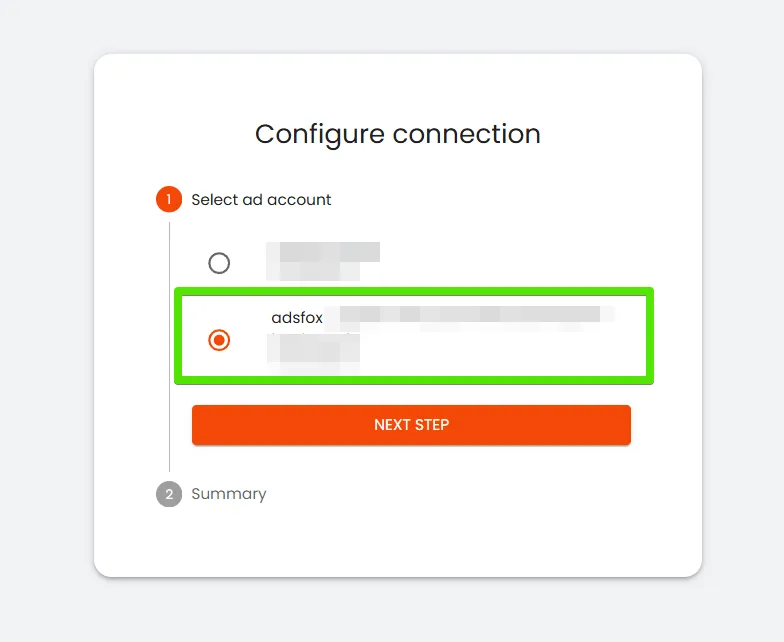
2. Pick the one where you run the campaigns you want to analyze and optimize in adsfox.
3. Click “Next Step” to move to the configuration summary.
Step 5. Review the Summary and Wrap Up the Setup
Before saving, double-check that everything’s aligned.
- On the summary screen, verify:
- The name of your selected LinkedIn ad account,
- That it’s linked to the correct workspace or client in adsfox.
- If it all looks good, click “Finish Configuration” to lock in the integration.
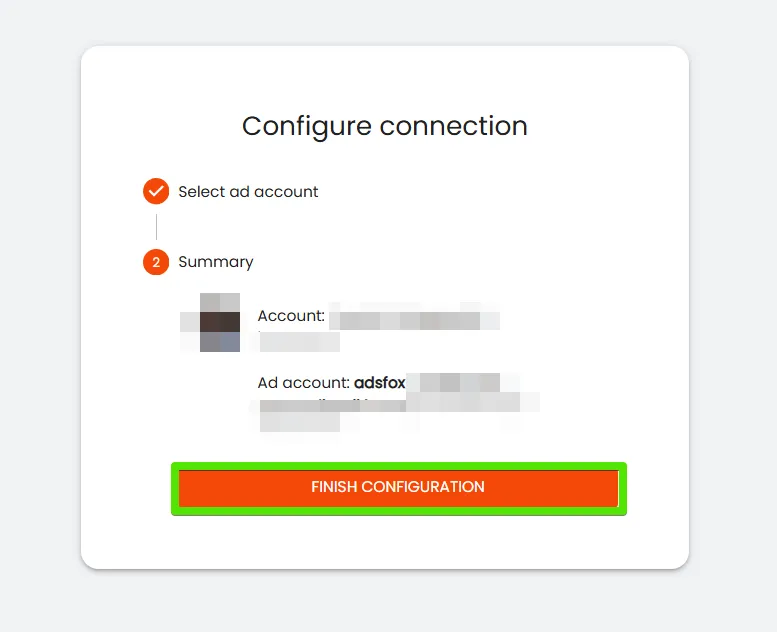
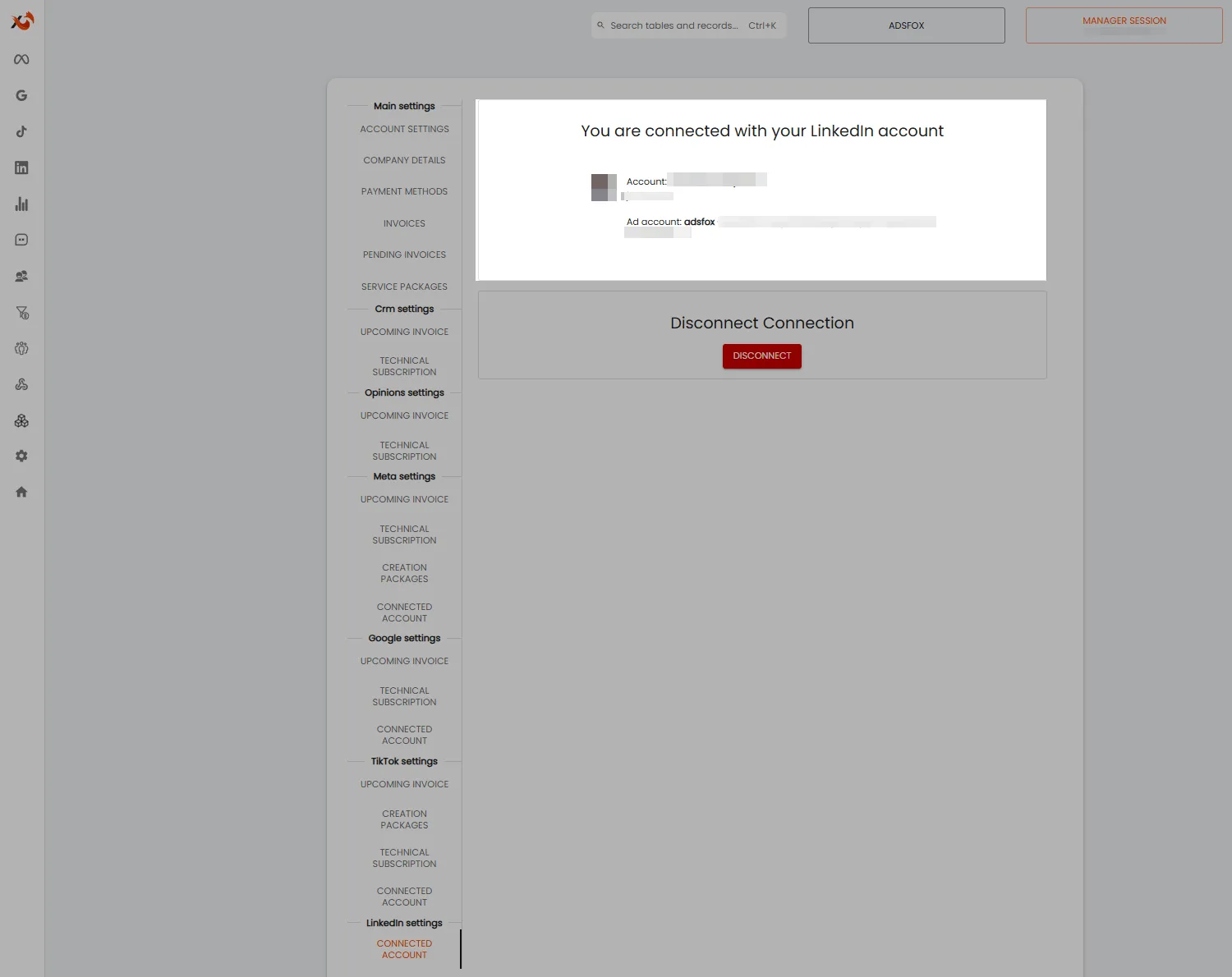
Once approved, you’ll get a confirmation that the account is successfully connected.
What’s Next?
With adsfox now synced to your LinkedIn ad account, you’re set to track leads from LinkedIn campaigns in one unified dashboard alongside other channels. Ultimately, this lets you optimize for lead quality and value, not just CPL.
In our next post, discover how to set up conversion events and send lead values from adsfox back to LinkedIn, so algorithms learn from your most valuable contacts.