
How to Create Ads through adsfox Panel for Meta Campaigns

Supported Campaign Objectives
The adsfox system supports conversion-based campaigns aimed at acquiring leads. The following conversion locations are supported:
- Website (Website conversions),
- Instant Forms (Instant forms / Lead Ads),
- Messenger,
- Phone Calls (Calls).
For proper integration operation, it is recommended to select one conversion location within the campaign.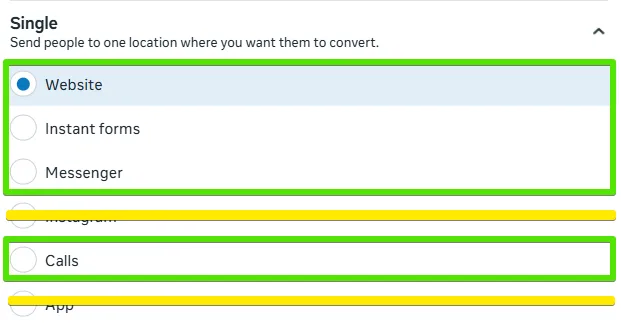
Selection of Conversion Location
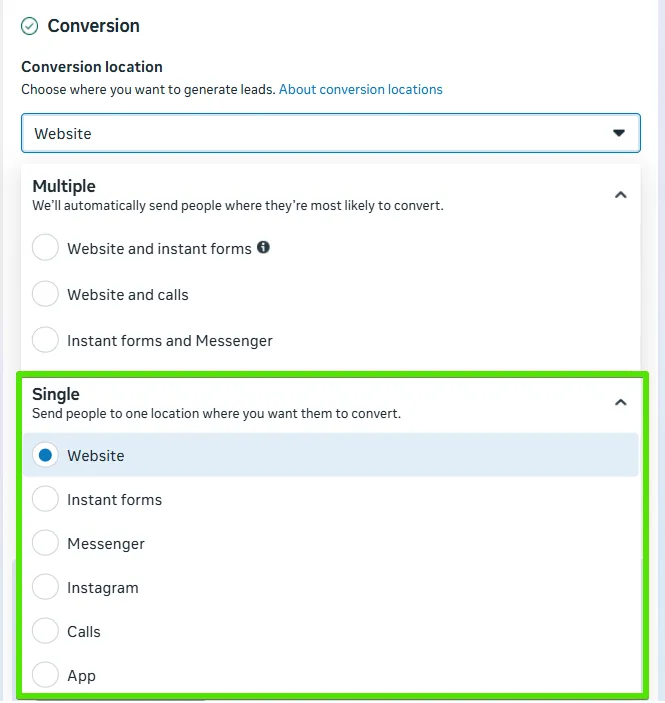
When creating a campaign, remember that the adsfox system supports only campaigns with one conversion location. This means that in the Conversion location section, you should always select an option from the Single group – e.g., Website or Instant forms.
Campaigns where Multiple mode is enabled (e.g., “Instant forms and Messenger” or “Website and calls”) are not supported, as this leads to incorrect data interpretation and hinders CRM integration.
Creating Ads
Every user can effortlessly create ads directly from their account dashboard.
To get started, simply log in to the platform, navigate to the Facebook section → Ad Campaigns, and hit the “Create Ad” button.
(For seamless self-service ad creation, make sure the campaign has been imported correctly in advance,it needs to include a single ad set with the budget defined at the campaign level.)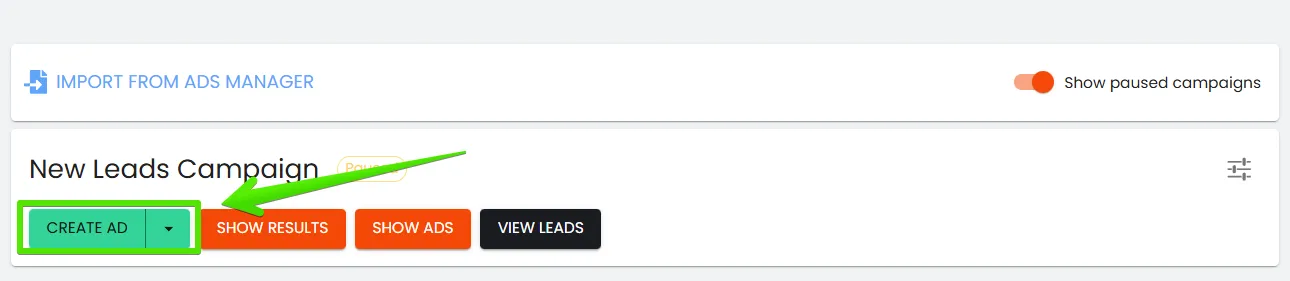
Creating Ads in the Client Panel to Multiple Sets
The functionality in the adsfox system enables adding one or multiple ads to different ad sets within one campaign, which significantly speeds up and facilitates campaign management. Thanks to this, there is no need to create separate ads for each set – just prepare one creative and assign it to several sets simultaneously, saving time and maintaining communication consistency.
The function includes the following possibilities:
The new functionality concerns:
creating an ad from an existing post,
creating an ad from an existing reel,
creating an ad based on an existing ad,
creating ads from a CSV file.
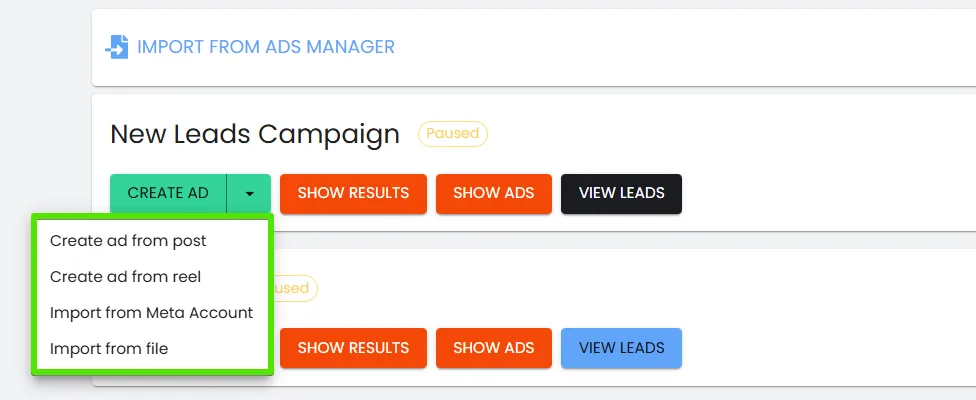
All created ads will be visible in the notifications panel.
Below is the method of adding a single ad to several ad sets:
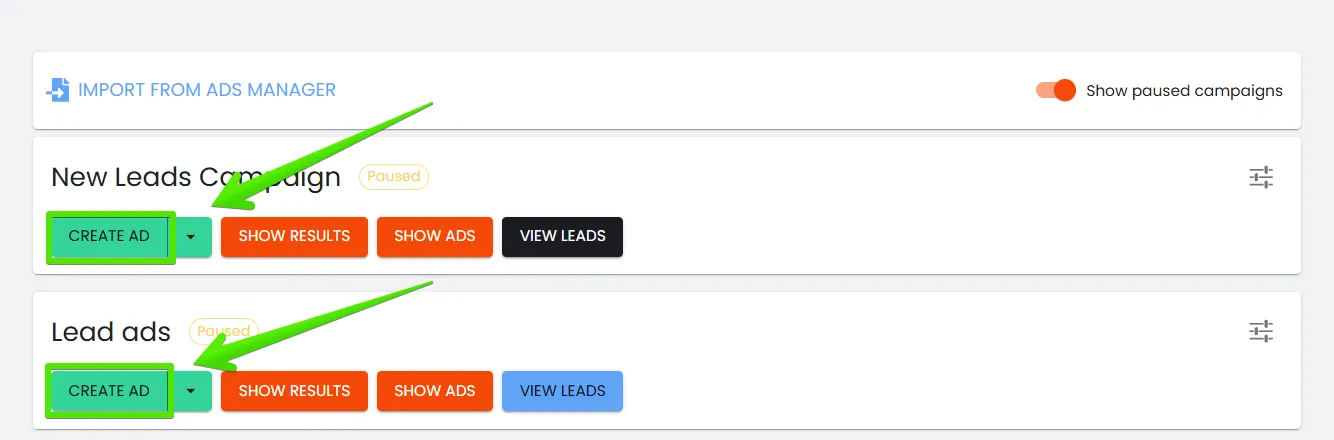
- Go to the campaign where the ad is to be placed, then click the button visible on the screen.
2. Then select the ad sets to which you want to add creatives.
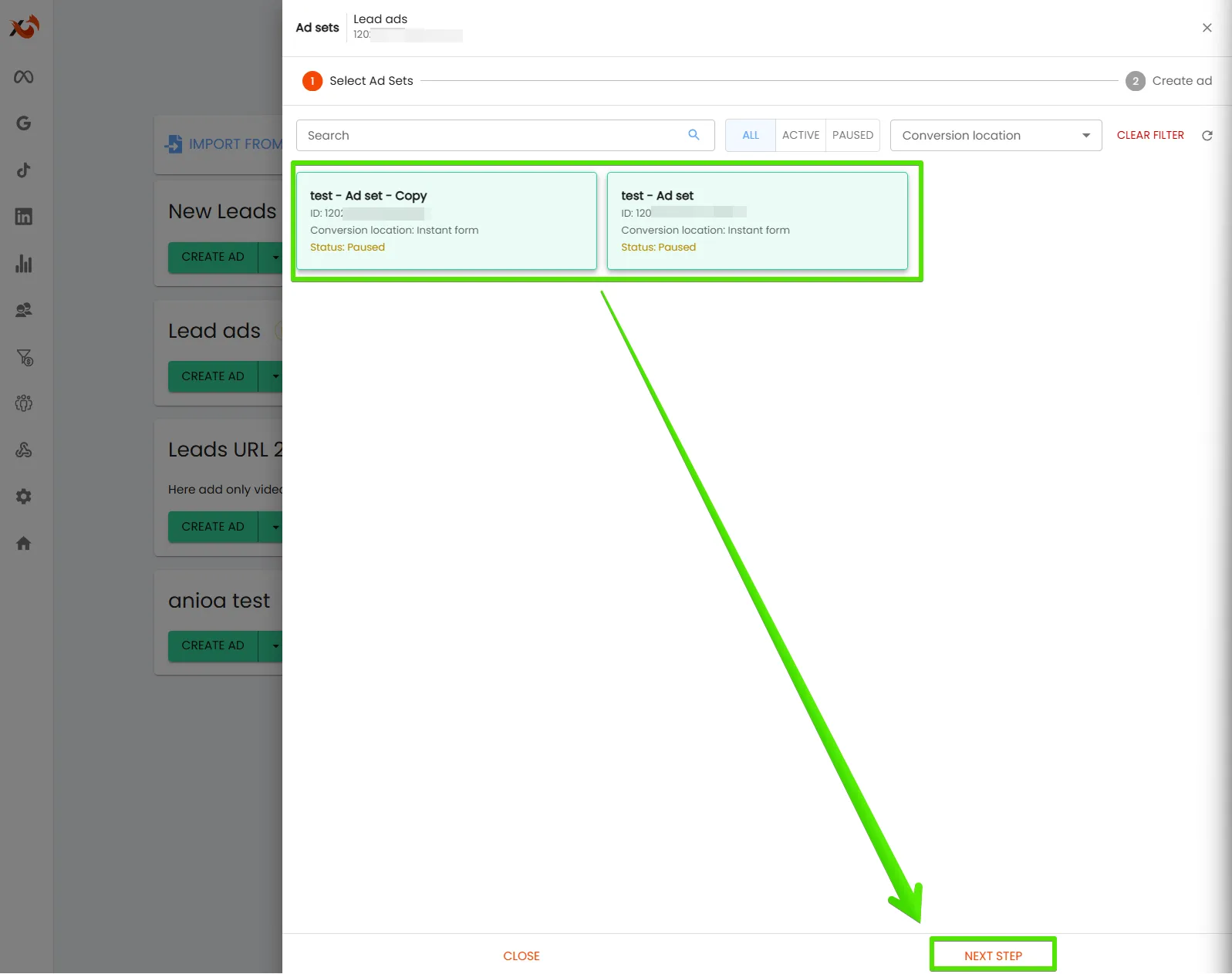
3. After moving to the next stage, fill in all required fields that will be visible to ad recipients, then click the “Create Ads” button.
After clicking the button, a form for creating the ad will appear: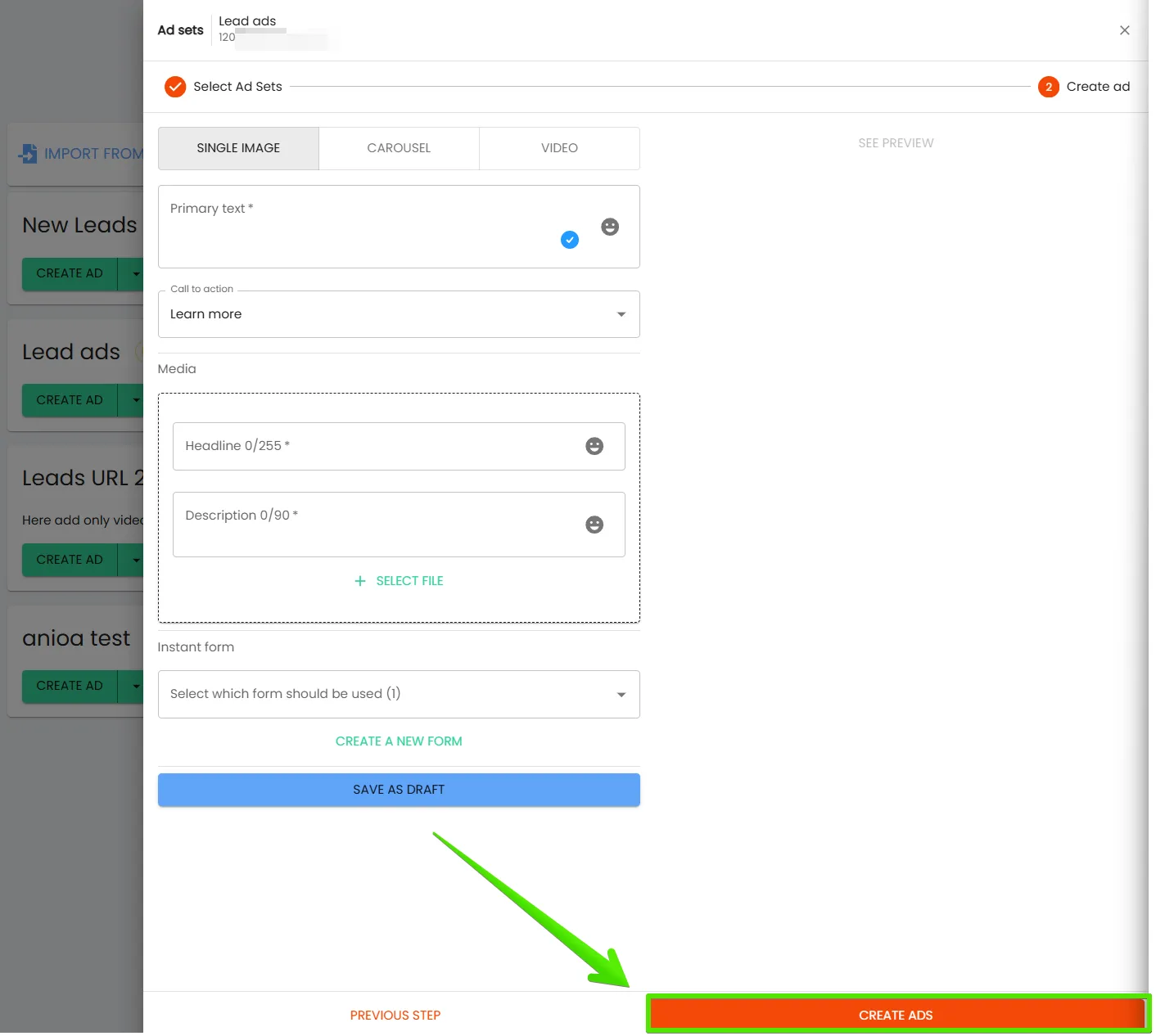
In the adsfox system, it is possible to create different types of ads – as a single post, carousel, or post with video.
To create a post, fill in the form, then click the “Create” button, selecting the ad publication date.
In the form, pay attention to individual elements:
- Main Text – this is the post content, i.e., the main part of the ad where the message directed to the recipient is located.
- Headline – this is a short, catchy phrase or CTA encouraging action, e.g., “Check more promotion details”. The headline appears next to the action button (button), which can be selected, e.g., “Check price”, “Book now”, “Learn more”.
- Description – this is additional explanatory information about what the ad or offer concerns.
Automatic Addition of UTM Parameters
When creating ads directly from the adsfox system level, there is no need to manually add UTM parameters to links. The tool automatically generates and attaches parameters compliant with our standard scheme, thanks to which the system can correctly identify traffic sources and campaigns.
The exception is when UTM parameters are manually overwritten – in such a case, the system will use the values entered by the user.
Ad Leads Preview
A preview of acquired leads is also available.
To display it, click the “View Leads” button.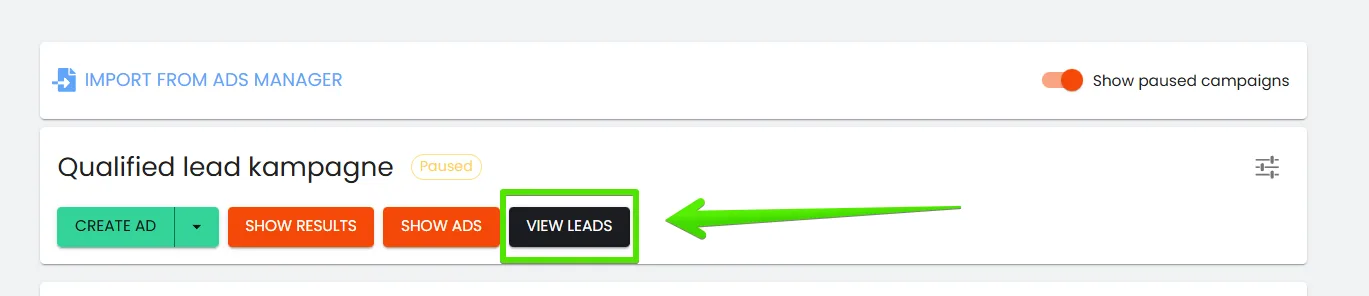
We will be redirected to the leads panel.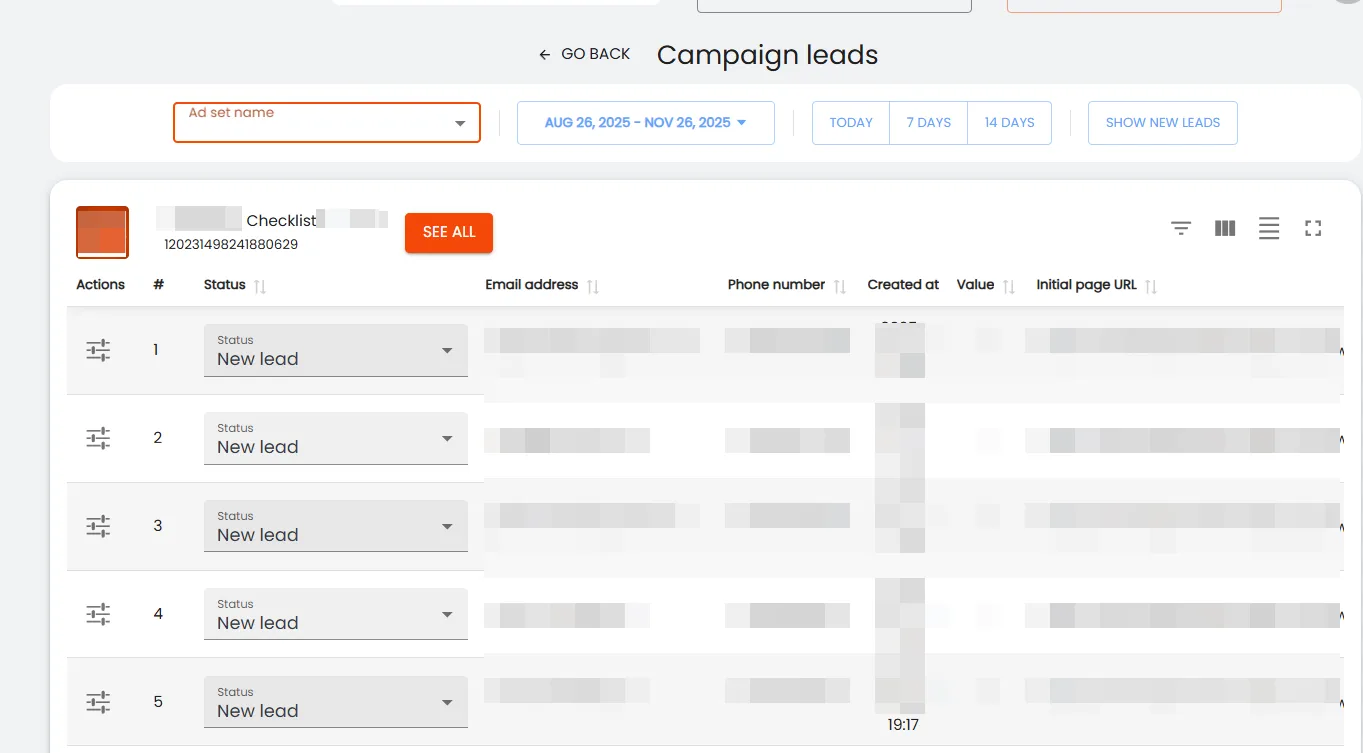
In this place, we have the ability to mark leads.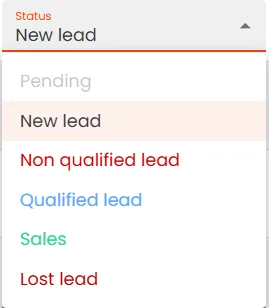
Summary
Crafting ads right inside the adsfox dashboard lets you whip up creatives in no time, assign them across multiple ad sets, and automatically slap on those essential UTM parameters. This keeps your entire workflow, from spinning up campaigns and juggling ads to deep-diving into lead analysis, all under one roof. It simplifies your day-to-day, ramps up efficiency, and ensures rock-solid data consistency to fuel your optimization game.
Next Step: Unlock New Optimization Opportunities for Meta Ads Campaigns Through Client CRM Integration