How to Integrate adsfox with Google Analytics 4 (GA4)?

With this setup, events from adsfox, such as new leads, lead status changes, and sales stages recorded in your CRM, can be sent to Google Analytics 4. This gives you a clearer view of the full customer journey, from ad click, to form submission, to qualification and sales outcomes.
adsfox GA4 integration gives you
1. more accurate campaign reporting
2. the ability to analyze lead quality, not just lead volume
3. better visibility into the full journey from lead capture to downstream sales activity
Step 1. Prepare the integration in adsfox
Start in the Google settings inside your adsfox account. This is where you will enter the data needed to connect adsfox with Google Analytics 4.
1. Log in to your adsfox account.
2. Go to Settings -> Google Settings (Connected account).
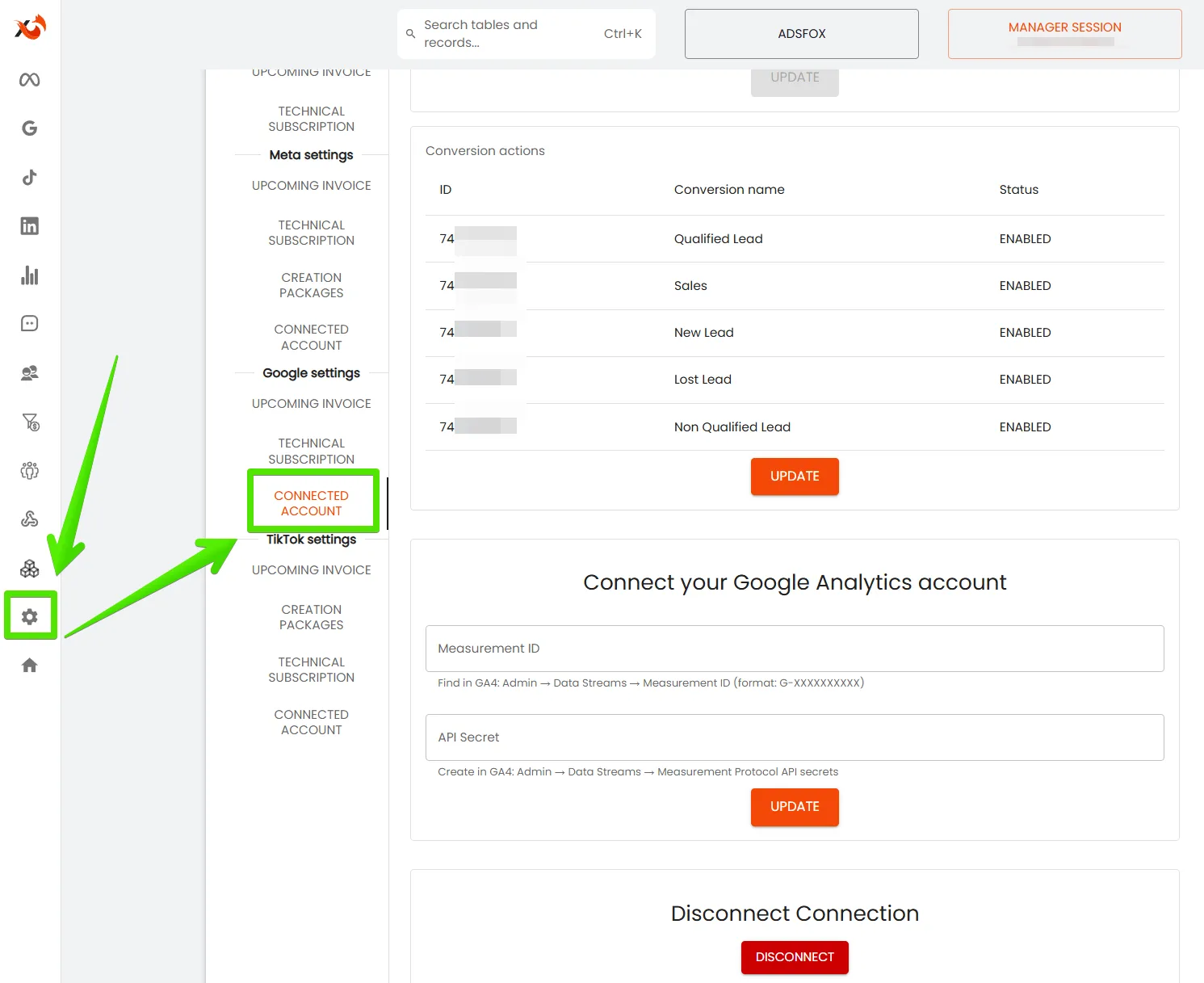
In this section, you will see two fields that need to be completed:
1. Measurement ID
2. API Secret
You will copy both values from Google Analytics 4 in the next steps. For now, leave this tab open.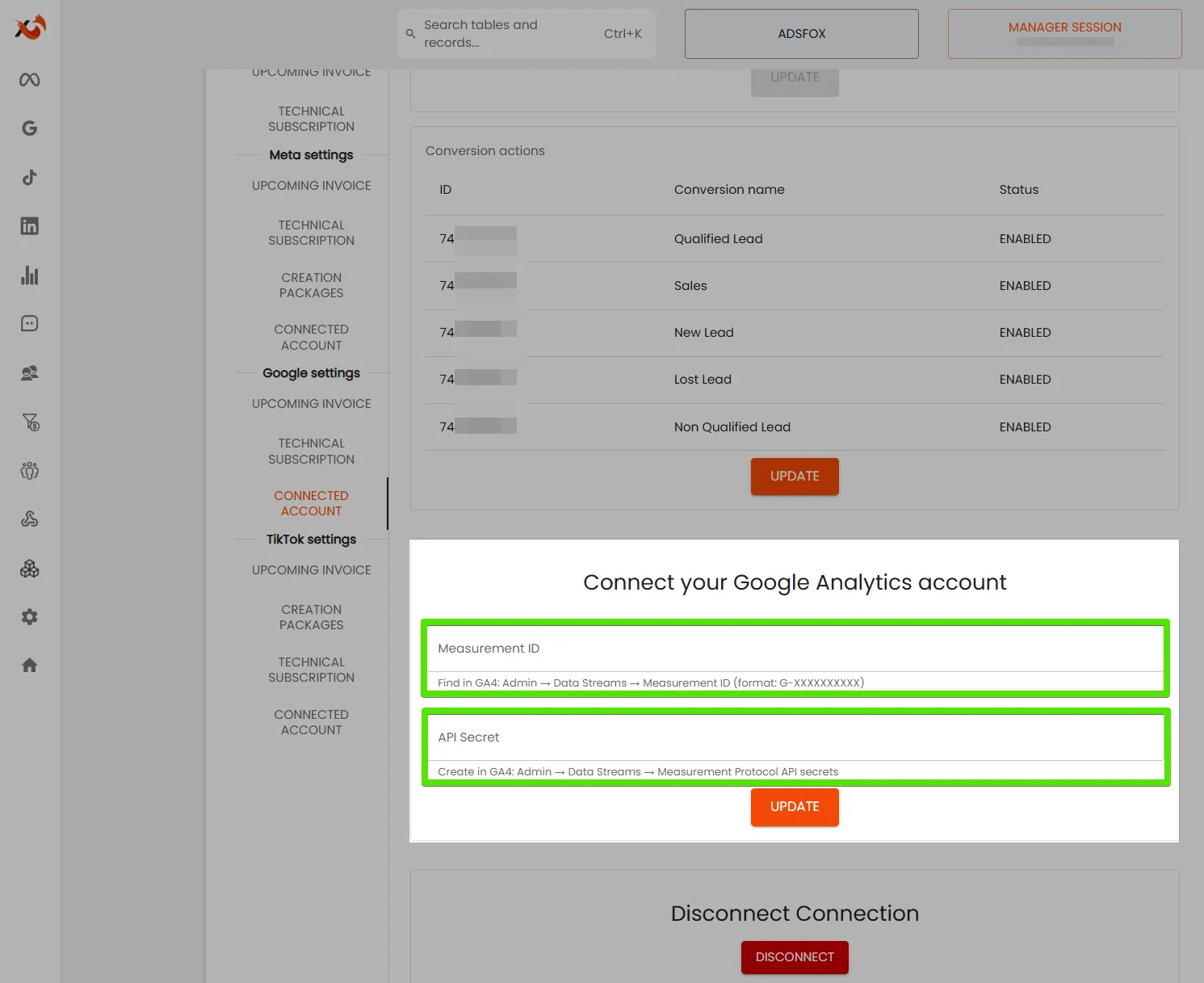
Step 2. Copy the Measurement ID in Google Analytics 4
The Measurement ID is the unique identifier of your GA4 data stream. adsfox needs it to send events to the correct Google Analytics 4 property.
1. Log in to your Google Analytics 4 account.
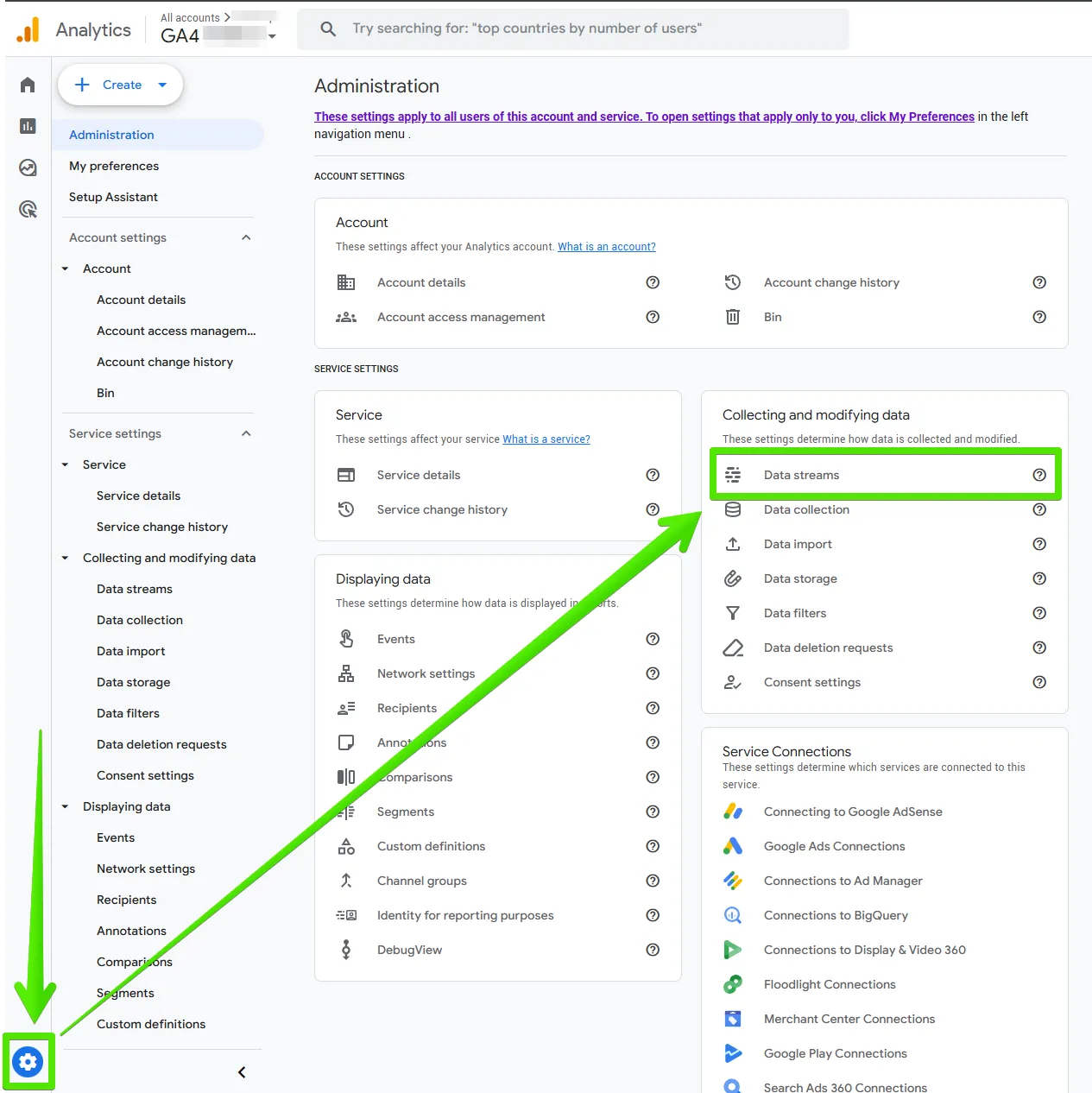
2. Click Admin in the lower left corner.
3. In the Property column, select Data streams.
4. Select the data stream used for your website.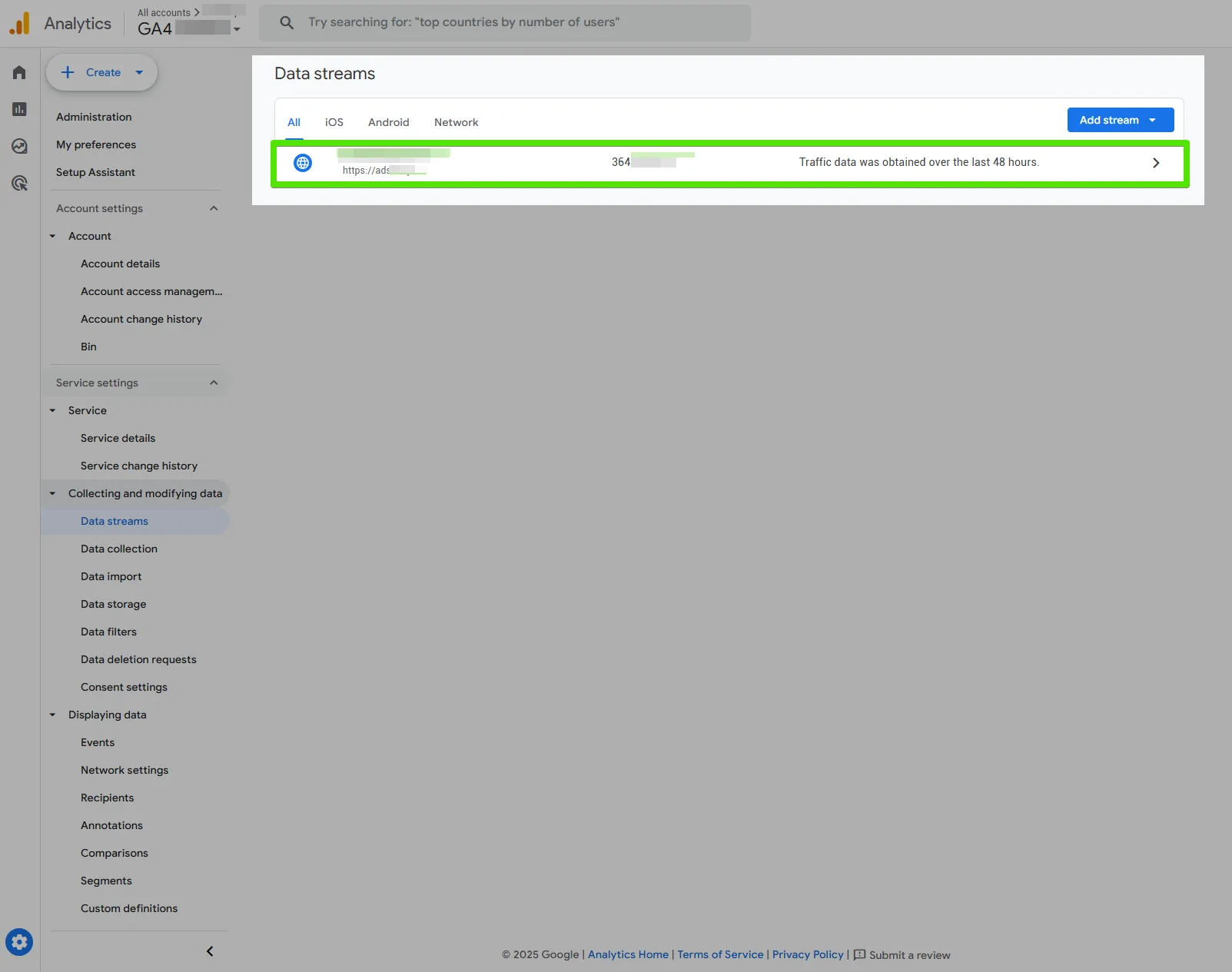
5. In the upper right corner of the stream details card, you will find the Measurement ID, for example G-XXXXXXXXXX.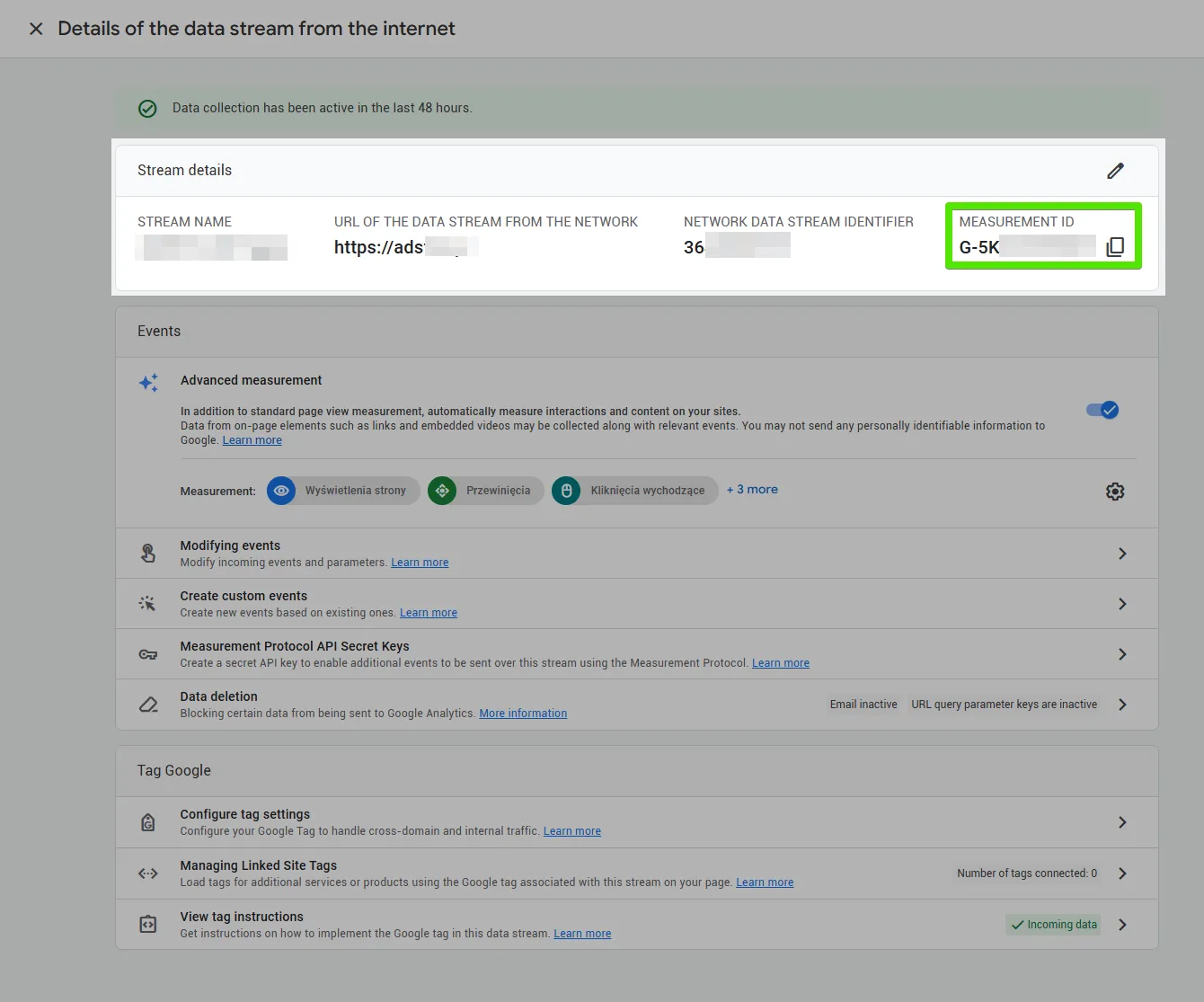
6. Copy the Measurement ID.
7. Go back to Google Settings in adsfox and paste the Measurement ID into the correct field.
Step 3. Create the API Secret in GA4
The API Secret is the key that allows adsfox to send events to GA4 securely through the Measurement Protocol. This is a required part of the integration and supports a more reliable server-side tracking setup.
1. In Google Analytics 4, stay in the Admin section.
2. Make sure you are working in the same property and the same data stream where you copied the Measurement ID.
3. Open Data streams again and choose the same web data stream.
4. Scroll down to the Measurement Protocol API secrets section.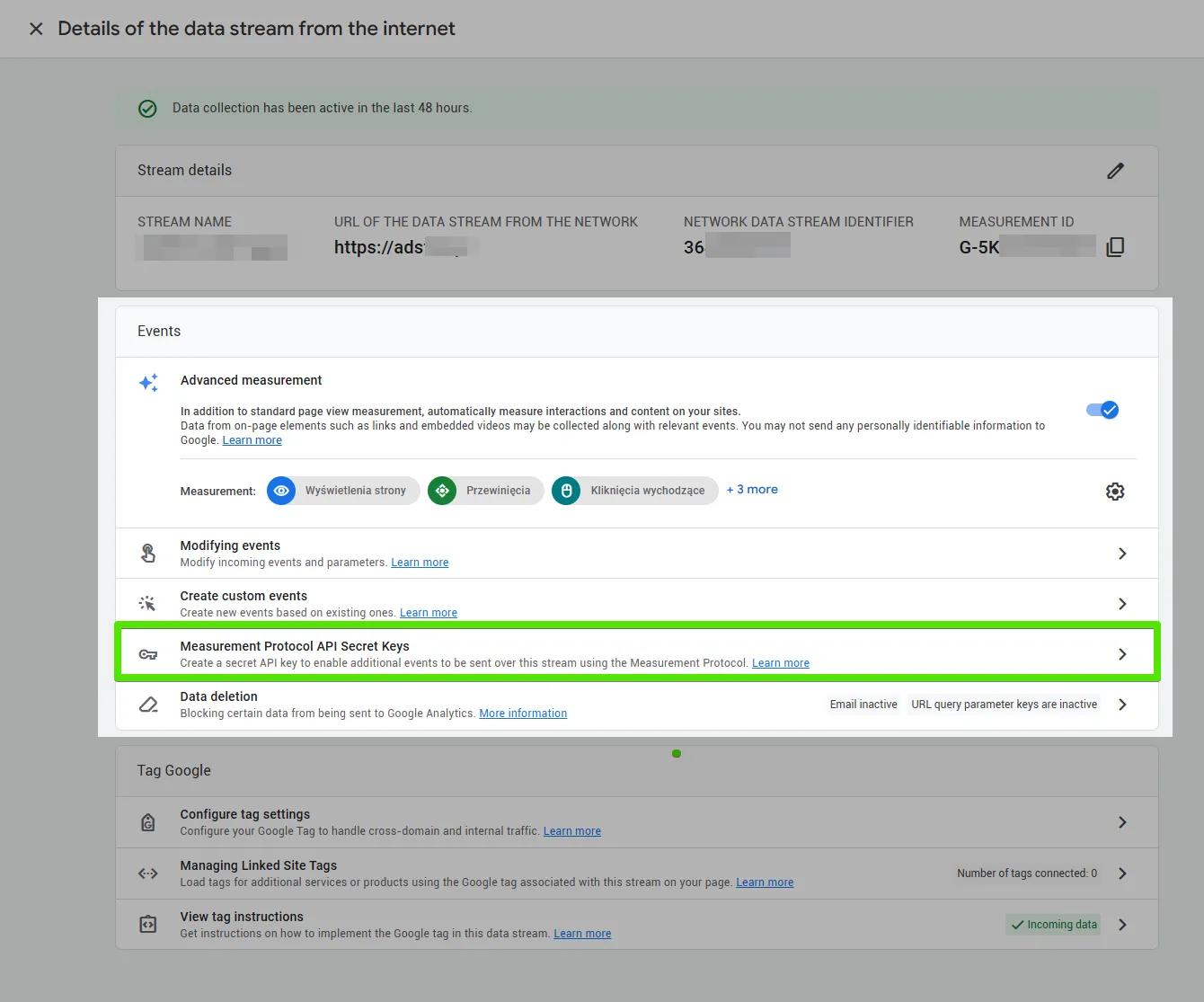
5. Click Create.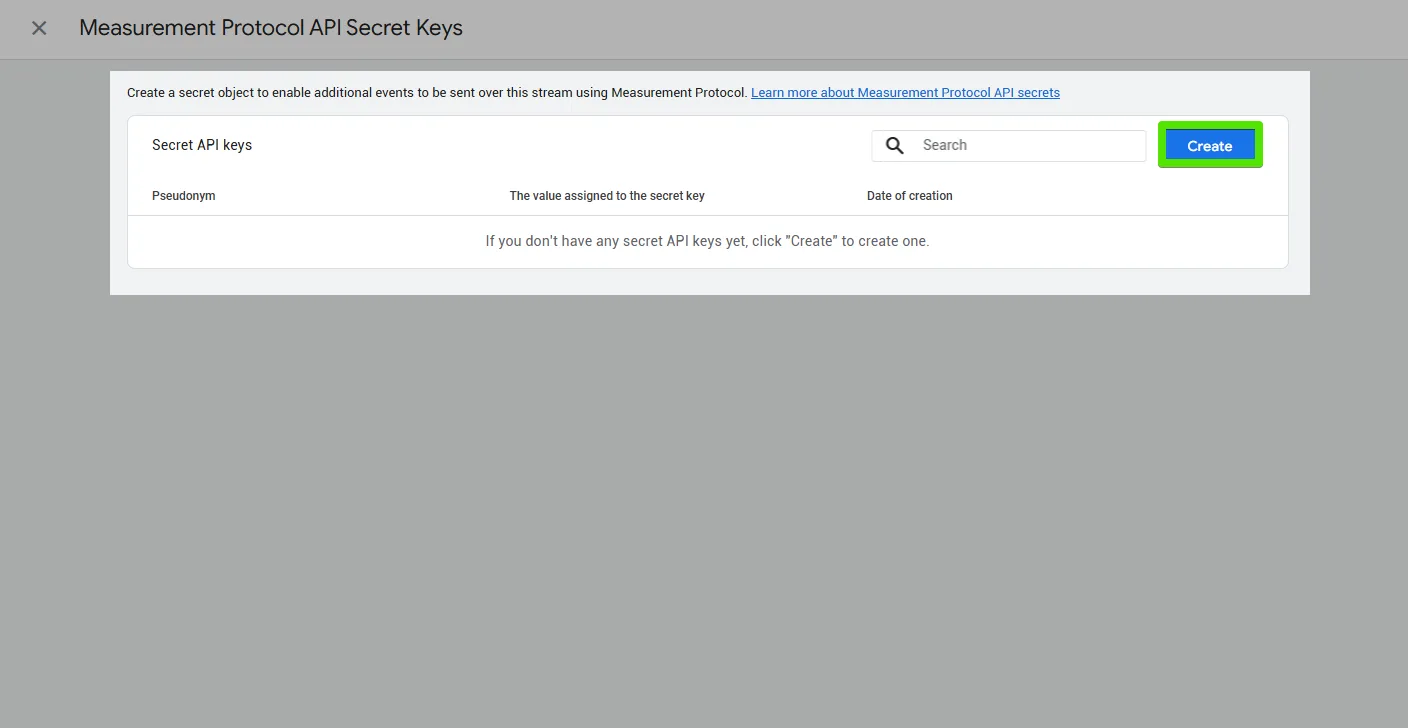
6. Give the secret a clear name, for example adsfox_GA4.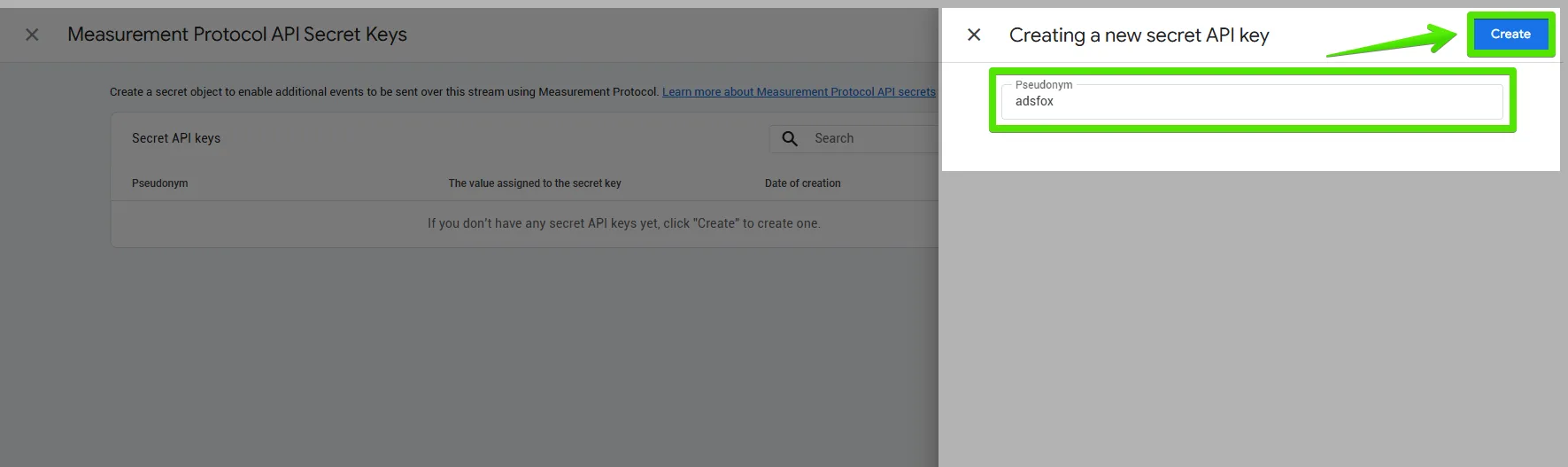
7. Confirm the creation of the secret.
8. Copy the generated API Secret.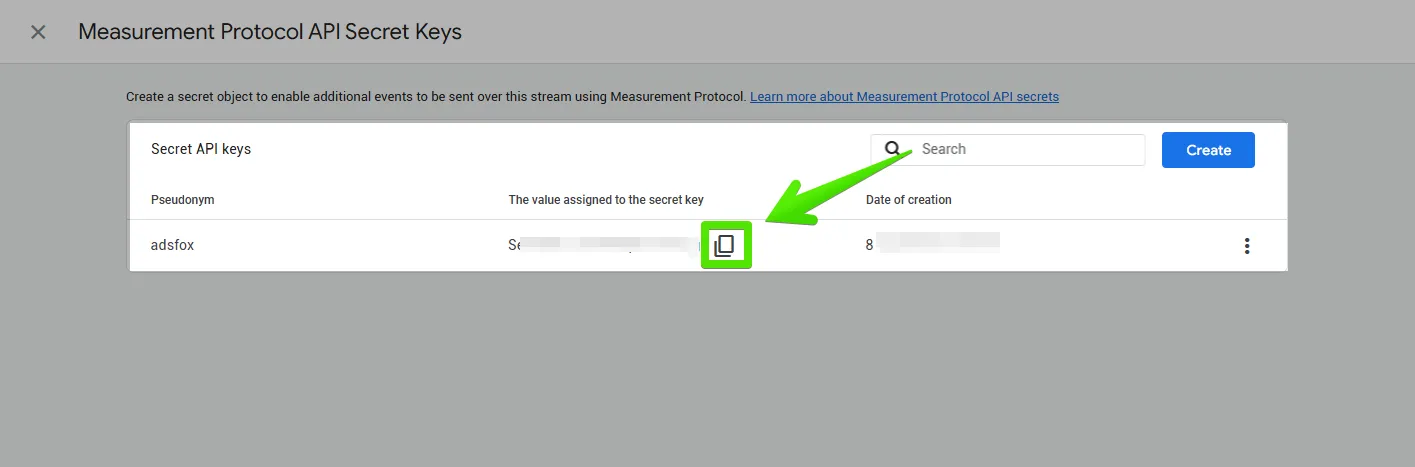
Step 4. Enter the data and save the configuration in adsfox
Once you have both values, the Measurement ID and the API Secret, you can finish the base configuration in adsfox.
1. Go back to adsfox -> Settings -> Google Settings (Connected account).
2. Make sure the Measurement ID field contains the correct value from GA4.
3. Paste the API Secret into the correct field.
4. Click Update to save the settings.
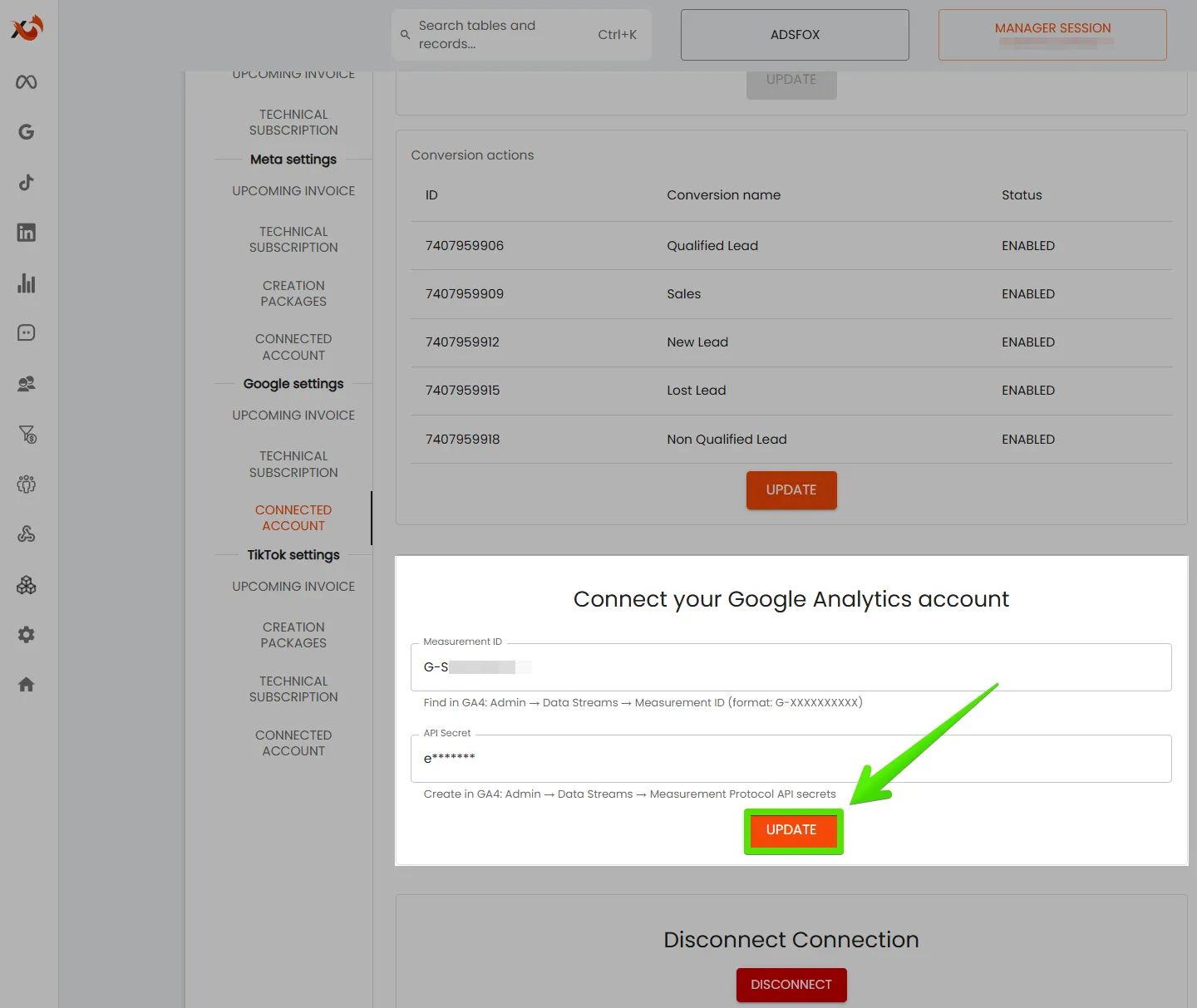
At this stage, adsfox is connected to Google Analytics 4. To make the data easier to use in reports and explorations, complete three more settings inside GA4.
Step 5. Add a custom dimension in GA4
After you connect adsfox to GA4, add a custom dimension that lets you analyze lead status inside reports and explorations. This is what later allows you to see which contacts are new leads, which became qualified leads, and which ended as sales or lost opportunities.
1. In Google Analytics 4, go to Admin.
2. Open Custom definitions or Custom dimensions.
3. Click to create a new custom dimension.
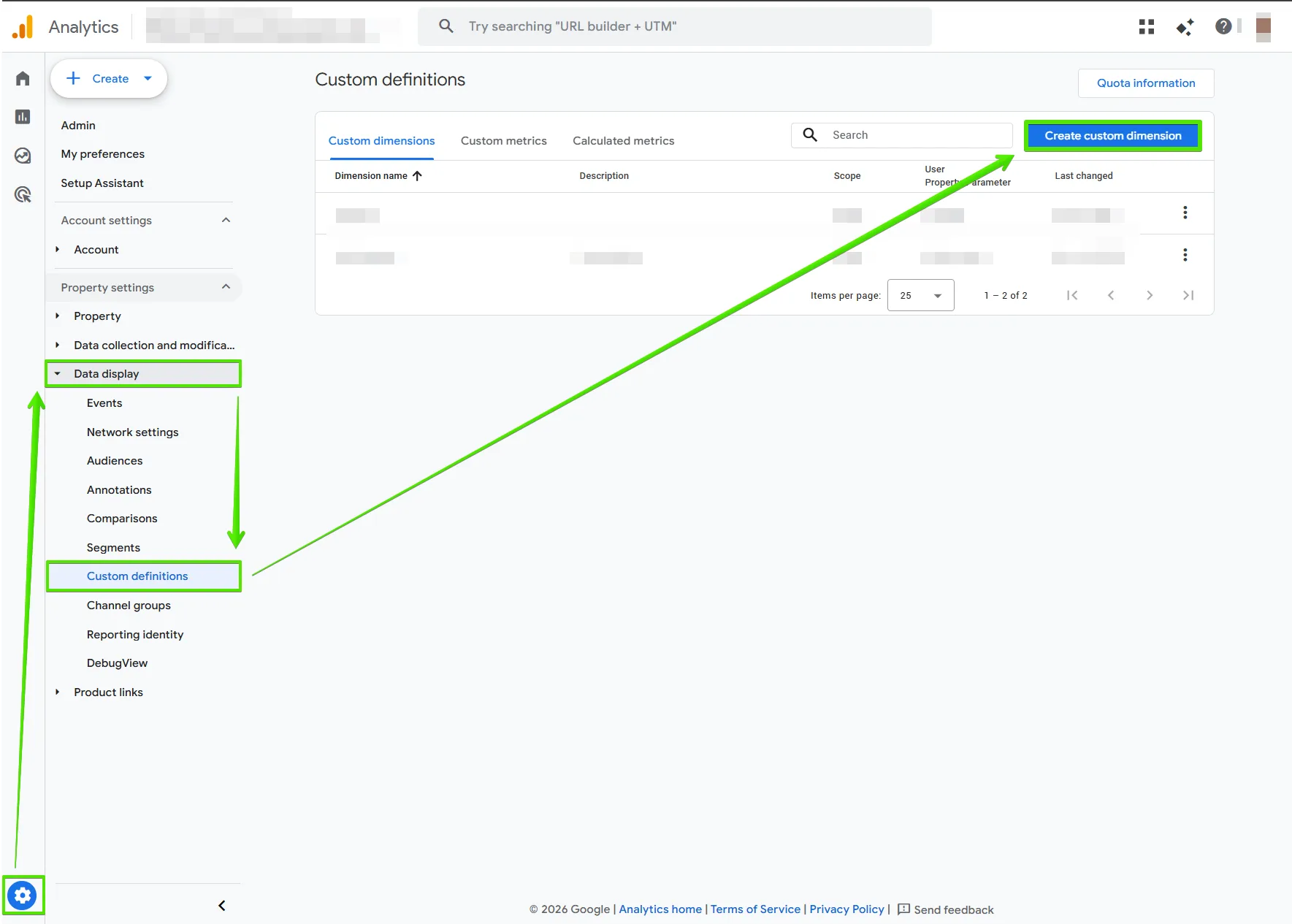
4. In the Dimension name field, enter Lead status.
5. Set the scope to Event.
6. In the Event parameter field, choose the parameter that stores the lead status sent from adsfox.
7. Save the new custom dimension.
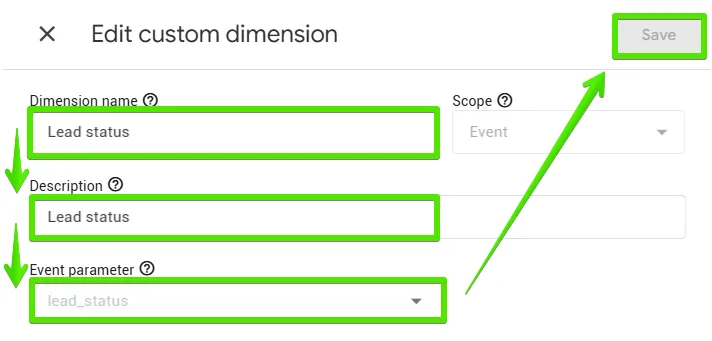
Once it is saved, GA4 can use this dimension in custom reports and explorations. That makes it easier to compare campaigns not only by the number of form submissions, but also by how leads move through your CRM.
Step 6. Mark the right events as key events
The next step is to mark the most important events as key events in GA4. This helps you isolate the most important funnel stages and makes reporting more practical for lead generation and CRM integration analysis.
1. In Google Analytics 4, open the Events list.
2. Find the events sent to GA4 that you want to treat as the most important for reporting.
3. Mark the selected events as key events.
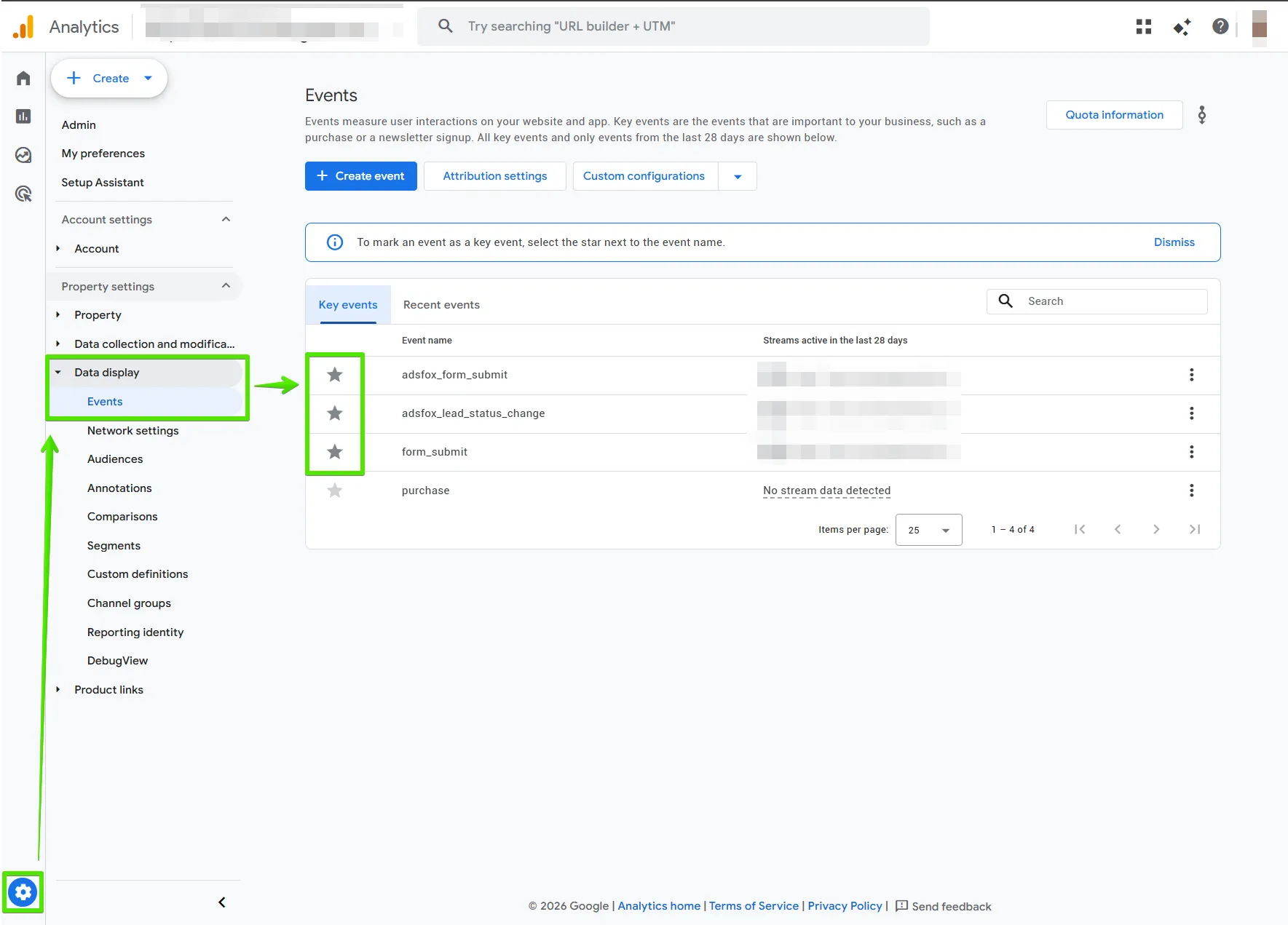
In practice, it makes sense to mark as key events the events that represent the most important points in the funnel, for example lead capture or a lead status update sent from adsfox.
If several funnel stages are sent to GA4 under one event and differentiated by status, you can separate them later by using the Lead status custom dimension.
Step 7. Set data retention in GA4
By default, GA4 keeps exploration data for only 2 months. In B2B and service-based lead generation, the sales cycle often lasts much longer, so it is worth extending data retention to 14 months right away.
1. In Google Analytics 4, go to Admin.
2. Then go to Data collection and modification -> Data collection and enable the required options.
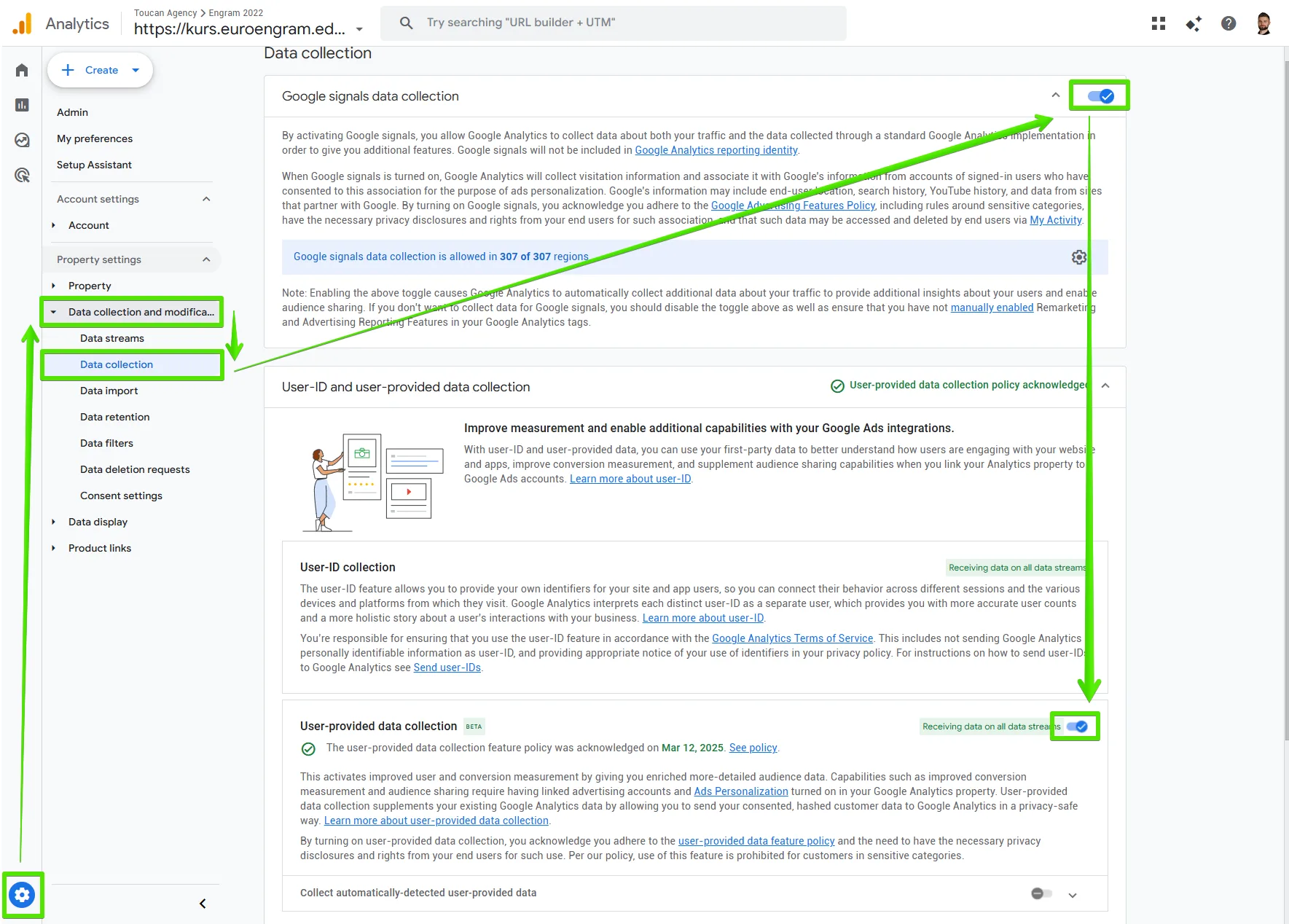
3. Then go to Data collection and modification -> Data retention. Select Data retention.
4. Change the setting from 2 months to 14 months.
5. Save the change.
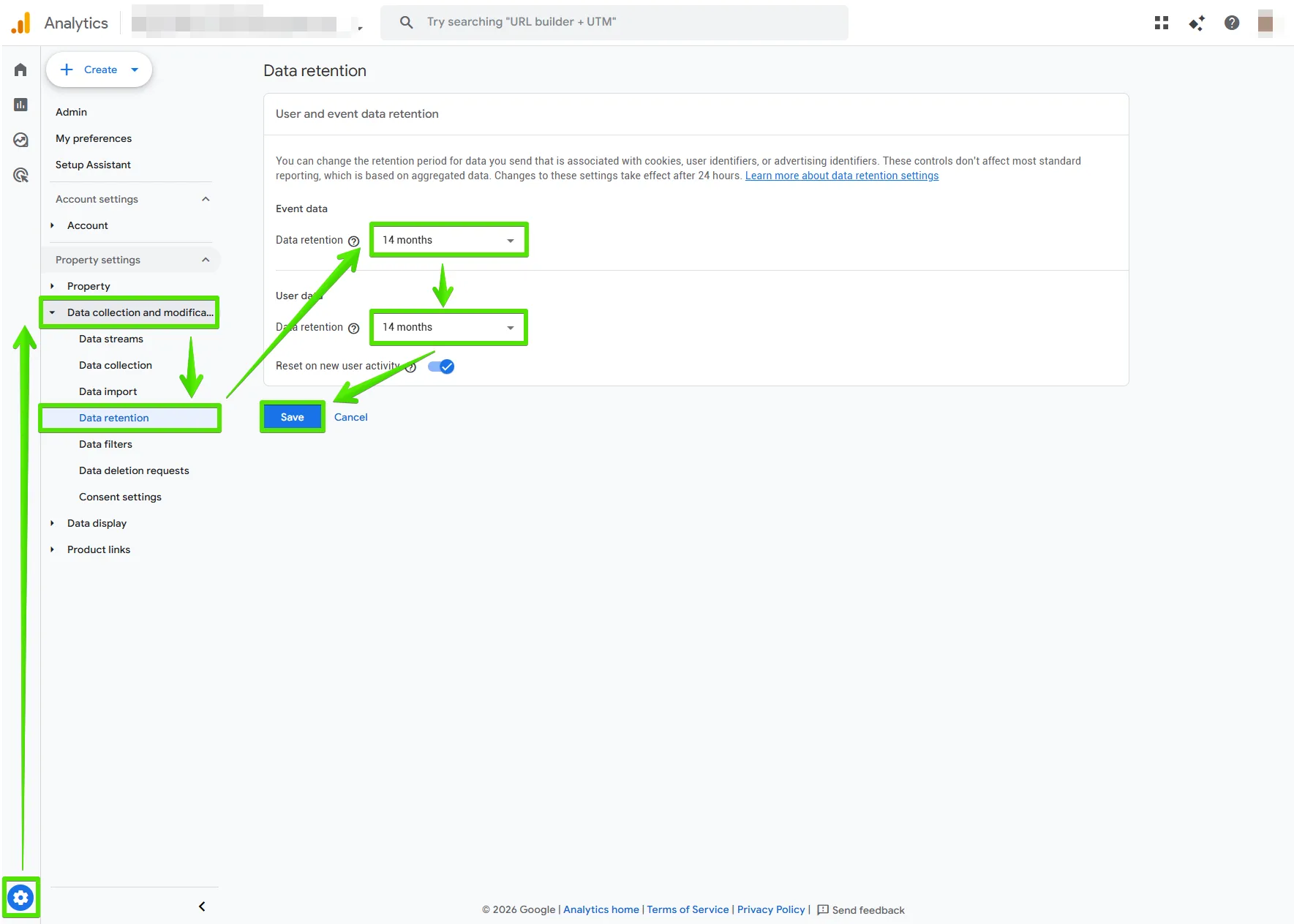
This setting is especially important if you want to analyze longer customer journeys and compare how leads move between funnel stages over time.
What next?
After you complete all of the steps above, your adsfox and Google Analytics 4 integration is ready to work.
From this point, you can:
1. collect lead and lead status data in GA4
2. analyze lead quality instead of looking only at form volume
3. build reports that show a fuller path from ad spend to qualified leads and sales outcomes
Because adsfox can sync qualification data and lead values from your CRM to Meta, Google, TikTok, LinkedIn, and GA4, you can move from basic reporting to a more complete view of the customer journey and smarter conversion optimization across channels.