
How to Manage Contacts in adsfox CRM

adsofox is a lead generation optimization tool that helps users integrate their CRM systems with ad platforms like Meta, Google, LinkedIn, and TikTok. It enables companies to track leads, optimize campaigns, and improve sales without increasing their ad budget.
Tagging Lead Statuses
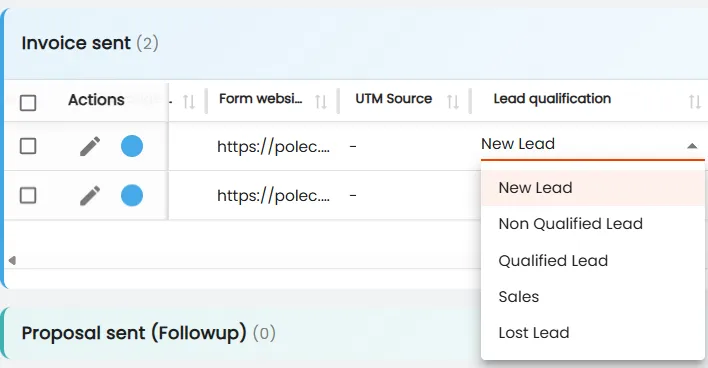
Each lead in CRM can be assigned a status reflecting the stage it is at in the sales process. Statuses play an important role not only in work organization but also in optimizing advertising campaigns and teaching algorithms, especially after integrating the CRM system with platforms like Google Ads or Meta Ads.
Predefined statuses are available:
- New Lead – freshly acquired contact.
- Unqualified – e.g., when the client accidentally filled out the form or is not interested in the offer.
- Qualified – the lead shows interest in the offer; you can assign it a value reflecting potential revenue.
- Sale – means that the client has made a purchase.
Statuses enable quick determination of which stage of the sales funnel individual clients are at.
Manual Addition of Records
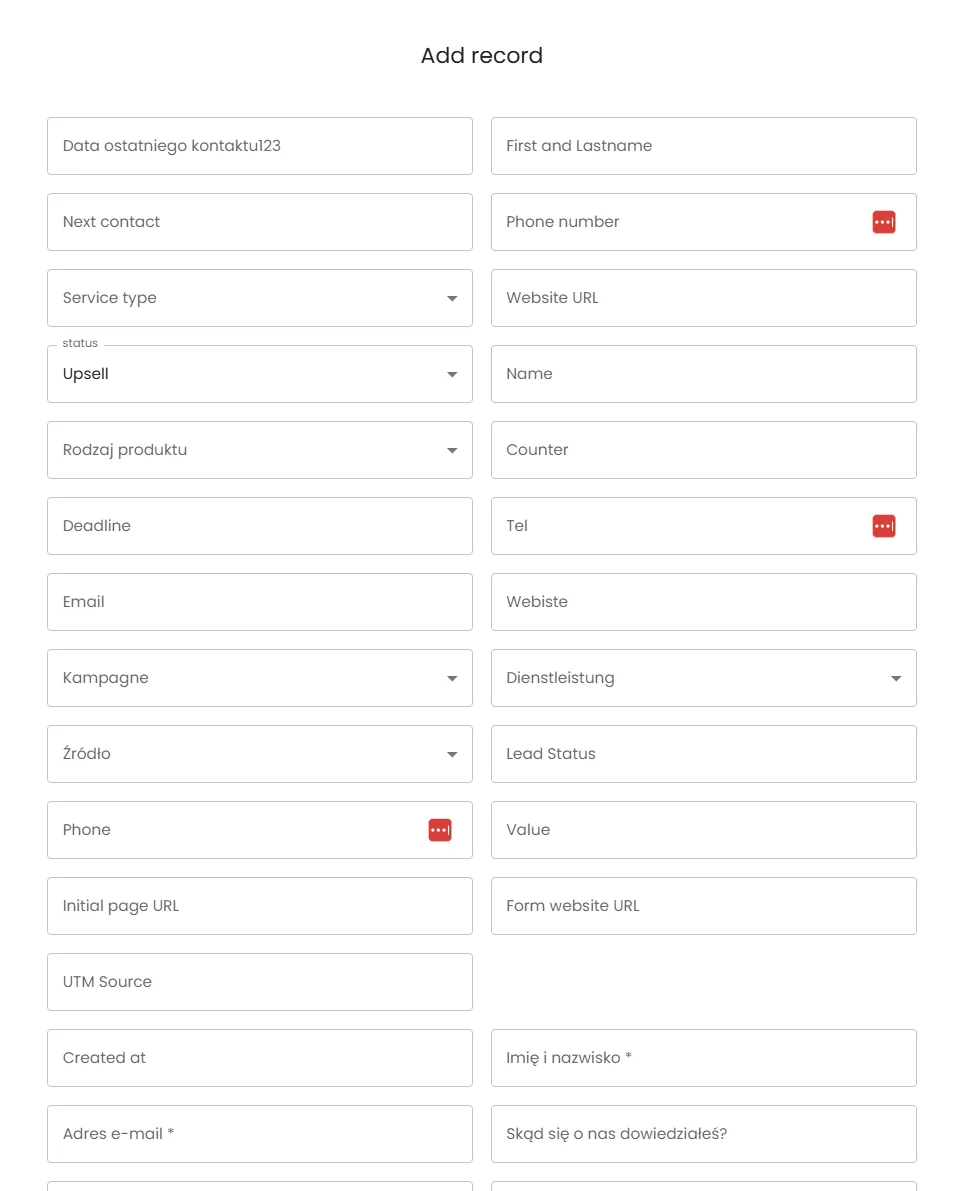
Not all contacts need to come from forms or campaigns. Some leads may appear naturally, e.g., through recommendation from a current client. In such a case, you can manually add a record to the appropriate table. This is a simple and effective way to maintain full control over all contacts.

Migration and Moving Records
The CRM system enables easy moving of contacts between tables and workspaces.
To do this:
- Select the leads to be moved.
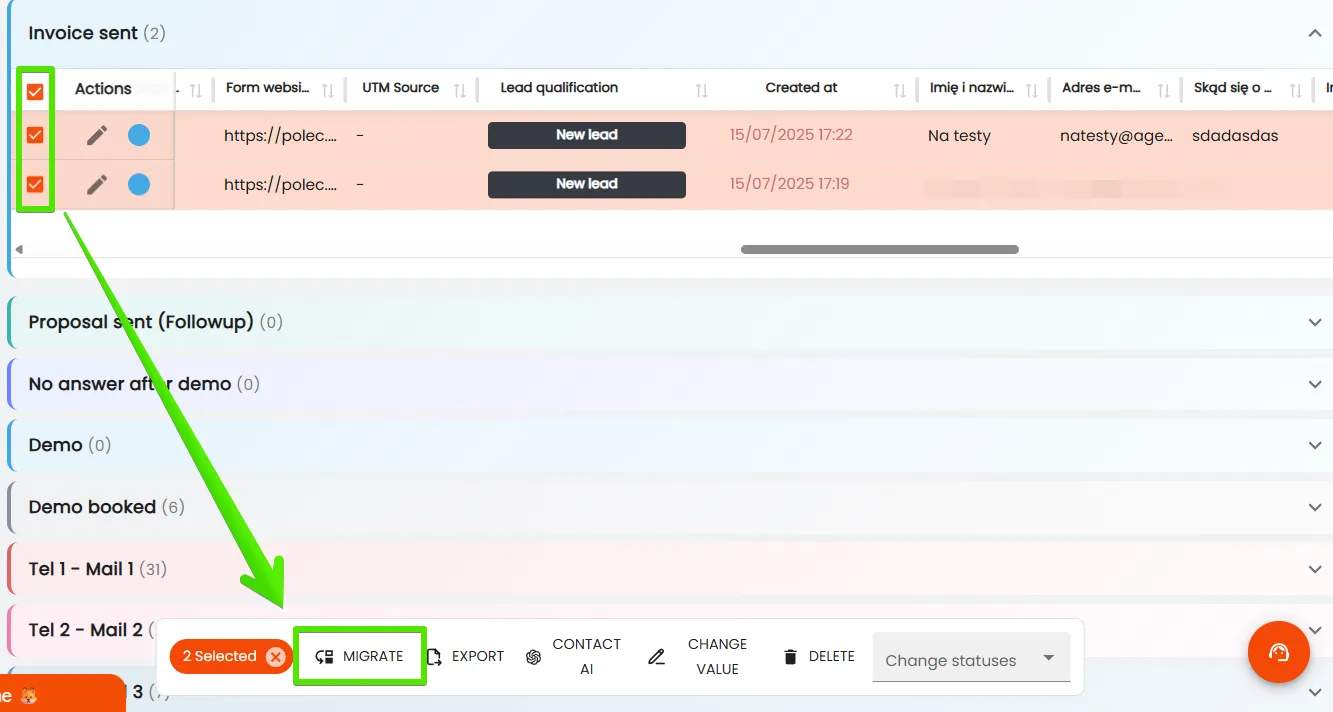
2. At the bottom of the screen, a panel with tools will appear – click the “MIGRATE” button.
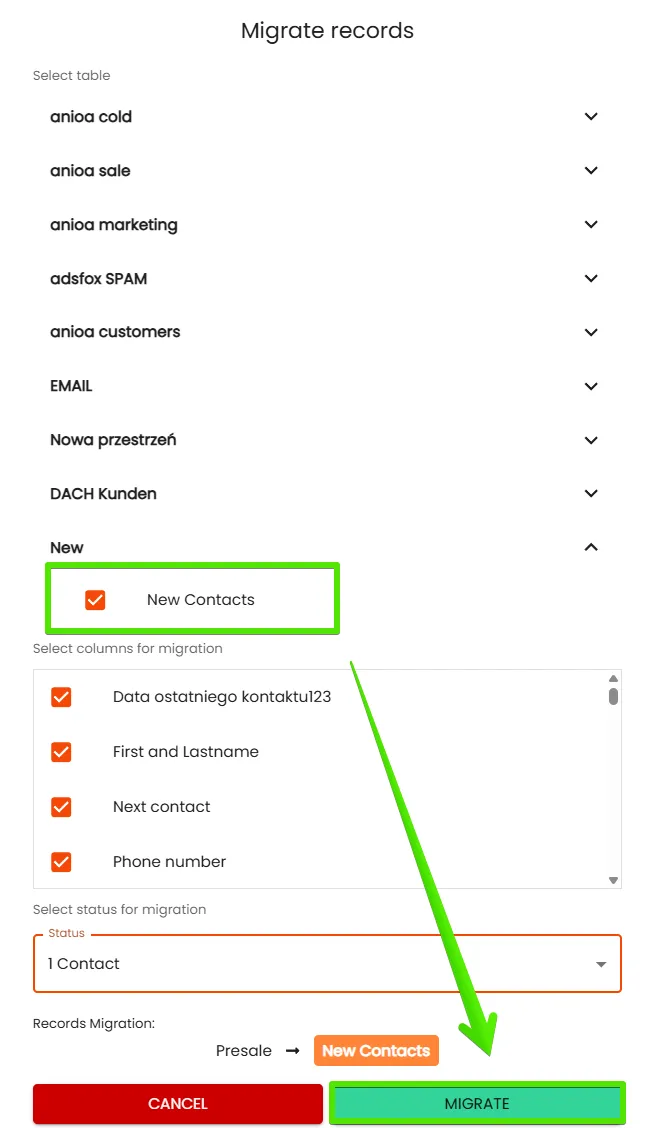
3. Select the target workspace, table, and columns where the records should go.
4. Confirm the operation by clicking “MIGRATE” again.
Thanks to this function, it is possible to easily reorganize the database, for example, by separating active clients from potential ones.
Adding Files and Attachments
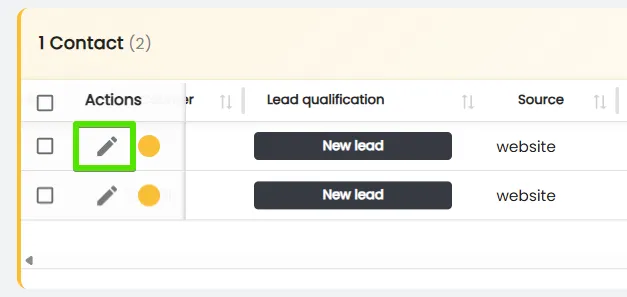
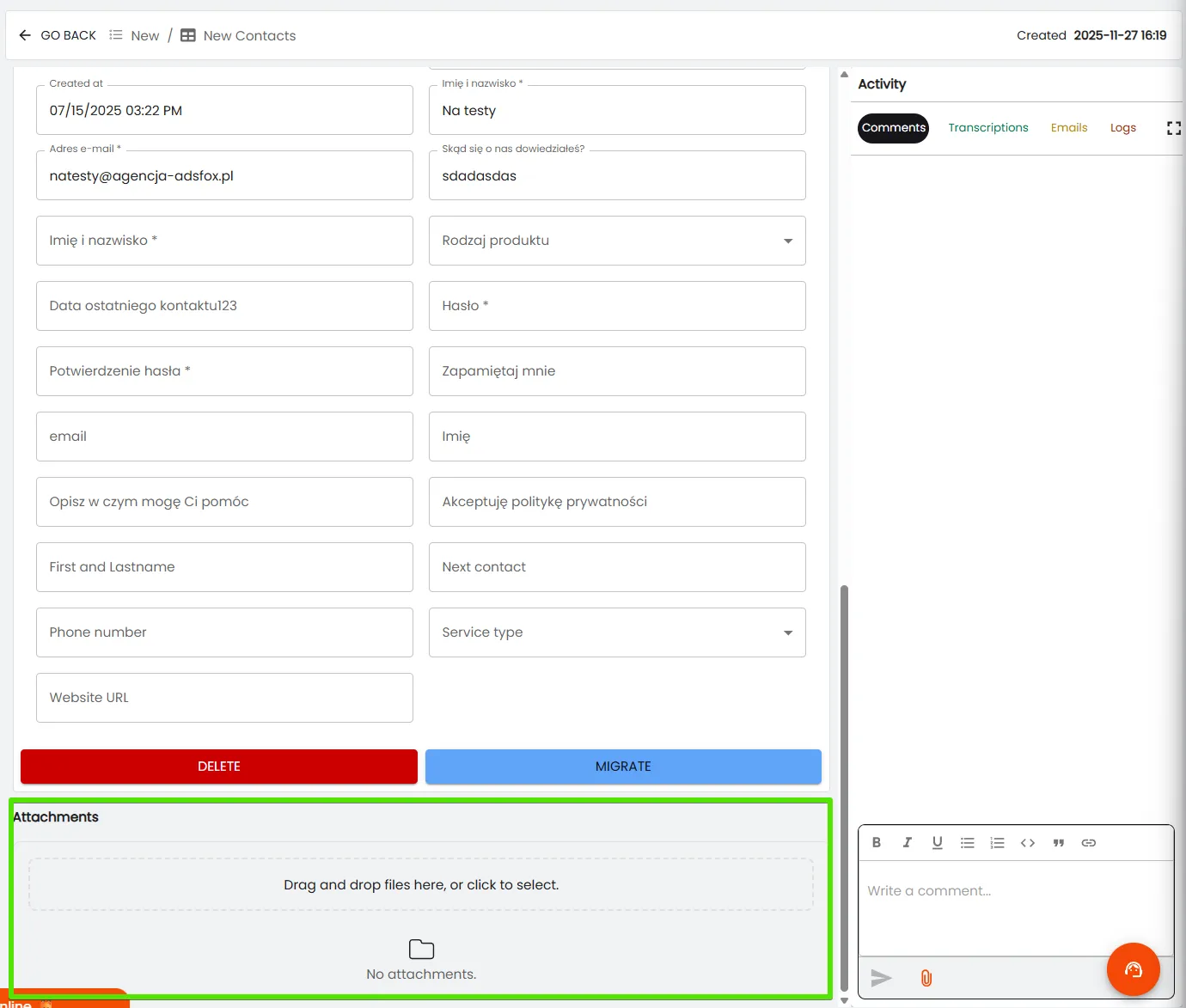
To each contact, you can attach additional materials, such as contract scans, invoices, or email conversation screenshots. Thanks to this, all information about the client is available in one organized place.
Notes and Comments
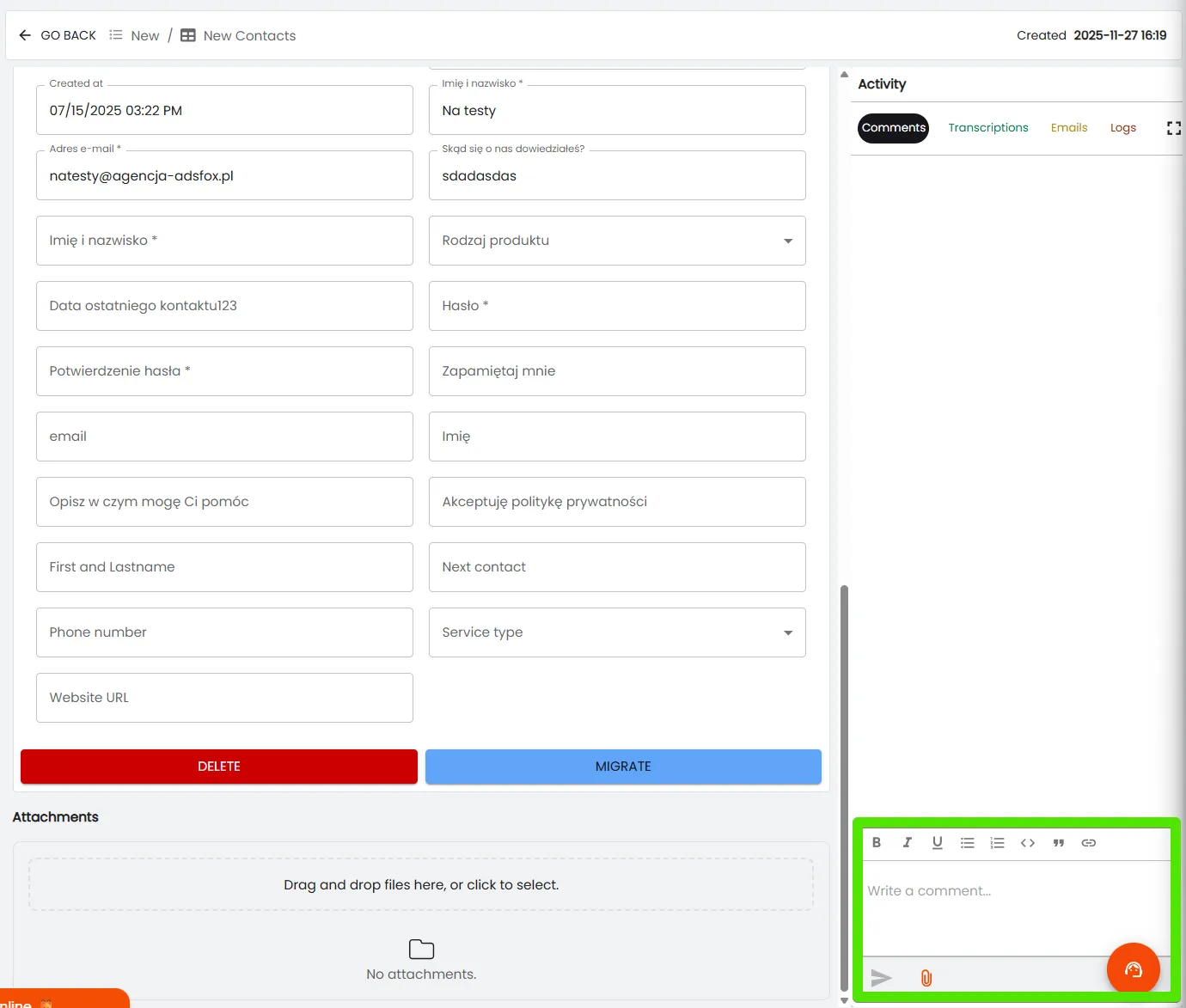
Meetings, phone conversations, and important client information can be saved as notes. In adsfox CRM, comments have a limit of 5000 characters, enabling the creation of detailed entries. Sending a note occurs after pressing the Enter key, and if the limit is exceeded, the system displays an appropriate message.
Bulk Status Change
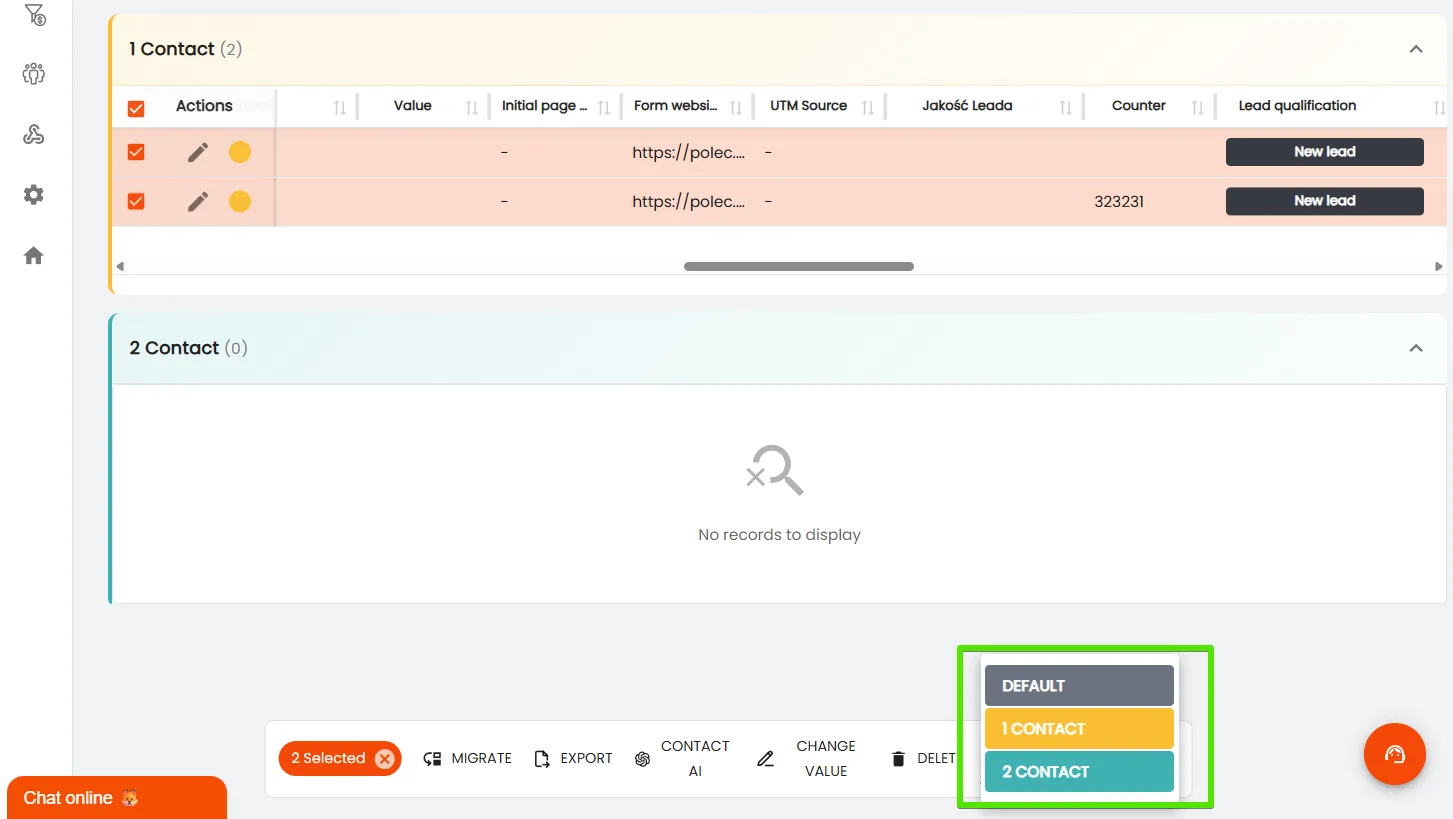
When working with large contact databases, the bulk edit function is particularly useful. It enables selecting multiple records at once and changing their status with one click, which significantly saves time when updating hundreds or thousands of leads.
What Next?
After mastering record management and working with leads in tables, the next stage is migration, export, and import of data in adsfox CRM. Thanks to these functions, you can move contacts between tables, export them to Excel files, and quickly import new data.
In the next post, we’ll show how to use these tools to even more effectively organize and process information in the system.