How to Get Your Google and Facebook Review Links
A direct review link removes the biggest obstacle to collecting reviews: the customer doesn’t have to search for you, find the right tab and figure out where to click. Here is where to find that link for Google and for Facebook.
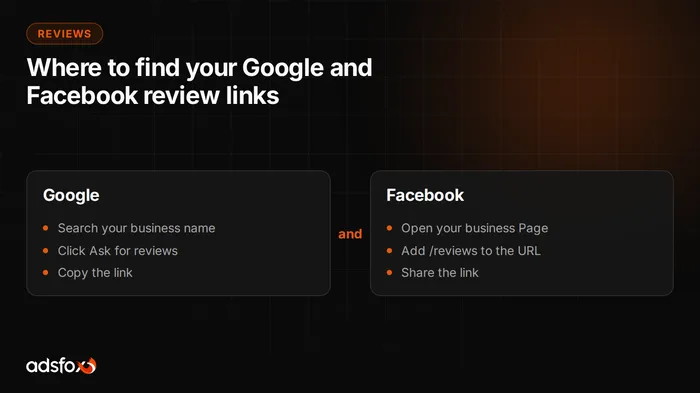
How to find your Google review link
1. Sign in to Google and search for your Business Profile
Sign in to the Google account connected to your Google Business Profile. Then go to google.com and type your business name into the search bar. The search results will show options for managing your profile.
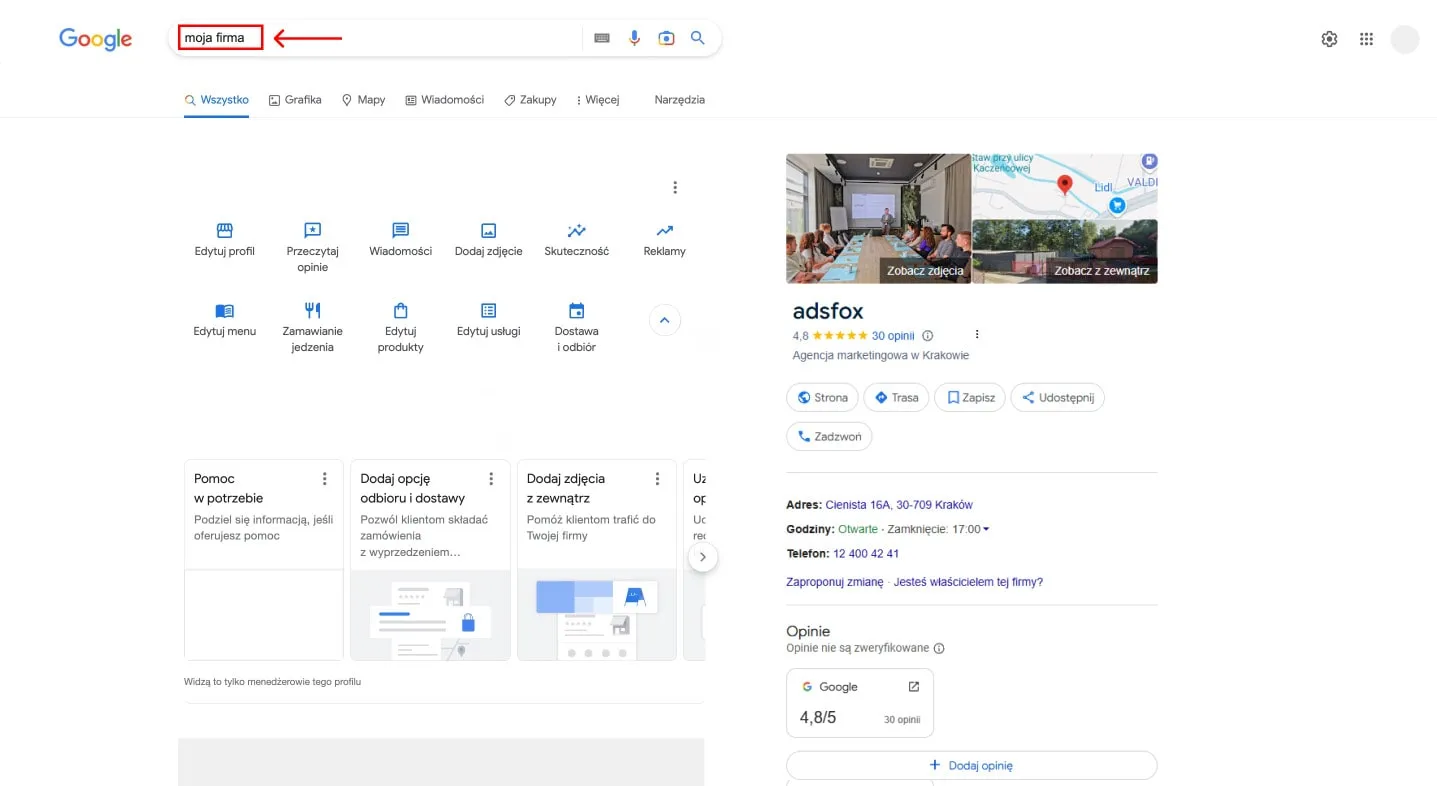
2. Go to the “Ask for reviews” section
Under your business name you will see tabs with different options. Click the arrow to expand the full menu, then go to “Ask for reviews” and click its icon.
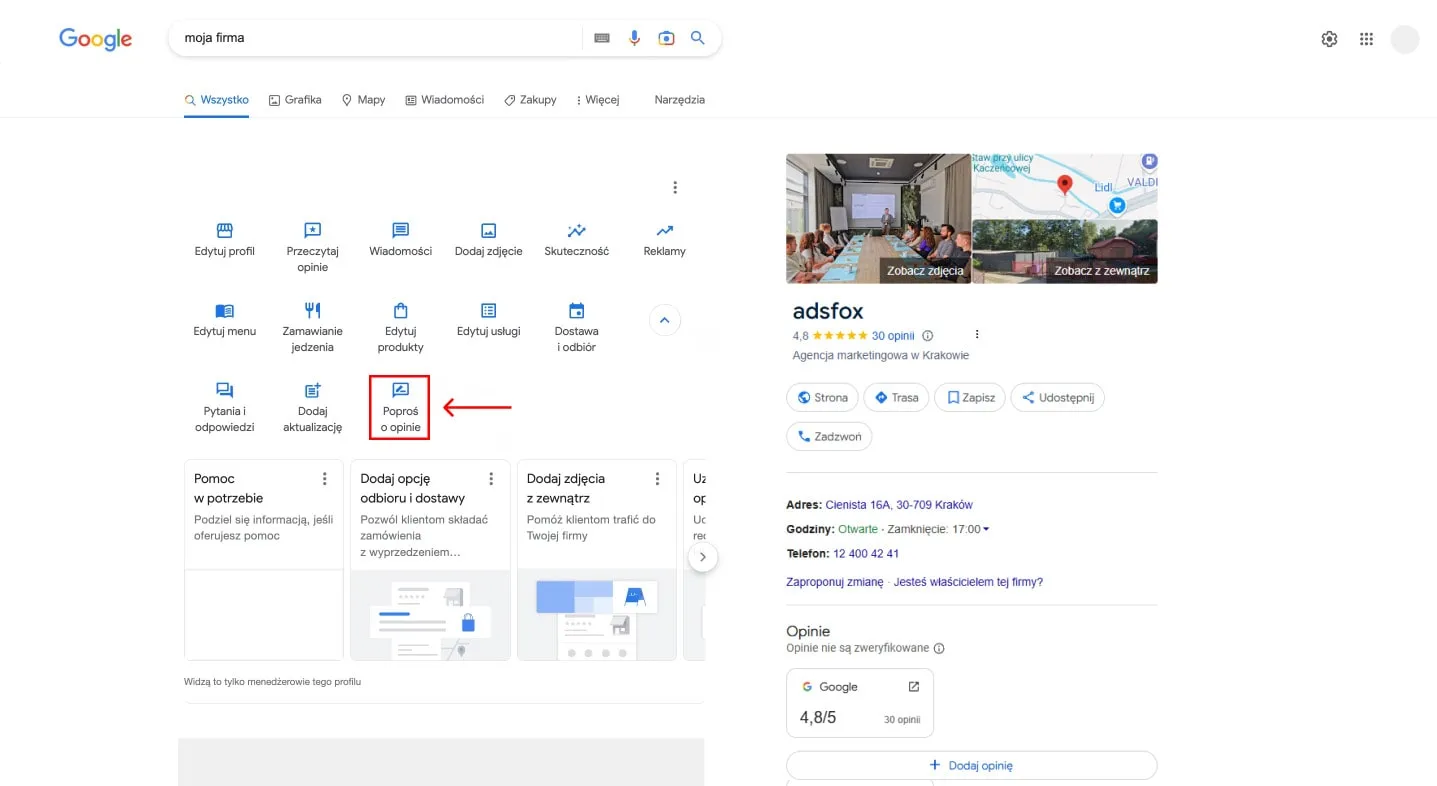
3. Copy the Google review link
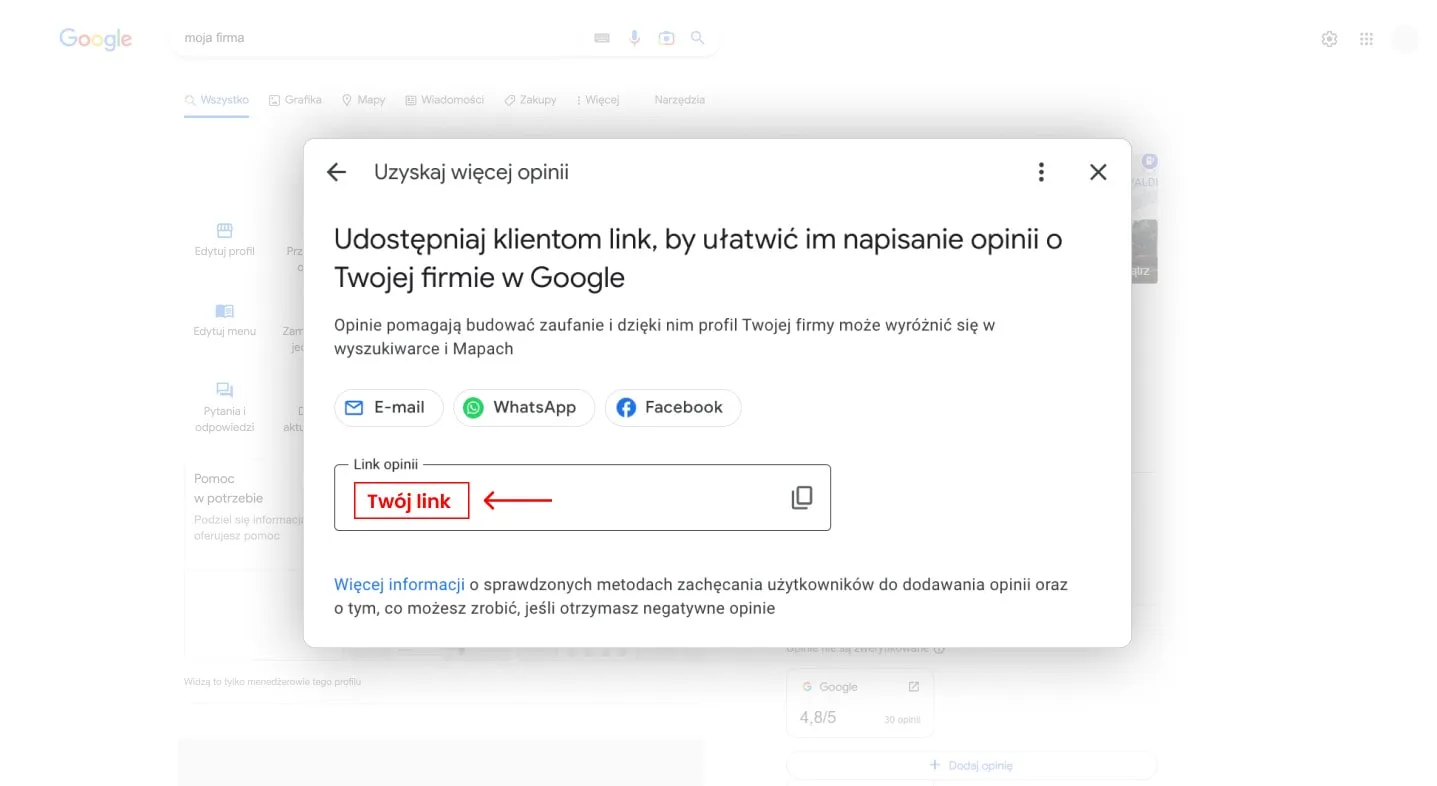
A window opens with a link that takes customers straight to the review form. Copy this link and share it with your customers.
How to find your Facebook review link
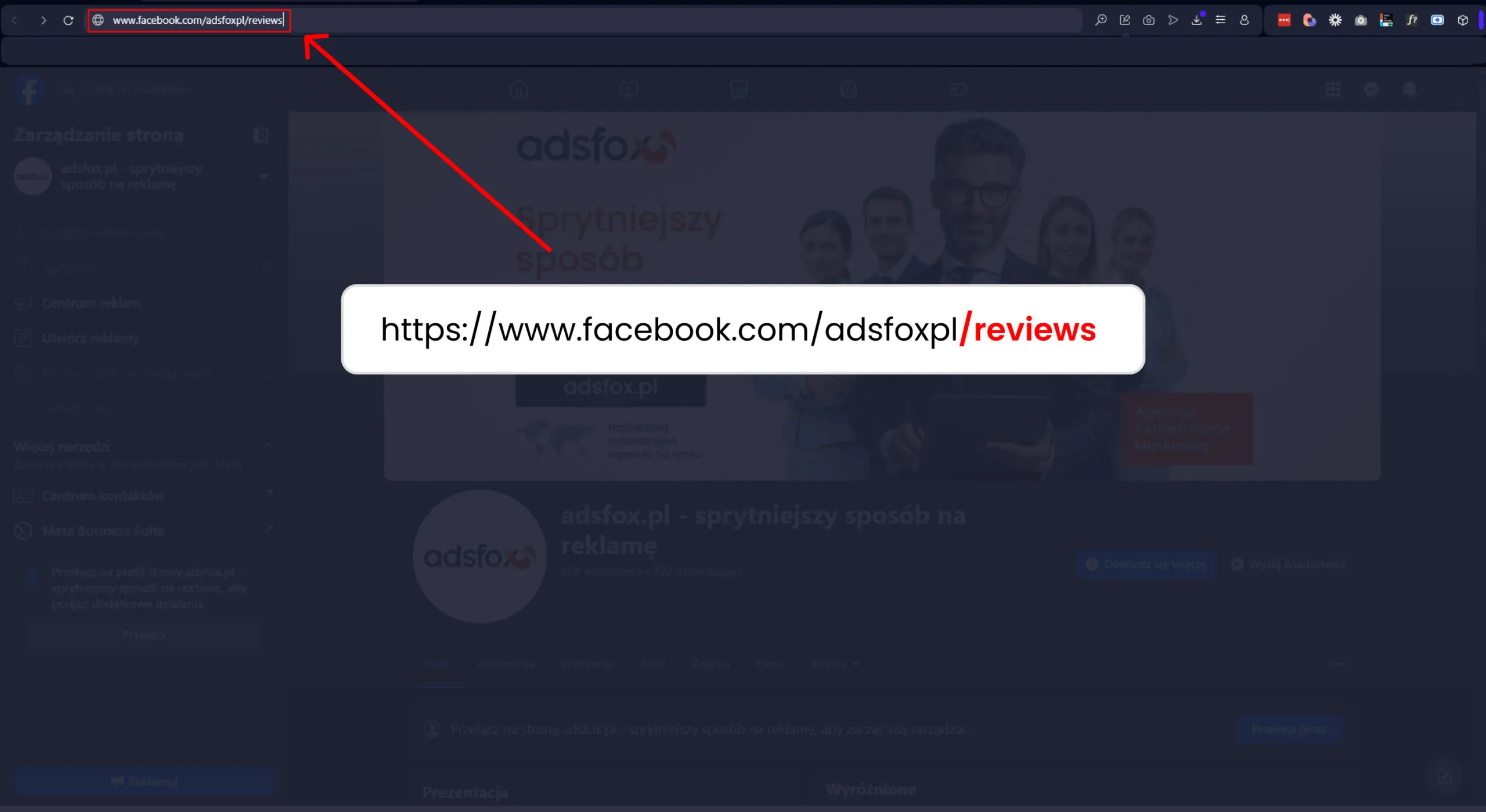
1. Open your business Page on Facebook

2. Add “reviews” to the URL right after your Page name
That gives you a direct link, for example facebook.com/yourbusiness/reviews, which you can share with customers and encourage them to leave a recommendation.
Reviews on your Google Business Profile affect more than trust. They also influence how high your business shows up in local results. If you want that profile to actually bring in customers from your area, see how we handle SEO services, including local visibility.